Range
A number the user picks on a slider, between a minimum and a maximum.
Use it for
- A rating or a satisfaction score, such as 0 to 10.
- Any question with a fixed scale where a slider is quicker than typing.
Tip
A slider hides the number until the user moves it. For a value the user knows exactly, such as an age, use Integer.
Settings
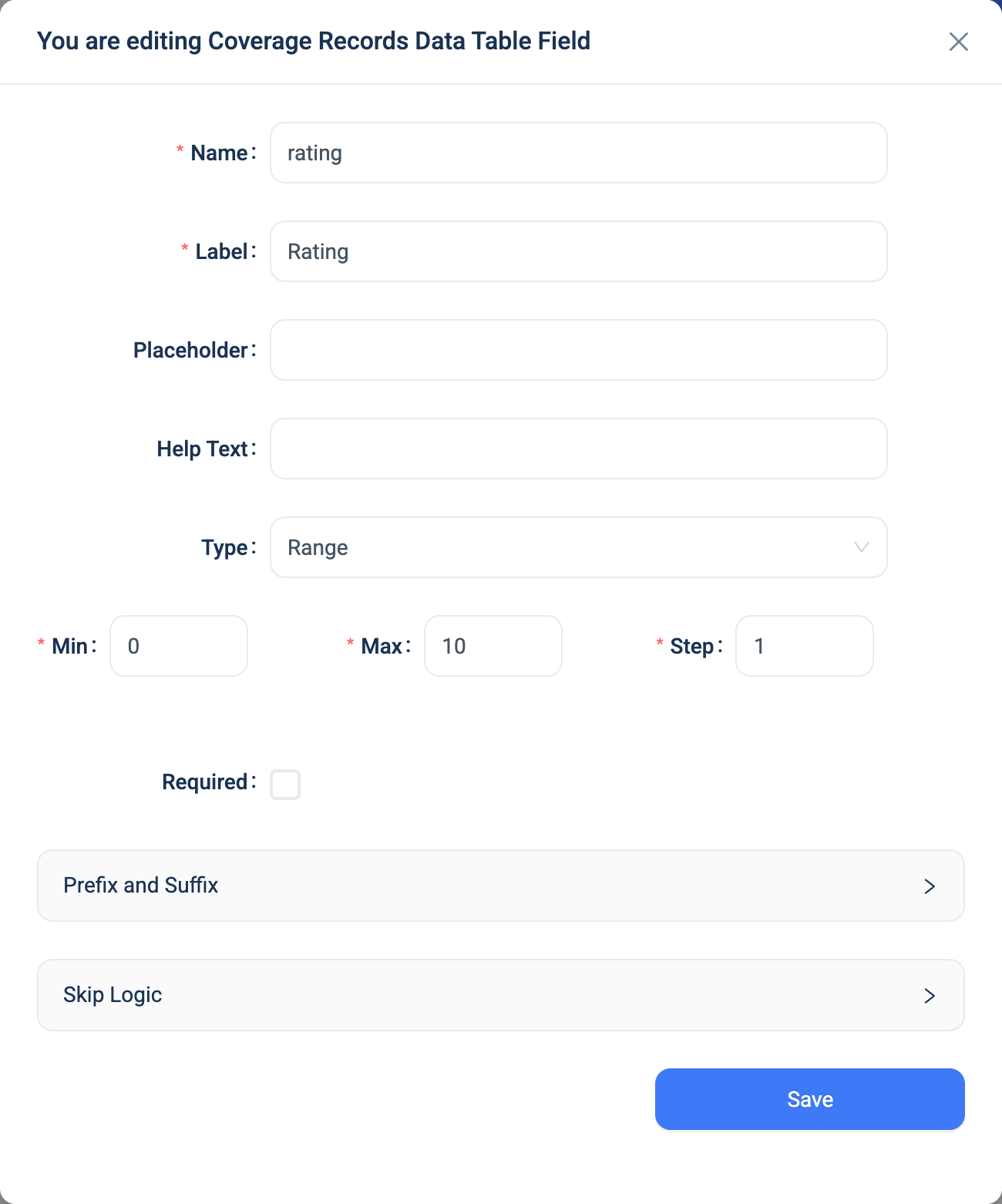
Every question has a Name, a Label, a Placeholder, Help Text, Required and Skip Logic. See Adding a question. Range adds these.
| Setting | Description |
|---|---|
| Min | The lowest value. Default 0. It cannot be below 0. |
| Max | The highest value. Default 10. |
| Step | How much the value moves per step of the slider. Default 1. Whole numbers only. |
| Prefix, Suffix | Text shown before or after the value in tables and on the record page, such as km or $. They do not appear on the form. |
Min, Max and Step are required. There is no Validation panel. The slider's own Min and Max are the limits.
Validation
Required, and the Min and Max of the slider. A value outside them, for example one sent by an import, is refused with a message such as "The number must be 10 or less".
Combinations that matter
- Skip Logic on another question can compare the value.
- A calculated field uses the number in arithmetic, and can average several ratings:
(q1 + q2 + q3) / 3. - A value of 0 counts as "not answered" in Skip Logic, as for Integer. Start a scale at 1 when 0 must count as an answer.
How it looks
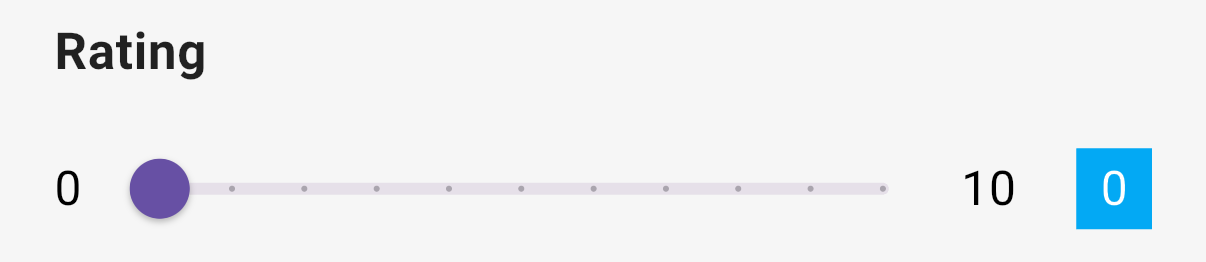
On the web the question is a slider with the minimum and maximum marked under it, and a blue tag that shows the current value. In the 3D app the slider shows the minimum and maximum at each end and the current value in a box on the right.

The question's settings, on the web:
The data
| Where | What you get |
|---|---|
| The record | The number. |
| The data table | The number with the prefix and the suffix. |
| An export | One number column. |
| A formula or Skip Logic | The number. |
Related types
- Integer for a whole number the user types.
- Select One for a scale with named steps, such as Poor, Fair and Good.
- Percent for a share of a whole.