3D App
The 3D app is how field staff collect data on a phone or tablet. It keeps the project's forms and reference data on the device, so it works without a network connection. Your submissions are saved on the device and sent to 3D when there is a connection.
The app is called Corus 3D in the Google Play Store and the Apple App Store. See Device requirements before you buy devices for a project.
Note
The app uses the words record and submission for a filled form on the device, in different places. This page uses submission for a filled form on the device, and quotes the app's own words in bold where they differ. On the server, a record is a row in a table, and a submission becomes one when it is approved. See Submissions.
Device requirements
The app runs on Android and iOS phones and tablets.
| Runs on | Recommended for new devices | |
|---|---|---|
| Android | Android 7 or later, with the Google Play Store | Android 15 or later |
| iOS | iOS 13 or later | A current iOS version |
| Memory | 4 GB of RAM or more | |
| Storage | A few gigabytes free, for photos and reference data | |
| Screen | Any size |
The recommendation is higher than the minimum on purpose. Devices bought for a project stay in use for many years, and a device on an old version of Android stops getting updates long before the project ends. Buy the most recent version you can.
The app works without a network connection. It needs one to download forms and reference data, and to send submissions. 4G is preferred, and 3G is enough. Wi-Fi also works.
Some question types need hardware:
- GPS for Geolocation questions.
- A camera for Image and Barcode questions, and to pick a record by scanning its QR code.
A device without a camera can still complete forms that do not use these types. The app also needs the Google Play Store to install, so a device without Google services cannot run it.
Before you go to the field
Do these while you have a connection.
- Sign in.
- Pick the project.
- Wait for the Continue button on the Setting up screen.
- Refresh any form that shows a star.
- Check that every form you need shows a green tick.
Without a connection you can still open forms and save submissions, but you cannot sign in as a new user, download or refresh forms, or send. See Working offline.
Signing in
Your project administrator creates your account, and 3D emails you a link to set your password. Set it before you open the app. See Users.
Open the app, enter your Email or username and your Password, and tap Sign In. You need a 3D account with a role in at least one project.
The app remembers the accounts that have signed in on the device. Start typing an email to pick one.
The app has no password reset. To reset a forgotten password, use Reset Password on the web login page, or ask your administrator. See Forgotten passwords.
Log out is on your User Profile under Settings. Logging out does not delete your submissions. Submissions belong to the device, not to the account. Anyone who signs in on the phone sees the submissions on it, so share a phone only with a colleague you trust with your data.
Initial Setup
On the first sign-in, the Initial Setup asks three questions.
| Step | What to choose |
|---|---|
| Select Language | The language of the app. Forms follow it. See Languages and Translations. |
| Form Submission Behaviour | What happens when you finish a form. See Saving and sending. Choose Show popup with choices until you know which you prefer. |
| Select Project | The project to work in. This step appears only when you have more than one. |
You can change all three later in Settings.
The four tabs
| Tab | What it holds |
|---|---|
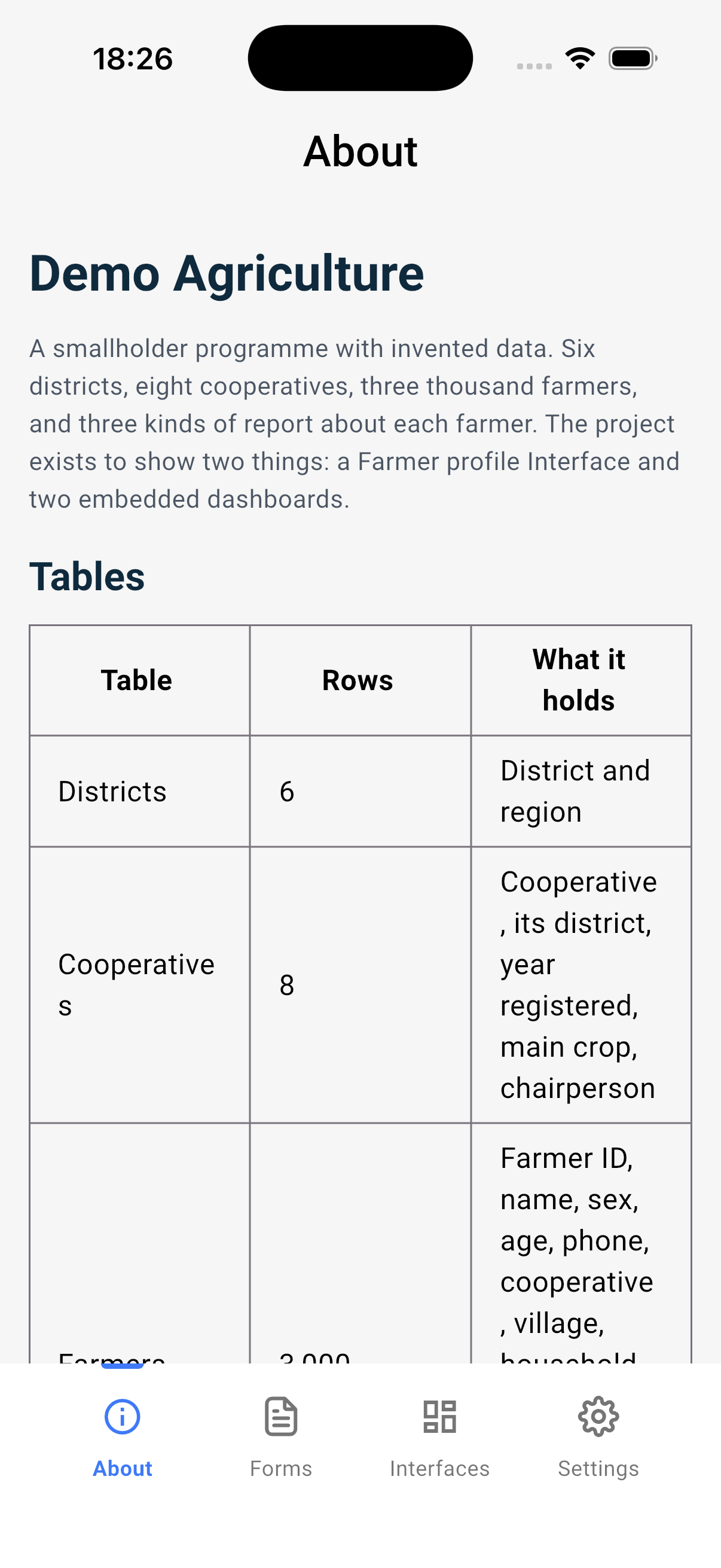
| About | The project's About page, as written on the web. See Projects. |
| Forms | The project's forms, and your submissions for each one. |
| Interfaces | The project's published Interfaces. See Interfaces in the app. |
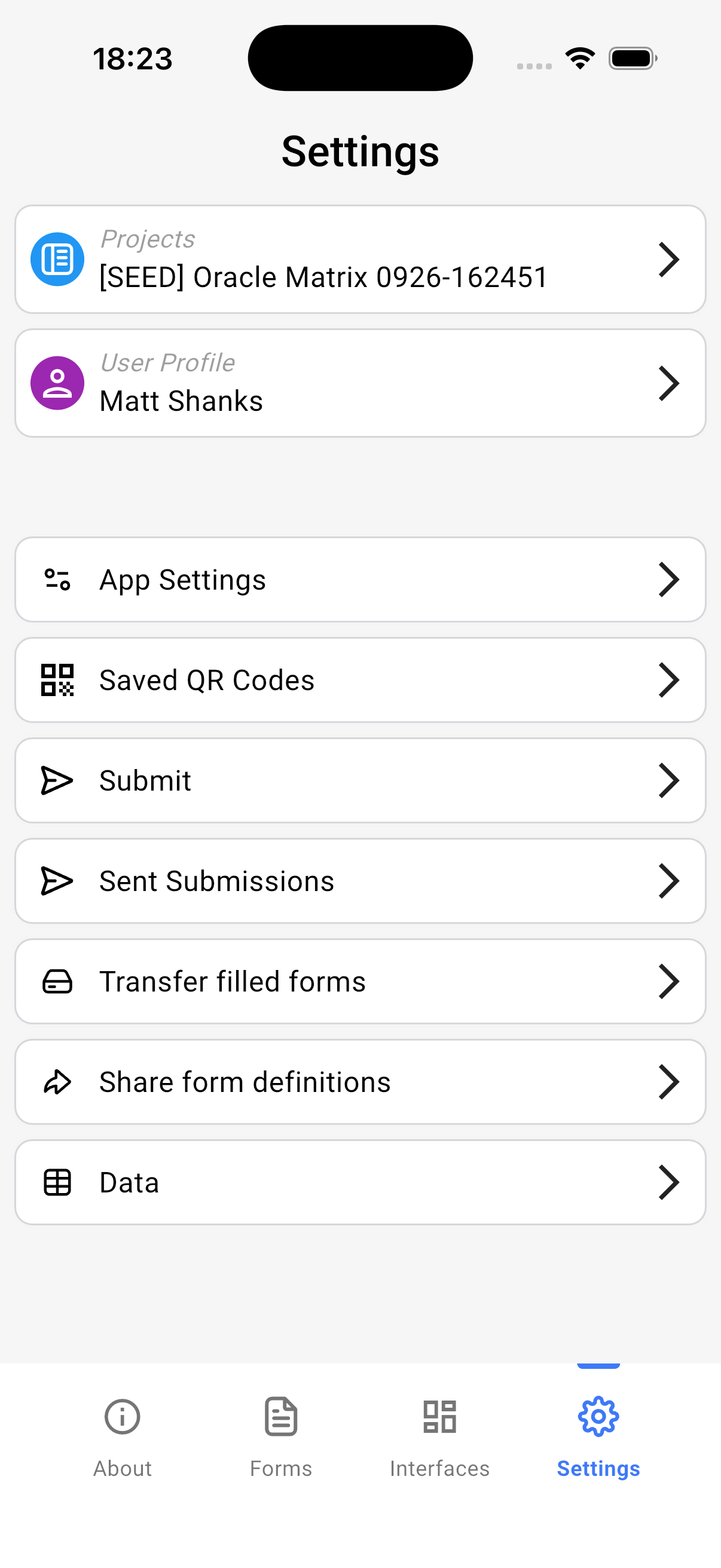
| Settings | Projects, your profile, app settings, sent submissions, transfer and backup, and the downloaded tables. |
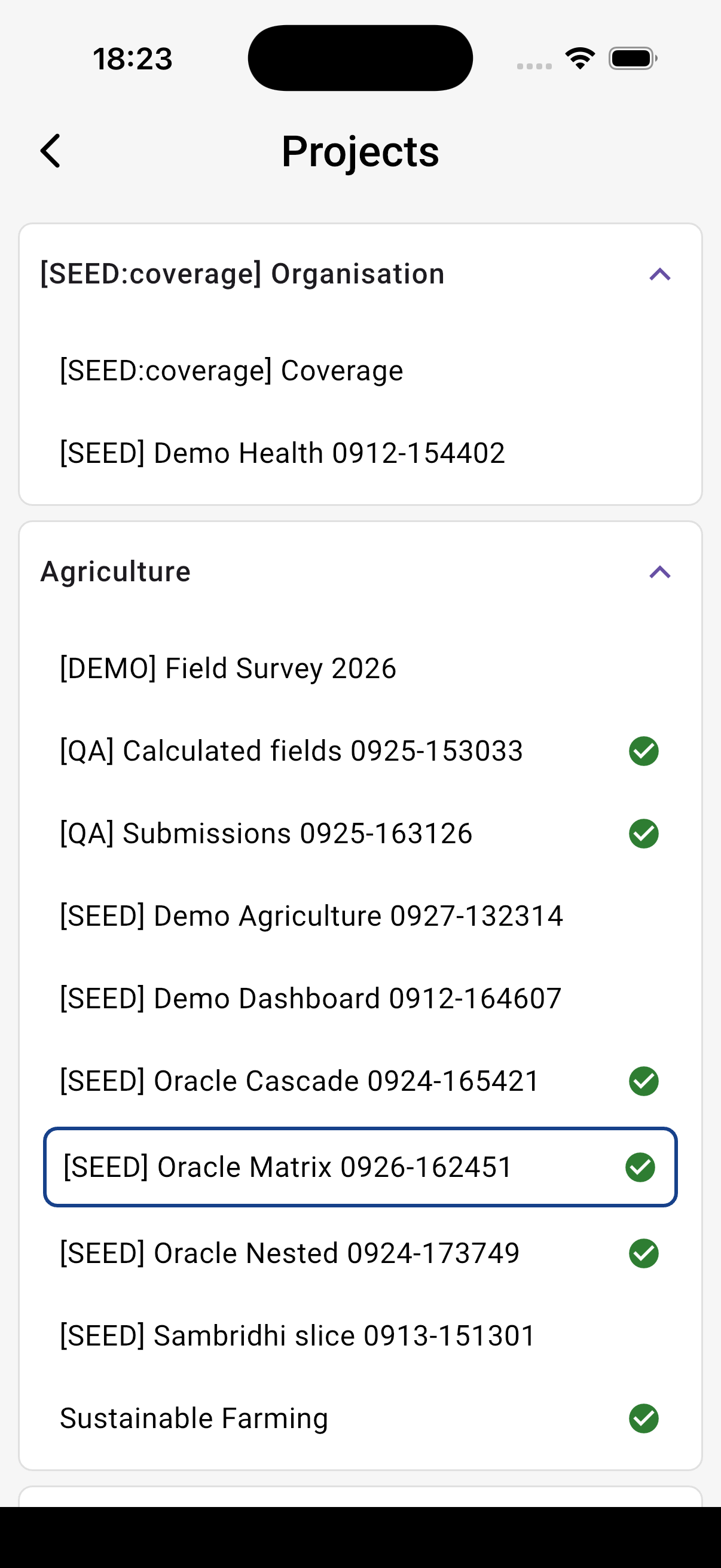
The Settings tab has Projects, which lists every project you belong to, grouped by Organisation. Tap a project to switch to it.
Downloading and syncing
The app downloads the project on its own. When you pick a project, the Setting up screen shows the download of the forms, the reference tables, the Interfaces and the About page. You can leave the screen. The forms become available as their data arrives. When the download is complete, the screen shows a one-line summary and a Continue button. The download is good when the summary shows 0 failed. Receipts are the server's answers to the submissions you sent.
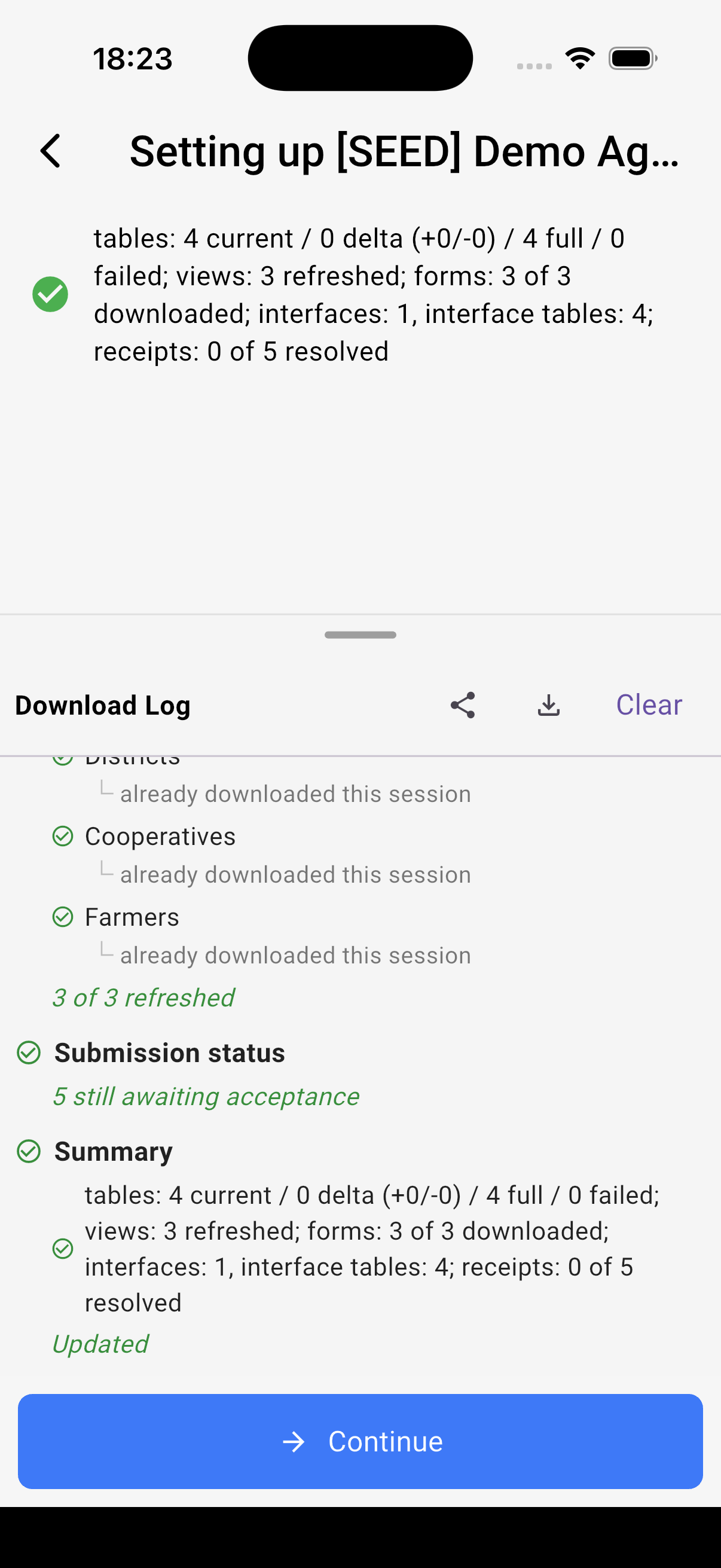
After that, the app syncs when it opens and at the interval you set. To sync by hand, pull down on the Forms, Interfaces or Sent Submissions list. A spinner in the title bar shows while a sync runs. Tap it for the Sync status screen, which shows the current step or the result of the last sync.
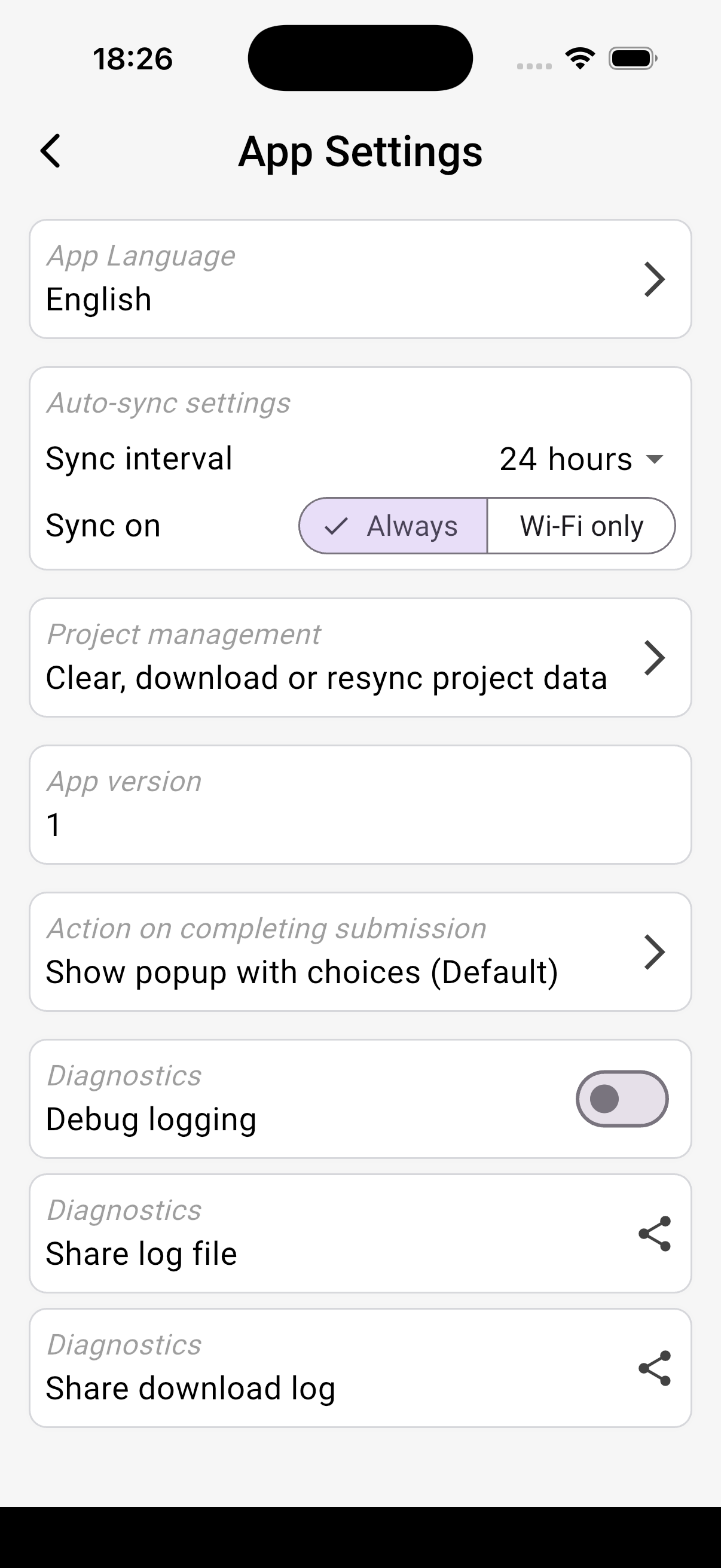
Open Settings, then App Settings, then Auto-sync settings. It has two options.
- Sync interval: Off, 1 hour, 2 hours, 4 hours or 24 hours.
- Sync on: Always, or Wi-Fi only. With Wi-Fi only, the app asks before it uses mobile data for a sync.
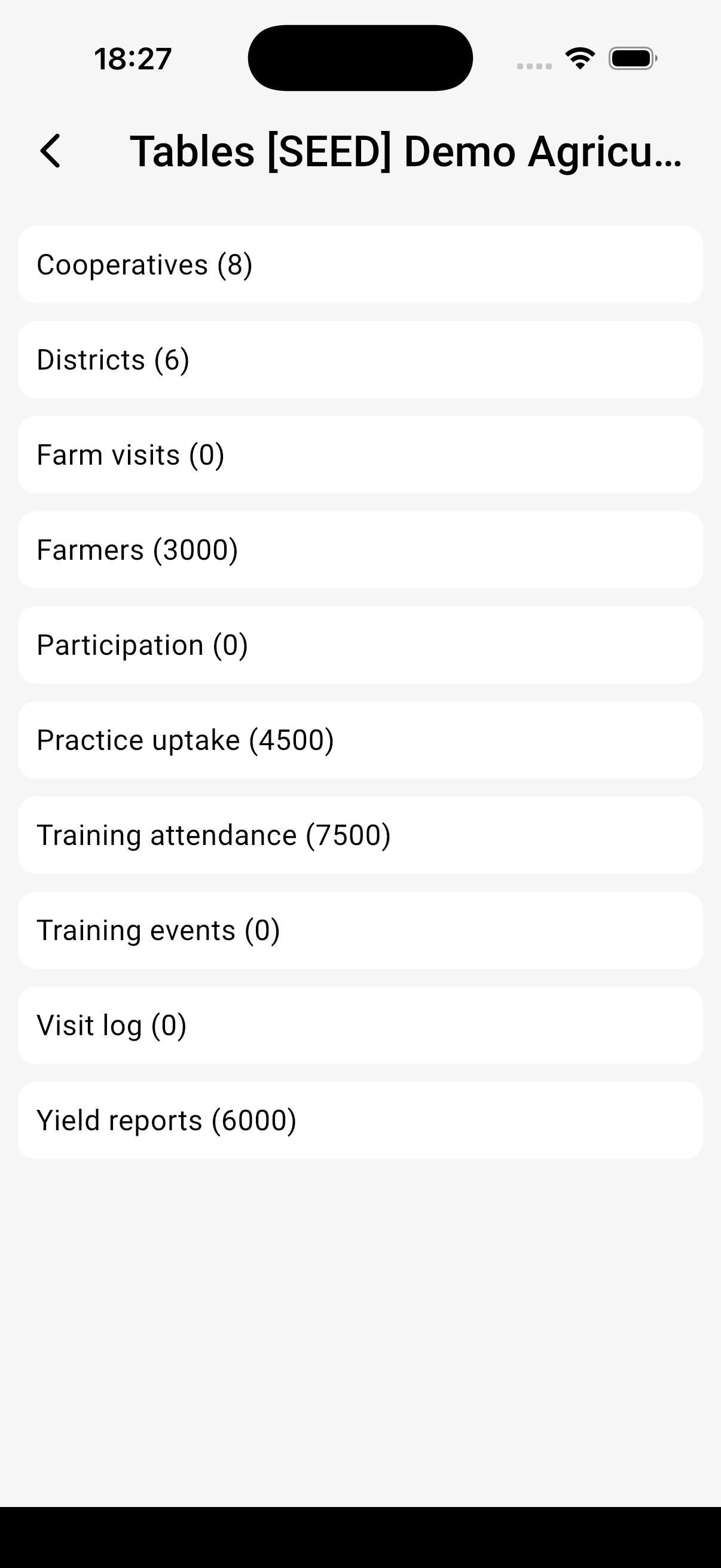
The reference tables are usually the largest part of a download. Open Settings, then Data, to see the tables on the device and how many records each one holds.
Project management, on the App Settings page, has Sync now, Force full download, and Clear all. Clear all deletes the downloaded data and forms, so they download again. It never deletes your own submissions.
The Forms tab
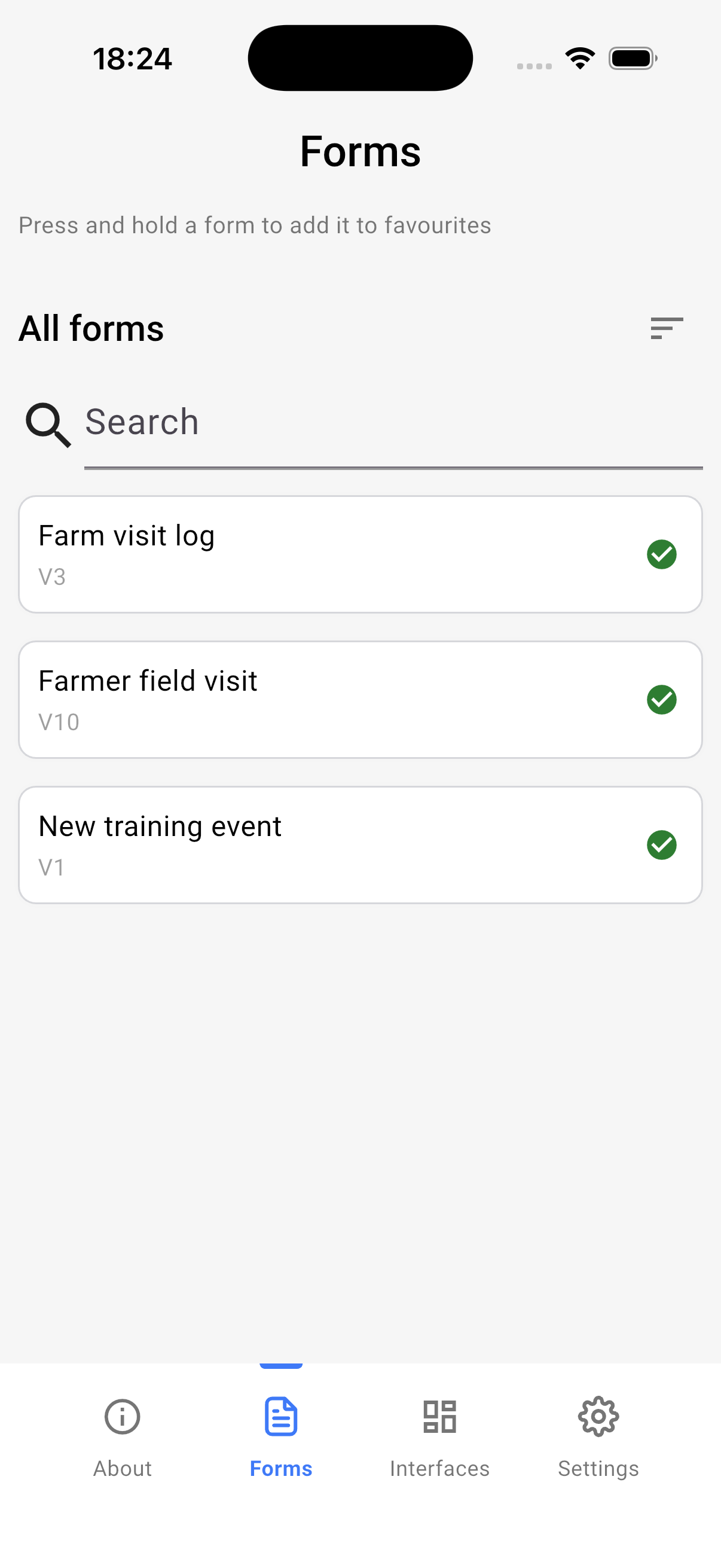
The tab lists the project's forms under Favourites and All forms. Search, or sort by name or by recent use. Press and hold a form for a menu: add it to favourites, Refresh form, Share form definition, or Submit to the server for its finished submissions.
Each form shows a badge for its state on the device.
| Badge | Meaning |
|---|---|
| Green tick | Ready to use. |
| Hourglass | Waiting to download. |
| Cloud | Downloading. The form does not open until the download completes. |
| Star | A newer version exists on the server. Press and hold the form and tap Refresh form. |
| Padlock | The form is closed. You can view and edit existing submissions, but not add new ones. |
| Red cross | The form was removed on the server. Tap to remove it from the device. |
| Red warning | The form could not be downloaded. Tap for details. |
| Green warning | The form could not be updated. The app keeps using the copy it has. |
The number under a form, such as V3, is the version of the form on the device. You do not need to compare it with anything. The star badge tells you when a newer version exists.
A form that is not yet published on the web does not appear in the app. See Form settings.
Completing a form
Tap a form to open its submissions screen, then tap Start new form.
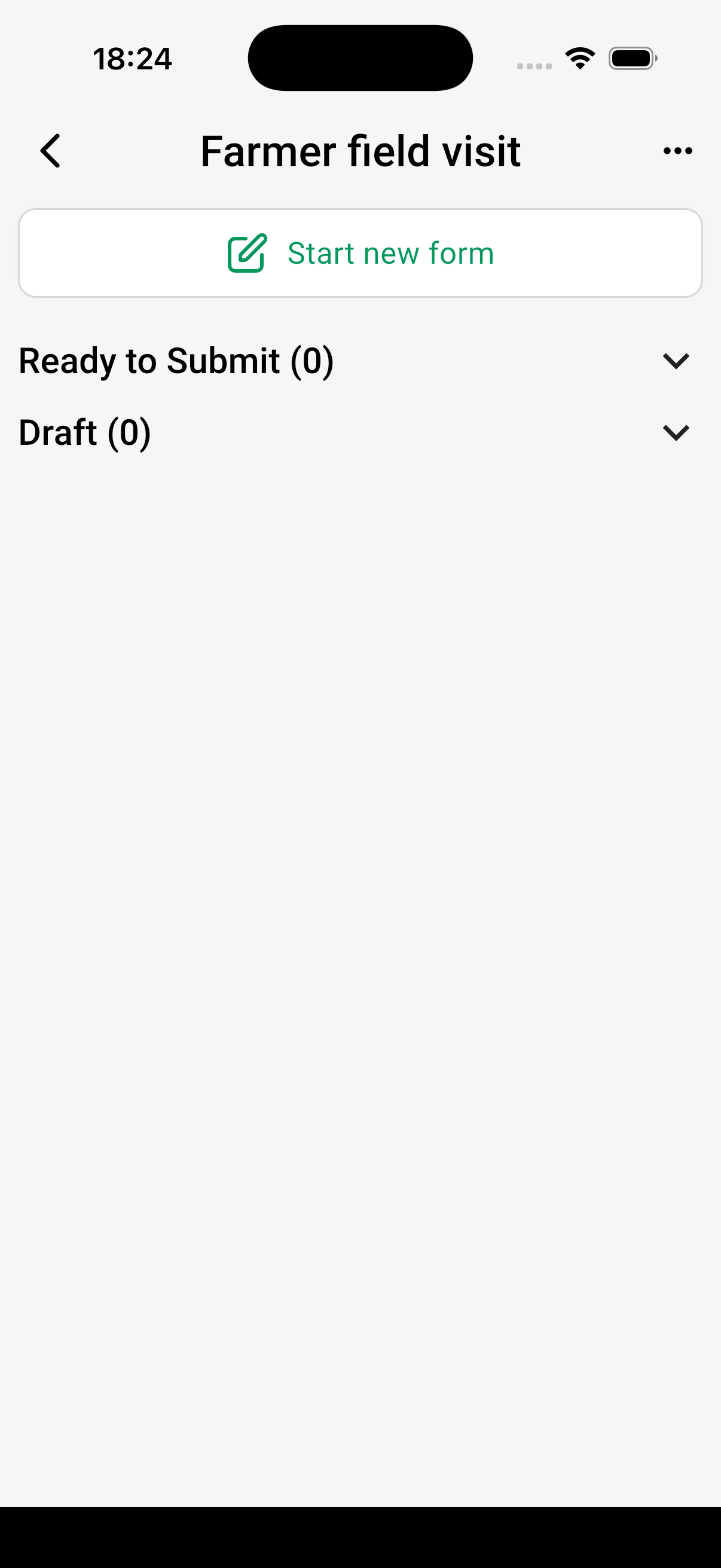
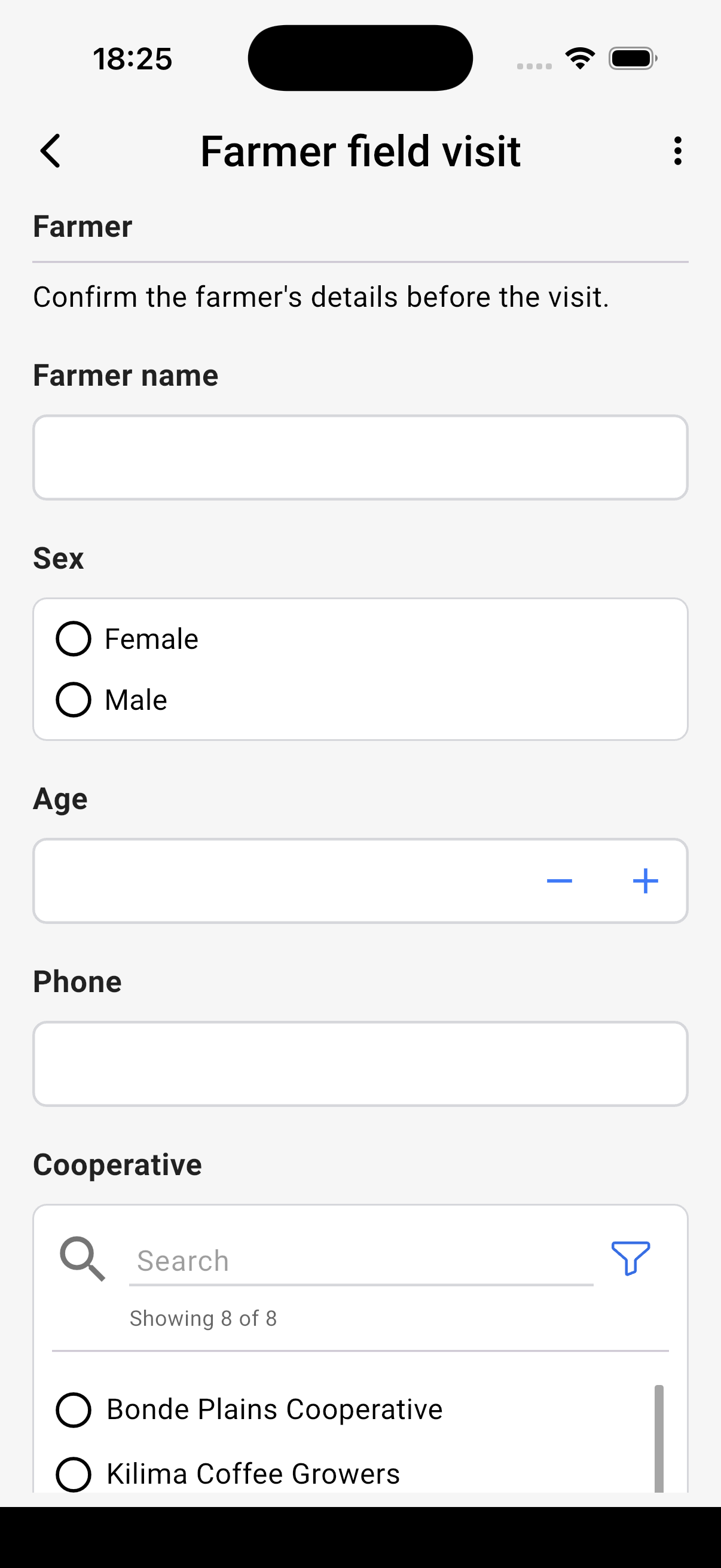
The questions appear on one scrolling page. Answer them in any order. A calculated field fills itself in as you answer. A question with skip logic appears when its condition is true.
A question that fails its rule shows a red box titled Please correct. Every problem is also listed under Please fix the following issue(s) to submit, each with a Fix button. The finish button does not appear until you fix them all, and it does not appear on a form you have not started to answer. An orange box titled Not checked yet is a warning. It does not stop you.
| Question type | What you do |
|---|---|
| Relation | Pick a record from a searchable list, with a filter button. If the form allows it, scan the record's QR code instead. |
| Cascading Select | Pick from each level in turn. A level waits for the one above it. |
| GeoLocation | Tap Get my location. The app reads the GPS and shows the latitude, longitude and accuracy. |
| Image | Tap Take a photo and use the camera. |
| BarCode | Tap Scan QR/Barcode and point the camera at the code. |
| Nested Form | Tap Add Submission for each entry. Each entry can be duplicated or deleted. A red box with 0/1 required provided means the form needs at least that many entries. |
| Matrix | Tap Add row for each row. The same required count applies. |
GeoArea questions are not supported in the app. See Input Types.
Saving and sending
At the bottom of the form are the save buttons.
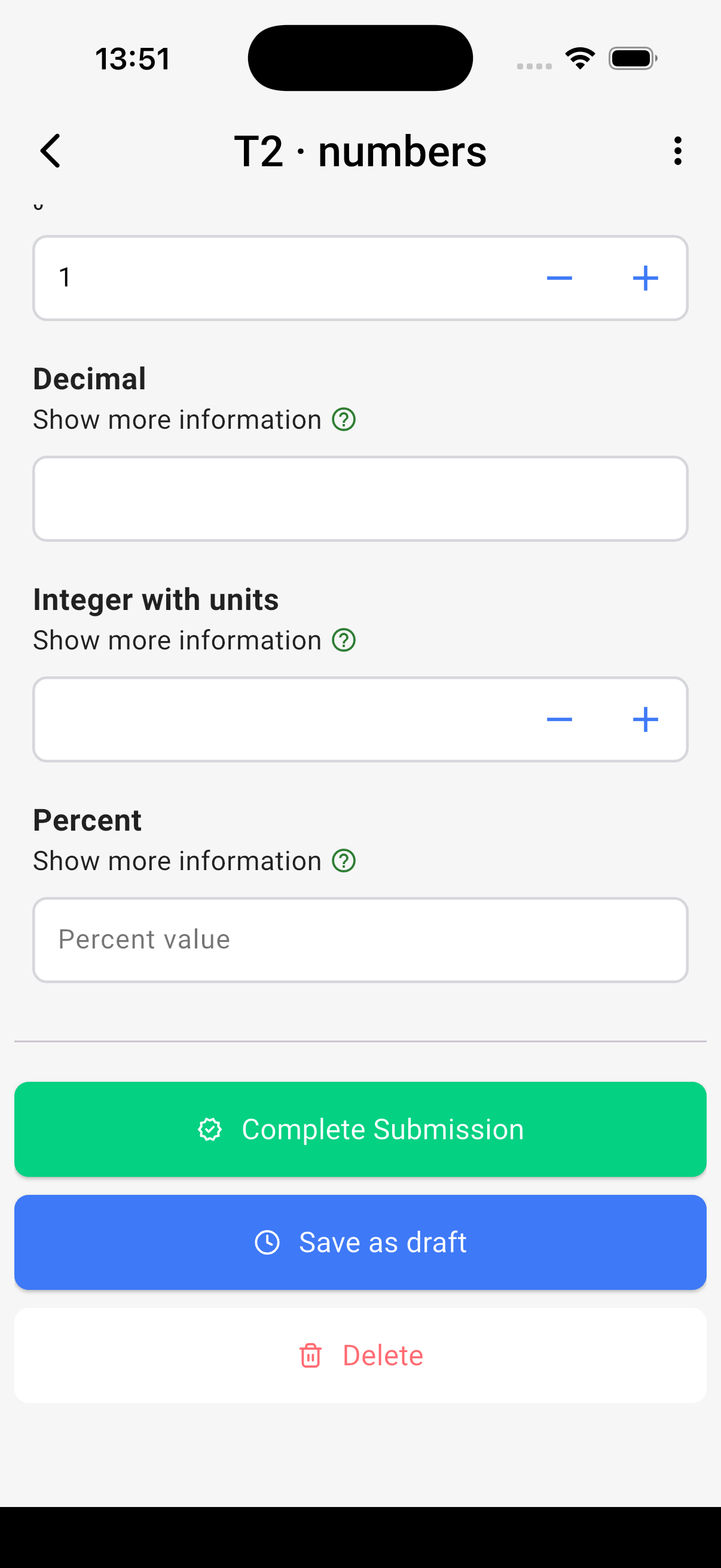
- Save as draft keeps an unfinished submission on the device. Open it later from the Draft group.
- Delete discards it.
- The finish button appears once you have answered at least one question and every problem is fixed. It depends on the Form Submission Behaviour setting, called Action on completing submission in App Settings.
| Setting | Finish button |
|---|---|
| Show popup with choices | Complete Submission. The app asks whether to Send to server or Save without sending. |
| Always send to server | Send to server. The submission is sent at once. Without a connection, the app shows No internet connection and keeps it in Ready to Submit. Send it later. |
| Always save locally | Save as finalized. The submission waits in Ready to Submit. |
If you leave a form part way, the app asks whether to Save changes or Discard submission.
The submissions screen
Below Start new form, the form's submissions are grouped. The app calls them records here.
| Group | Meaning |
|---|---|
| Ready to Submit | Finished submissions that have not been sent. |
| Waiting on dependencies | Finished submissions that link to another submission on this device that is not sent yet. Use Submit to the server and tick both, or send all from Settings. The app sends the linked one first. |
| Draft | Submissions that are not finished. Tap one to continue. |
A finished submission opens read-only. To send, open the menu at the top right, tap Submit to the server, tick the submissions, and tap Submit. Or open Settings, then Submit, to send every ready submission in every form.
The app reports each one: Sent, Sent — awaiting review, or Already on the server — not sent again.
When a submission will not send
| What you see | Cause | What to do |
|---|---|---|
| No internet connection | No network. | The submission is safe in Ready to Submit. Send it when you have a connection. See Working offline. |
| Upload failed or Failed to send | The connection dropped during the send. | The submission stays in Ready to Submit. Try again later. |
| The app asks about mobile data | Sync on is set to Wi-Fi only. | Tap Use mobile data, or wait for Wi-Fi. See Downloading and syncing. |
| The form shows a star | The form changed on the server. | Refresh the form, then send again. See Updates. |
| The submission came back to Draft with a red box | The server refused it. | Correct it, finish it and send again. See Submissions the server refuses. |
| The submission is under Waiting on dependencies | It links to another unsent submission. | Send both together. See The submissions screen. |
| Your session has ended. Please sign in again. | The server no longer accepts your login. | Sign in again, then send. Your submissions are safe on the device. |
See Troubleshooting for every message.
Submissions the server refuses
The server can refuse a submission before it accepts it, or a reviewer can reject it after. A refused submission comes back to you. A rejected one does not.
If the server refuses a submission, for example because an answer fails a rule that the app could not check, the submission goes back to Draft with the reason. Open it, and the reason appears in a red box at the top. Correct it, finish it, and send it again.
Sent Submissions
Open Settings, then Sent Submissions, for every submission the device has sent, by project and form, with the server's decision. A receipt is the server's answer to one sent submission.
| What the app shows | Meaning | On the web |
|---|---|---|
| Sent — awaiting review, Waiting for acceptance, a receipt that is not resolved | A reviewer has not decided yet. | Pending |
| Accepted | A reviewer approved it. It is now a record in the table. | Approved |
| Rejected | A reviewer refused it. | Rejected |
| Refused by the server | It failed a check before the server accepted it. It is back in Draft. | Not on the web |
A sent submission can be viewed and exported, but not edited. The app cannot re-open or copy a rejected submission, and it does not yet show the reviewer's reason. To send the data again, complete a new form. A user with the Manage Data permission can change an accepted record on the web. See Records.
Working offline
Everything you need in the field works without a connection: opening forms, answering, saving drafts, finishing submissions, Interfaces, the About page, and your Sent Submissions list. Submissions wait in Ready to Submit until you send them.
You cannot download or refresh forms, or send submissions, without a connection. A sync that loses the connection stops, and continues when the network is back. The app tells you when it is offline, with Pull down to retry on the lists.
A session ends only when the app talks to the server. Offline, your session does not end, and your forms and submissions stay open to you.
Interfaces in the app
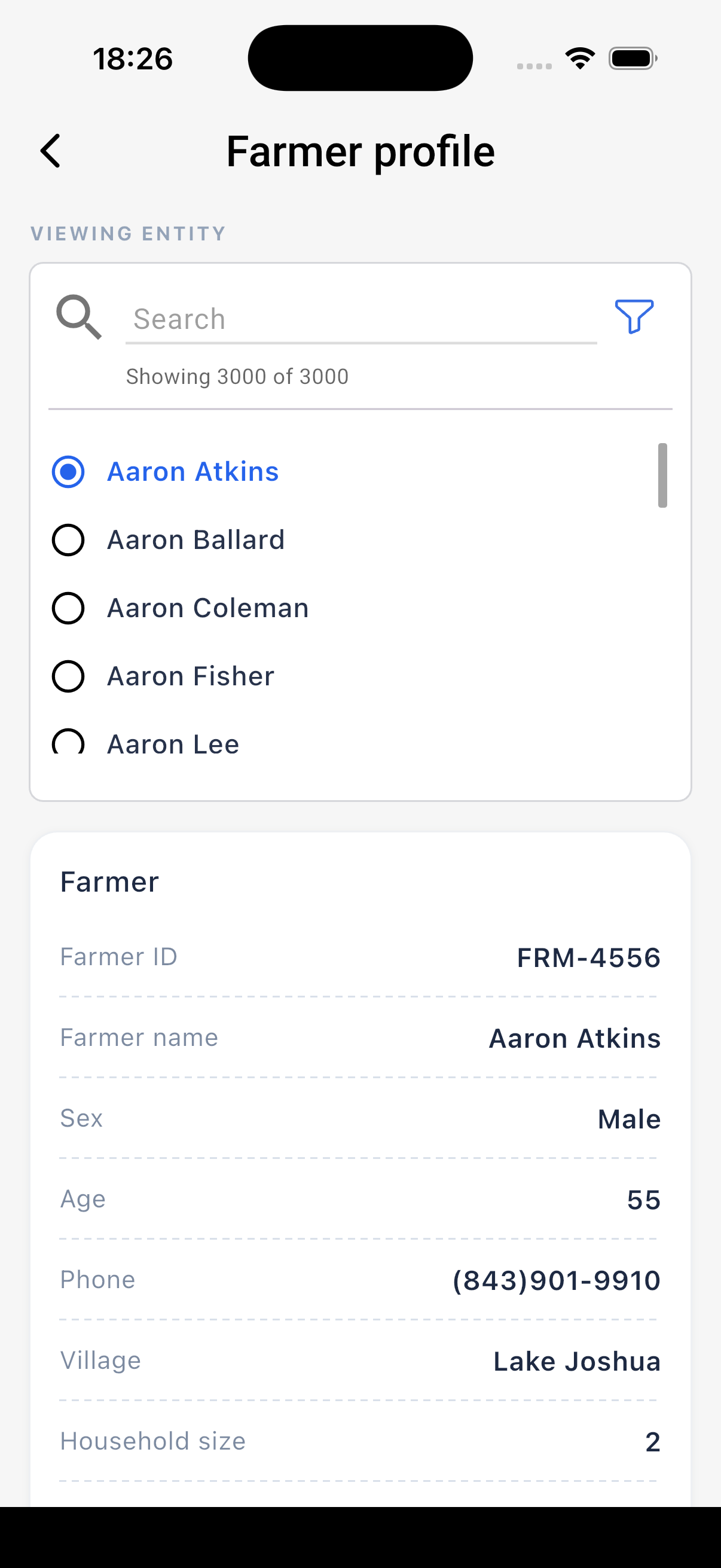
The Interfaces tab lists the project's published Interfaces under Favourites and All interfaces. Open one, then pick the record to look at under Viewing entity. Search, or tap the filter icon to filter by any field. The sections show the record's details and lists of its linked records, ten per page. View on a list row opens that record.
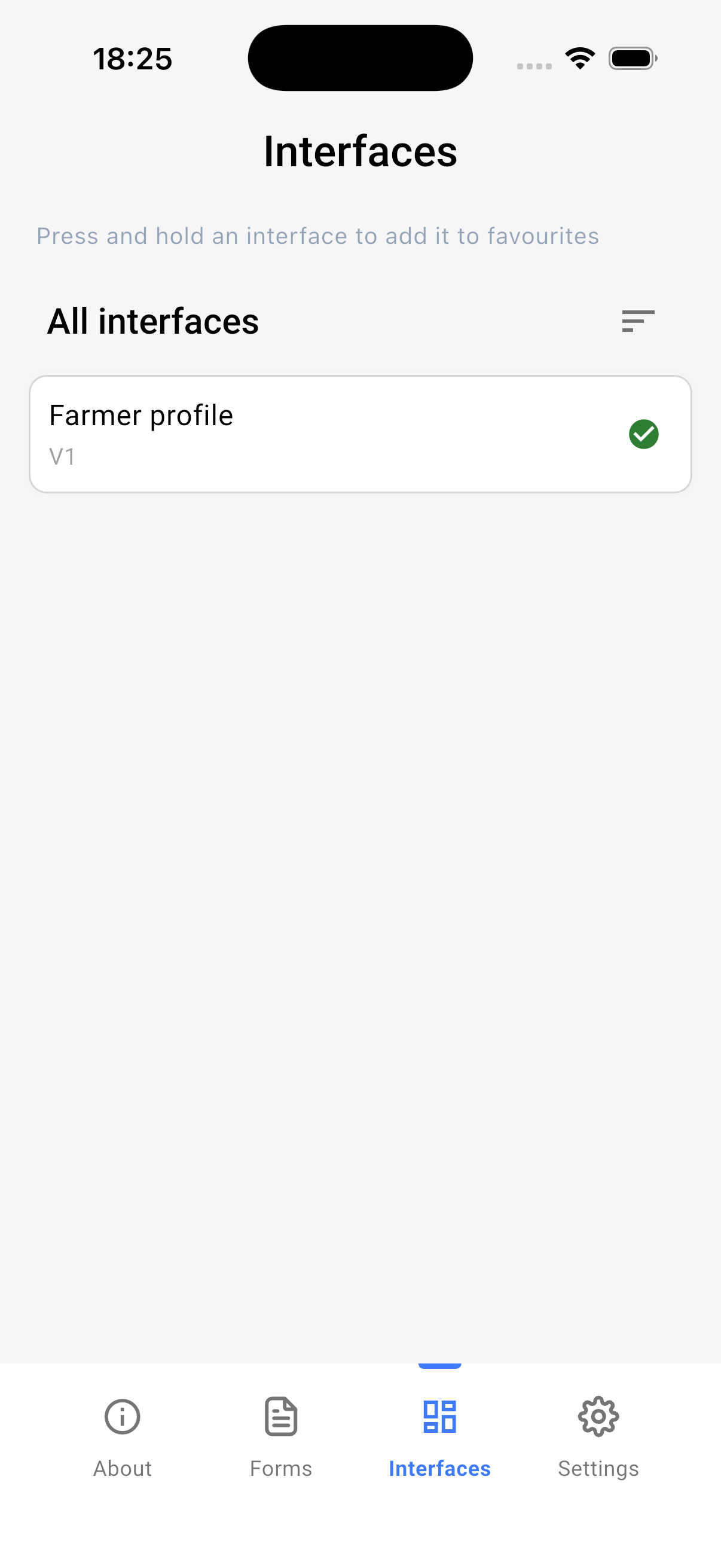
A record on a table with QR codes has a QR icon. Tap it to show the record's QR code, which another user can scan into a Relation question to pick that record. See Interfaces.
QR codes
When a form has QR codes turned on, the server returns a QR code for each submission you send. The app shows it after the send and keeps it under Settings, then Saved QR Codes. Print it or show it on screen. Scanning it into a Relation question on another form picks that record. Scanning it with any QR reader opens the record's public page in a browser.
Transfer and backup
Open Settings, then Transfer filled forms. It has two sections.
- Submission Transfer. Export makes a zip file with the chosen forms and their submissions, and opens the share sheet. Import loads such a file on another device. Use it to move submissions from a device that cannot send them, or to hand a device's work to a colleague. The submissions screen has the same Export submissions and Import submissions in its menu.
- Application Backup. Backup database writes the whole app database to a folder you choose. Restore database loads a backup. Restore adds to what is on the device and replaces records with the same id. It does not ask for confirmation.
Open Settings, then Share form definitions, to send one zip per form, with the blank form only. Another device loads it with Import.
App language
Open Settings, then App Settings, then App Language, to change the language of the app. Forms follow it, using the translations entered on the web. A label with no translation appears in English. See Languages and Translations.
Updates
The app checks for a new version when it opens. When one exists, it asks you to update, and you must update before you continue. Update from the store.
A form updated on the web shows a star badge in the app. Refresh it before you collect more data. Submissions made with an old version of a form are refused by the server until the form is refreshed. Your drafts and unsent submissions stay on the device when you refresh a form. Open each draft once to check it, then finish and send it.
Messages you may see
The most common messages are below. See Troubleshooting for the full list.
| Message | What to do |
|---|---|
| Email or password incorrect | Check the email and password. To reset the password, use Reset Password on the web login page, or ask your administrator. |
| Failed to login, please check your internet connection | Connect to a network and try again. |
| Your session has ended. Please sign in again. | Sign in again. Your submissions are safe on the device. |
| No internet connection | The submission is safe in Ready to Submit. Send it when you have a connection. |
| Upload failed | The submission stays in Ready to Submit. Try again later. |
| No network connection. The sync continues when the network is back | Nothing. The sync resumes on its own. |
| Some project data failed to download | Open Sync status for the detail, then sync again. |
| This form is outdated, please download latest form. | Press and hold the form and tap Refresh form, then send again. |
| Refused by the server | The submission is back in Draft with the reason. Correct it and send again. |
| Activate the location service on your phone please | Turn on location services in the phone's settings. |
| This application is not allowed to use the location service | Allow the app to use location in the phone's settings. |
| Calculate error: formula | A calculated field's formula does not work on this form. Tell the form's builder. |
| The attached file is missing from this device | The photo or file was deleted from the device. Take it again. |