Users
A user is a person with a 3D login. A user belongs to one Organisation, and has a role in each project they work in. The role decides what they can do there. See Roles and Permissions.
The Users page
Open Users under Administration in the main navigation. You see it if you are a Project Administrator, if you have the Manage Users setting in the project, or if you are a system administrator.
The list shows the users of the current project.
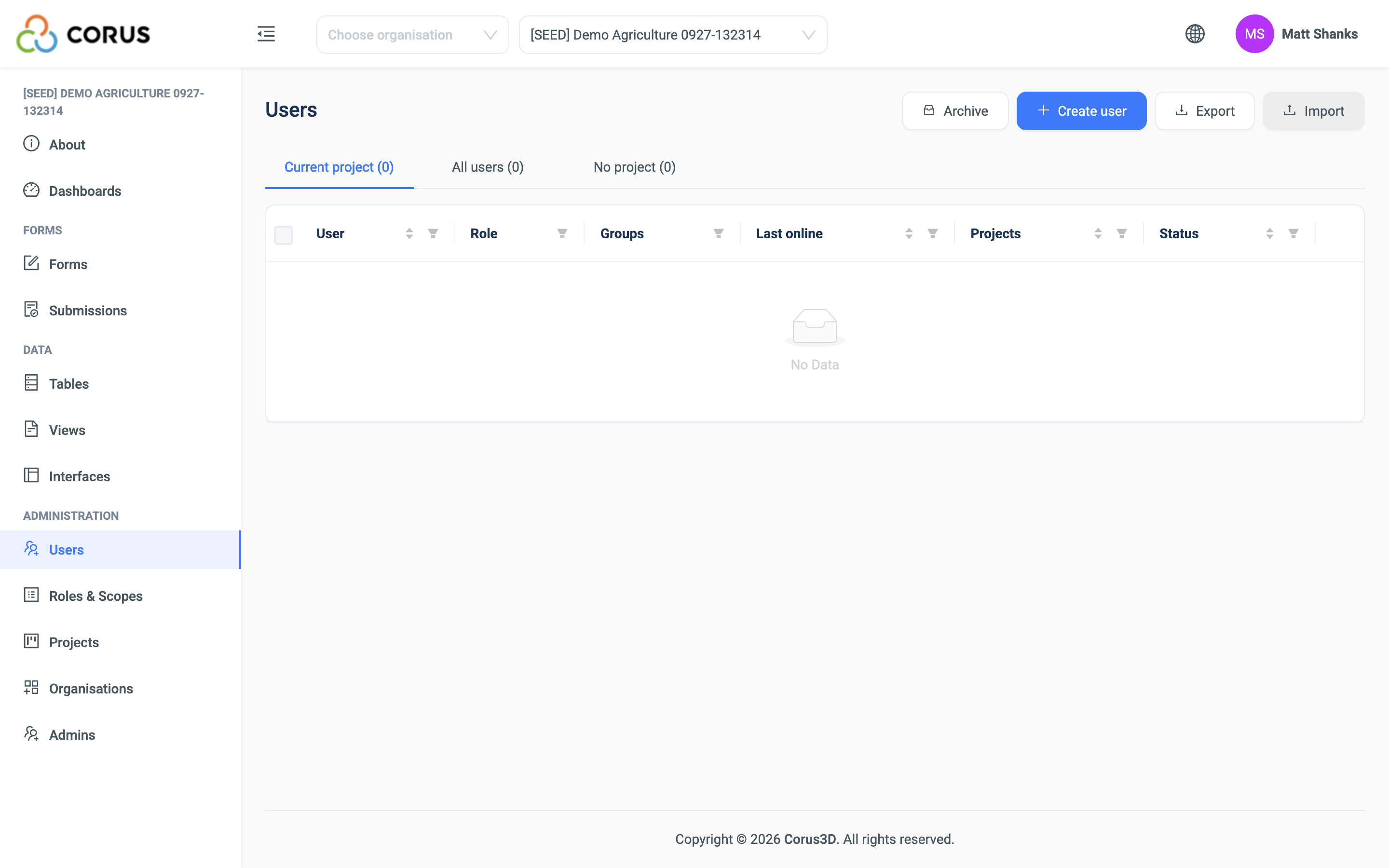
| Column | Meaning |
|---|---|
| User | Name, email and avatar. |
| Role | The user's role in the current project. Change it here with the dropdown. |
| Groups | The user's groups in the current project. See Groups and Data Scoping. |
| Last online | When the user last used 3D. |
| Status | Active, New or Blocked. See Account status. |
The view button opens the user's profile, with their role in every project. The edit button opens their details.
A system administrator also sees the tabs Current project, All users and No project, and a Projects column with the user's role in each project. System administrators themselves are not in this list. See System administrators.
Export downloads the list as CSV or Excel. Import creates users from an Excel file.
Adding a user
- Click Create user.
- Enter the person's Email and click Next.
- If the email is new to 3D, complete the User Details and click Create.
- Under Role & Access, choose a role in Assign role. Turn on Manage Users if this person should manage the project's users.
- Click Finish.
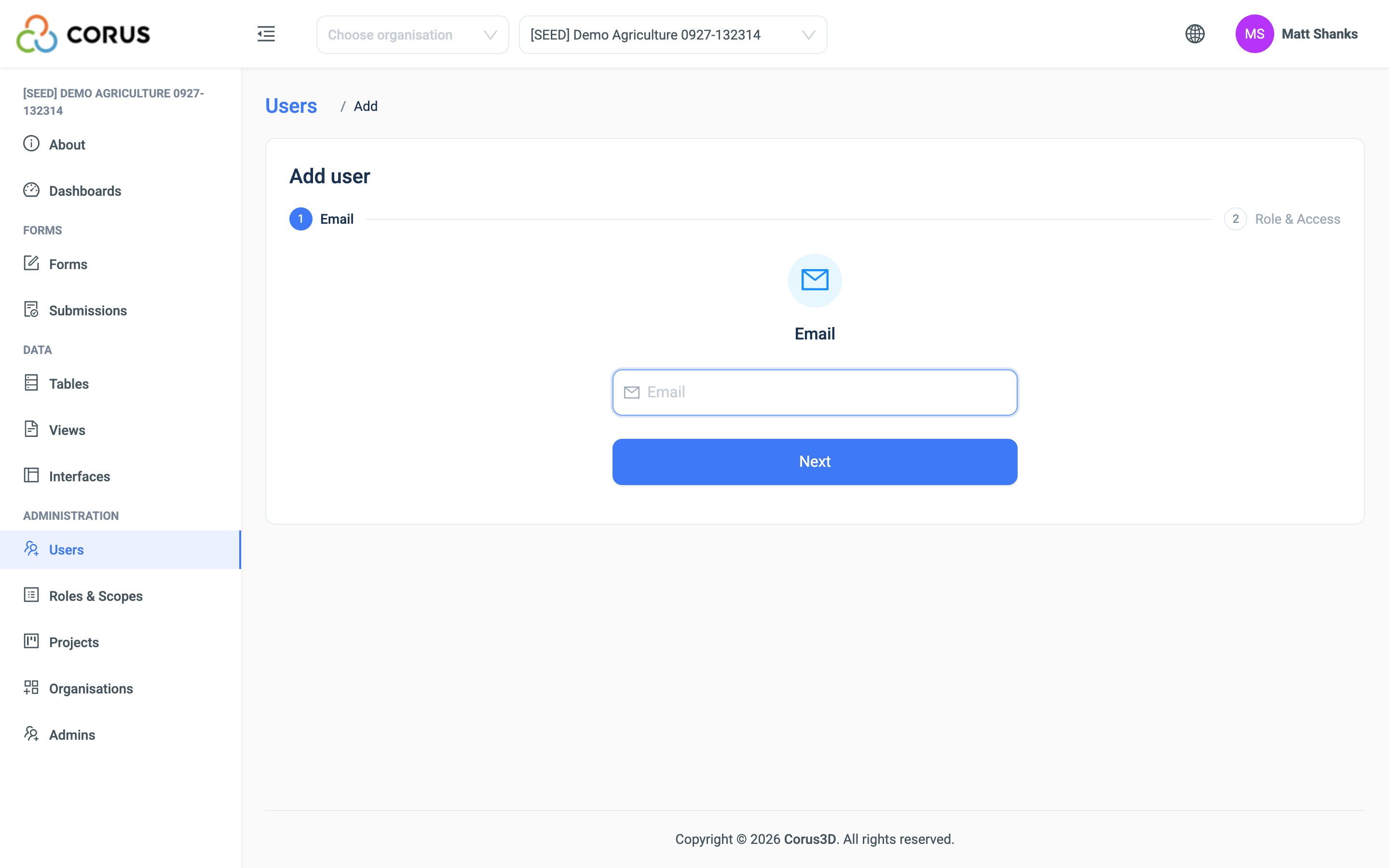
If the email already belongs to a 3D user, 3D says so and skips the details. You only assign the role. This is how one person gets roles in several projects.
3D emails the new user a link to set their password. The link is valid for seven days. The user then logs in with their email or username.
User Details
| Field | Notes |
|---|---|
| First name, Last name | Required. |
| Required. Must be unique in 3D. | |
| Username | Required. 3 to 30 characters, starts with a letter, then letters, numbers or underscores. The user can log in with it instead of the email. |
| Password, Confirm password | Required when you create the user. 8 characters or more, with an upper-case letter, a lower-case letter, a number and a symbol. The user replaces it with their own from the emailed link. |
| Title, Date of Birth, Phone Number, Website, Address, City, Post code, Staff ID, Notes | Optional. |
| Avatar | Optional. A JPEG, PNG, GIF or WebP image, 10 MB maximum. |
Editing a user
Click the edit button on the user's row. Change the details and click Save Changes. Leave the password fields empty to keep the current password.
The Role & Access panel on the same page changes the user's role in the current project and the Manage Users setting.
Changing many roles at once
Tick the users in the list and click Bulk edit roles. Choose the role and click Save. Every ticked user gets that role in the current project, in place of the role they had.
Account status
| Status | Meaning |
|---|---|
| Active | The user can log in. |
| New | The user was created but has not set their password yet. |
| Blocked | The user cannot log in. |
The Security panel on the user's edit page has these actions.
- Block account signs the user out at once and stops them from logging in, until you activate the account again. Use it when someone leaves the project. You cannot block yourself.
- Activate account lets a blocked user log in again.
- Send password reset link emails the user a link to set a new password. The link is valid for 60 minutes. Their current password works until they use the link.
Forgotten passwords
On the login page, the user clicks Reset Password, enters their email or username, and clicks Send. They receive a link, valid for 60 minutes, to set a new password.
Removing a user's role
When someone moves to another programme, remove their role rather than delete their account. Open Roles & Scopes, click + in the role's Members column, and click remove next to the user. The user keeps their 3D account, their roles in other projects, and their groups in this project. Without a role they cannot open this project.
Deleting a user
Click the red delete button on the user's row and confirm. The user can no longer log in. Their roles and groups are removed. The records and submissions they created stay, with their name on them.
A system administrator can bring a deleted user back from the Archive on the Users page. A restored user has no roles, so assign them again.