Step 4: Collect Data
In this step you complete the Farm Visit form twice. Once in your browser, and once in the 3D app on a phone, the way a field worker does it.
On the web
- In the main navigation, click Forms.
- On the Farm Visit row, click View Form. The form opens in a new tab.
- Answer the questions. Pick a farmer from the list, choose a date, and choose a crop condition. The photo, the location and the notes are optional.
- Click Submit.
3D confirms that the form was sent. Because the form does not approve submissions automatically, the answers wait as a Pending submission. You review it in step 5.
Tip
Copy Form Link on the form's row gives you the same form as a web address. Send it to someone without a 3D login, and they can complete the form in their browser. See Sharing a form.
In the 3D app
If you collect data yourself, read 3D App.
Field workers use the 3D app on Android or iOS. It stores forms and reference data on the device, so it works without a network connection. Install Corus 3D from the Google Play Store or the Apple App Store. Before a project buys devices, see Device requirements.
Sign in and choose the project
- Open the app. Enter the email and password of the field worker from step 2, and tap Sign In.
- On the first sign-in, the app asks three questions.
- Select Language. The language of the app.
- Form Submission Behaviour. What happens when a form is finished. Choose Show popup with choices for now.
- Select Project. This only appears when the user has more than one project. Choose Farmer Training 2026.
- The app downloads the project's forms and reference data. The Farmers table comes with it, so the farmer list works offline.
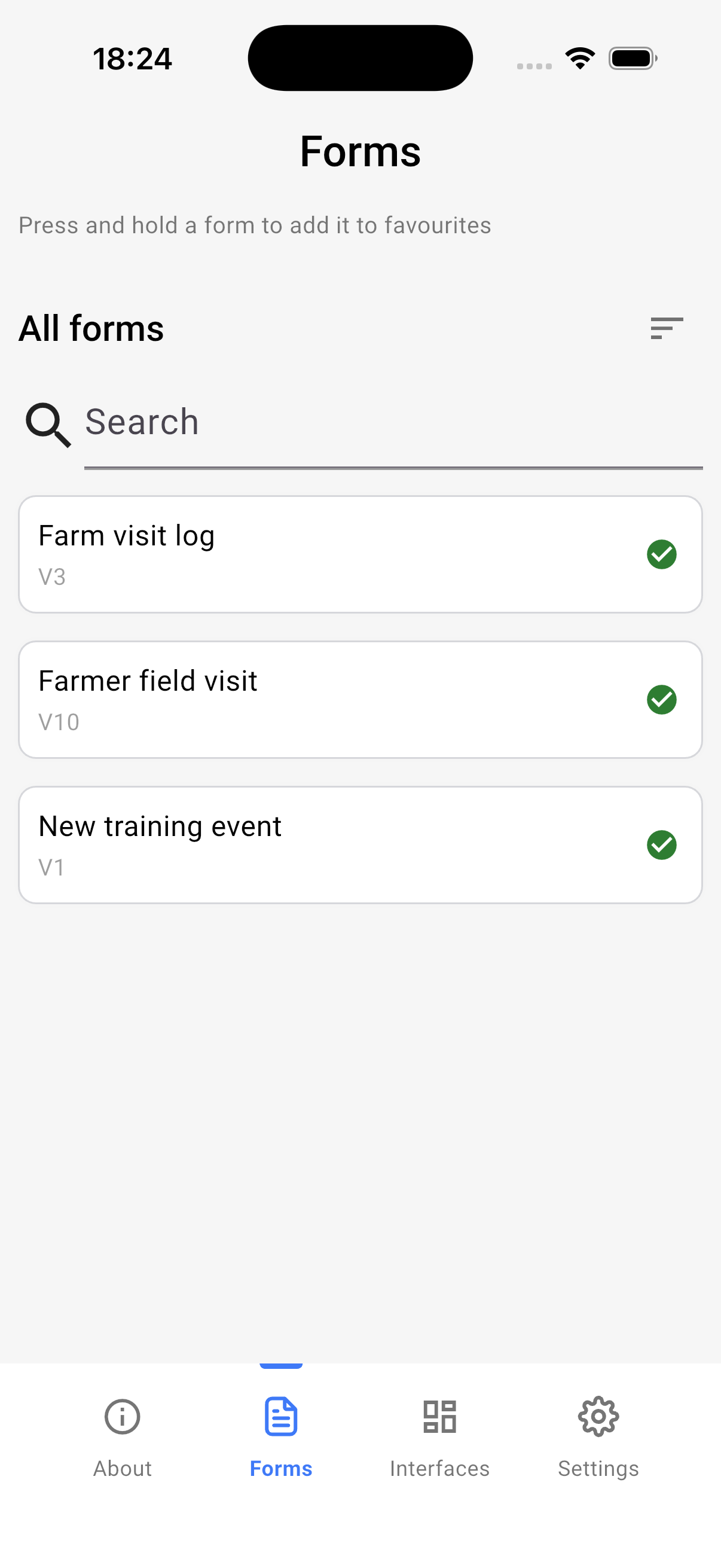
The main screen has four tabs at the bottom: About, Forms, Interfaces and Settings.
Complete the form
- Tap Forms. The Farm Visit form is in the list, with a green tick once its download is complete.
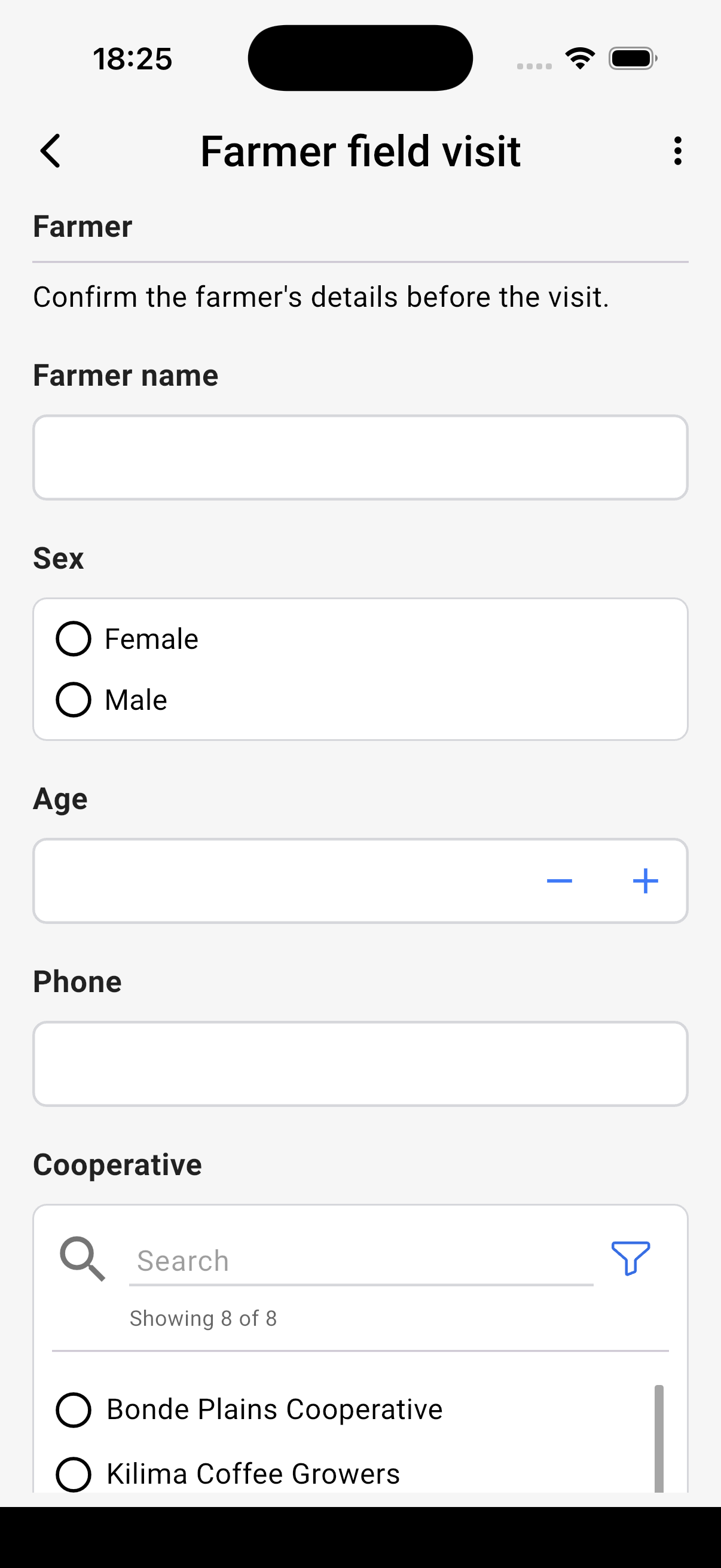
- Tap the form, then tap Start new form.
- Answer the questions. The farmer list is searchable. Get my location reads the phone's GPS. Take a photo uses the camera.
- Tap Complete Submission. The app asks whether to send the submission now or save it on the device.
- Tap Send to server.
The submission goes to 3D and waits with the first one as Pending.
Working offline
Without a network connection, the form still opens and every question still works. When the user finishes the form, they tap Save without sending. The filled form waits on the device under Ready to Submit.
To send the waiting forms later, the user opens Settings, taps Submit, and taps Submit (N). The app sends each one and reports the result. The user can also press and hold a form in the list and tap Submit to the server.
Note
A form that is not finished can be saved with Save as draft. Drafts stay on the device under Draft until the user completes them. They are never sent as they are.
See 3D App for the app in full, including sync settings and sent submissions.
What you have
- Two Pending submissions of the Farm Visit form, one from the web and one from the app.