Inheritance Filters
An Inheritance Filter connects a series of questions. The answer to one question filters the options of the next. Other tools call this a cascading dropdown or a dependent dropdown.
Example
Q1: Select a Country
Q2: Select a State. The options are the states in the chosen Country.
Q3: Select a Town. The options are the towns in the chosen State.
Inheritance Filters reduce errors, because the user only sees valid options. They also make long option lists manageable.
The options come from your project's data tables, not from a fixed list. As your team adds records, the option lists grow with them.
An Inheritance Filter can drive these question types:
- Relation
- Matrix Field, pre-populated
- Nested Form in Multi-Insert mode
- Nested Form in Multi-Select mode
Note
The sequence can be as long as you like, as long as the View joins the tables correctly.
The sequence ends at the first Matrix Field or Nested Form that uses the form's View.
This lets you use Relation questions to narrow down a group, and then record data about each member of the group. For example, choose a School, then a Class, and then see every Student in that Class as rows in a pre-populated Matrix Field.
Tip
For a single question with several levels, such as Country, State and Town in one control, use the Cascading Select input type instead. It is also built on a View. See Input Types. Use an Inheritance Filter when the levels are separate questions, or when the sequence ends in a Matrix Field or a Nested Form.
Creating an Inheritance Filter
First, create a View that joins the tables. This gives you one combined table with every valid combination.
In our example there are three data tables: Country, State and Town.
| Country | Field type |
|---|---|
| Country_Name | Text |
| State | Field type |
|---|---|
| Country | Relation |
| State_Name | Text |
| Town | Field type |
|---|---|
| State | Relation |
| Town_Name | Text |
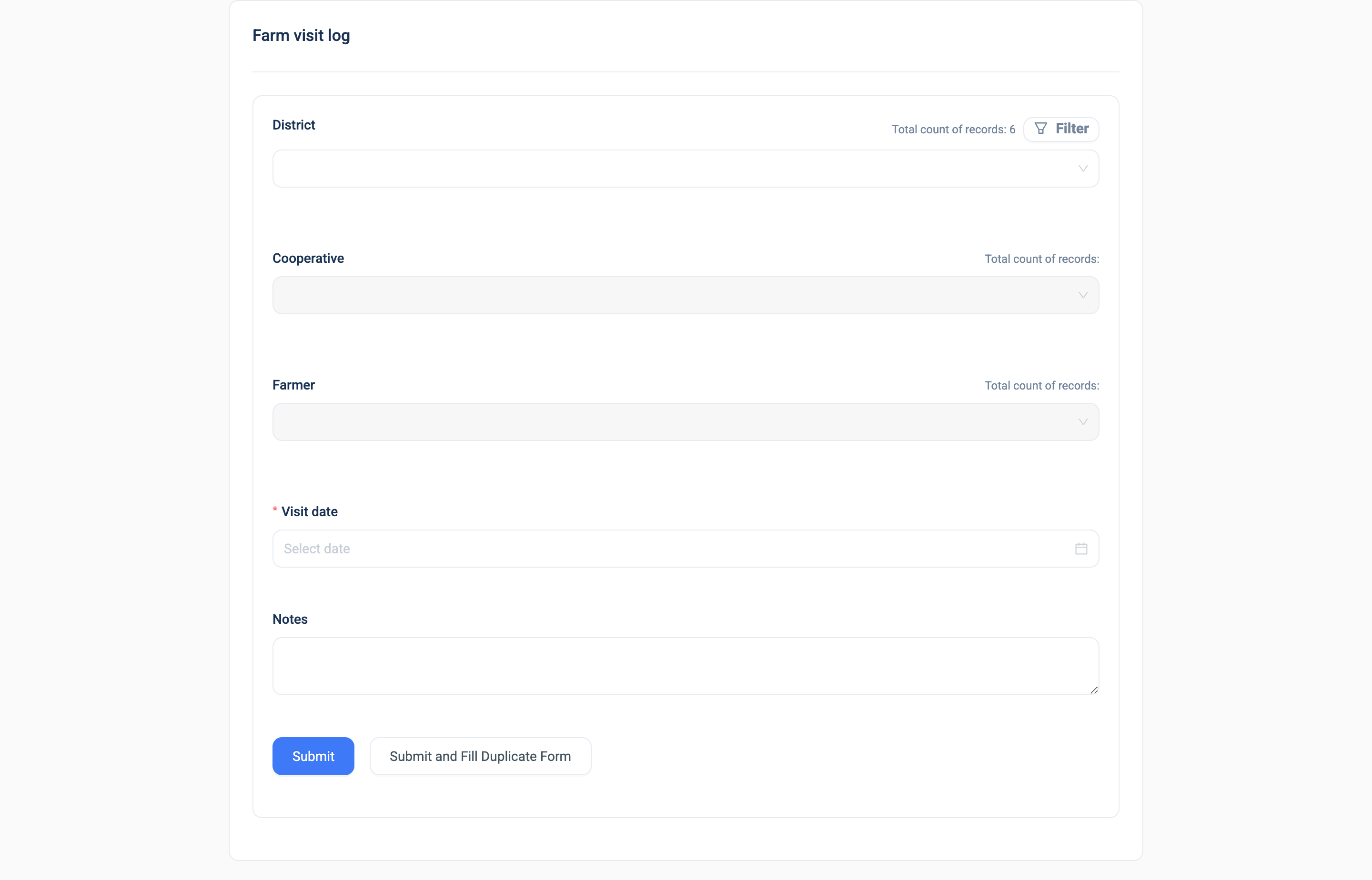
The View joins Country, then State, then Town. The screenshots on this page show the same shape on the Demo Agriculture project: Districts, then Cooperatives, then Farmers.
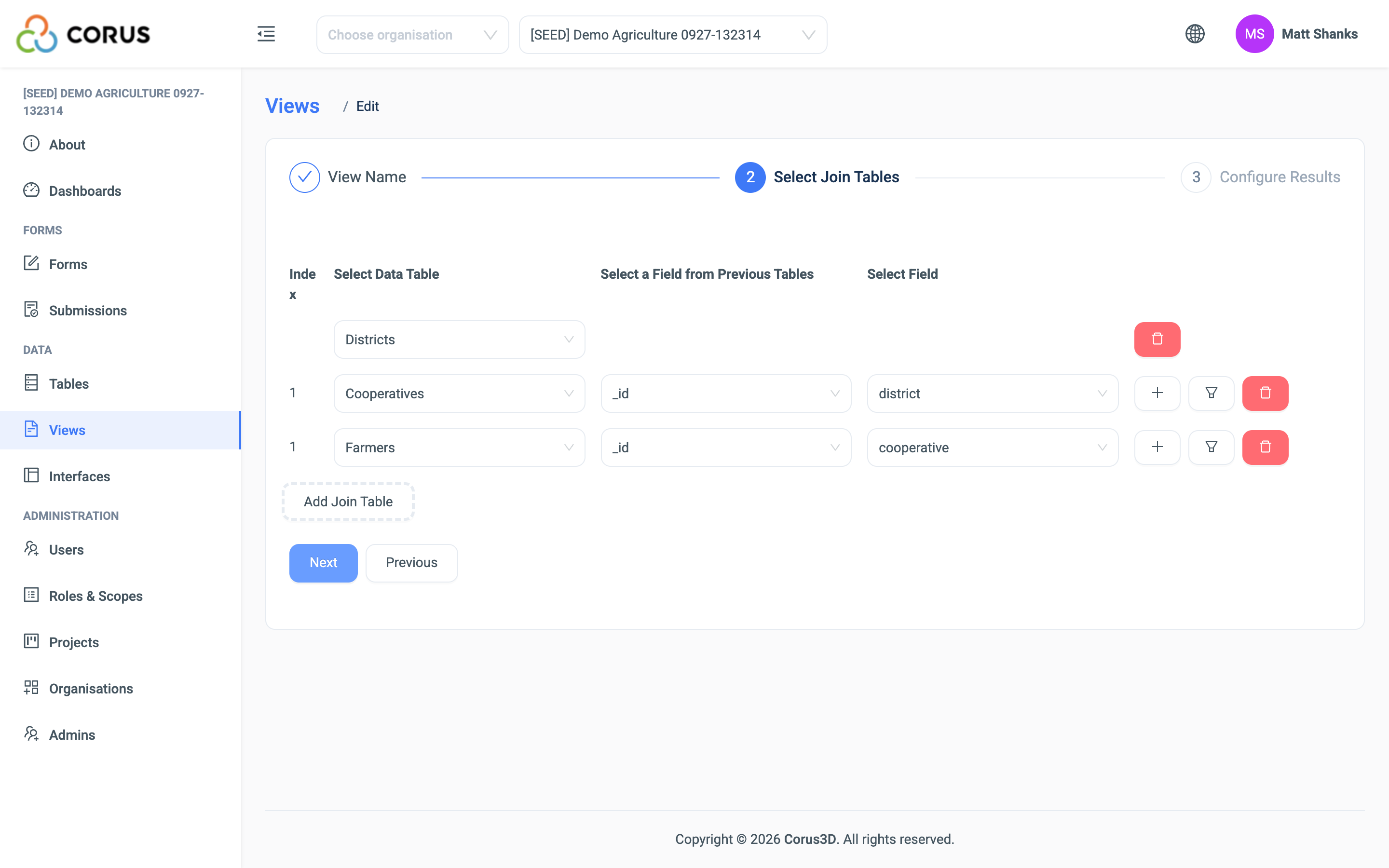
Tip
Check that the View joins the data as you expect. Open the Views page from the main navigation and click the View's name.
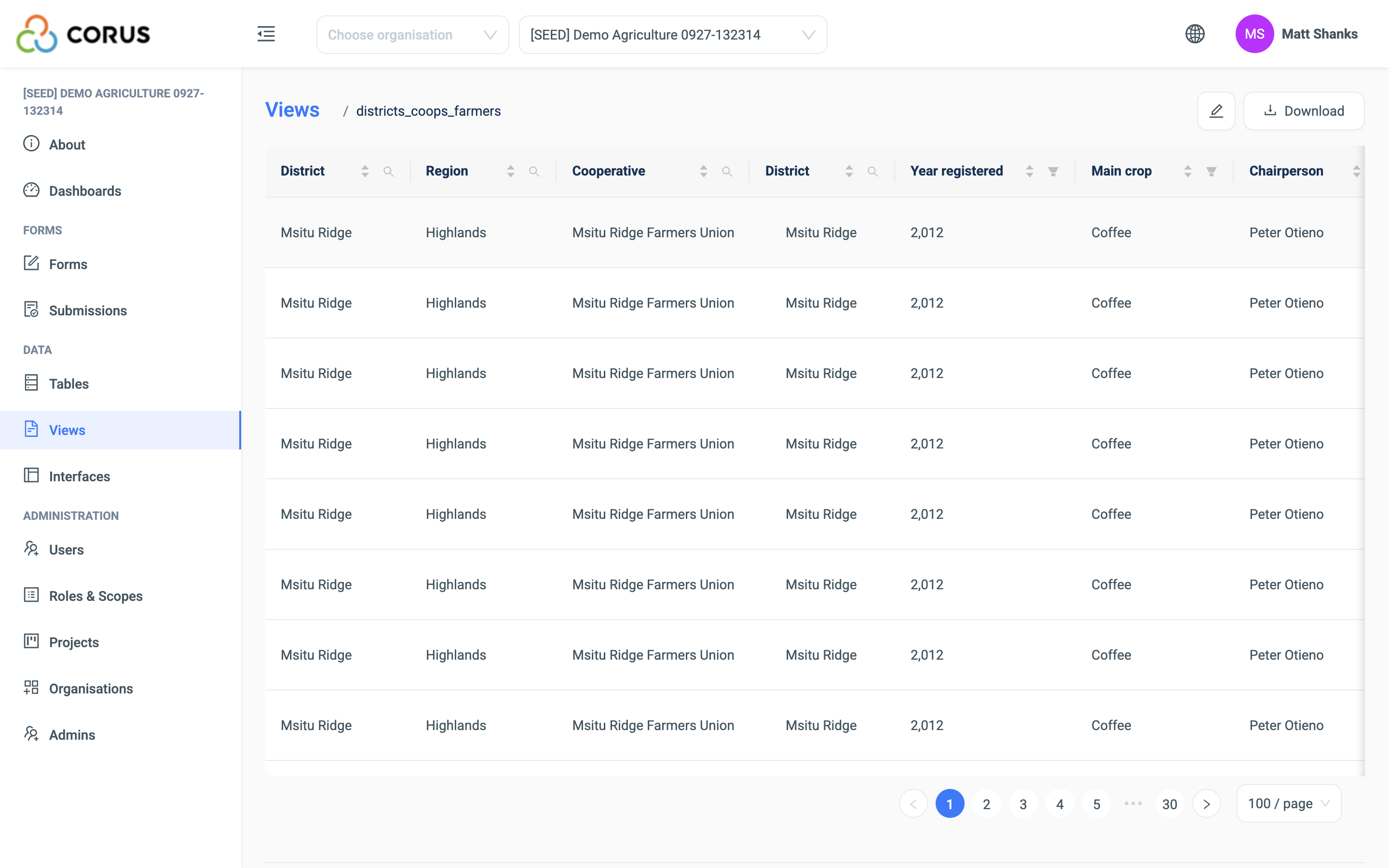
Applying the Inheritance Filter to the form
Next, open the form's settings. Click the edit button on the form's row on the Forms page. In View, select the View that the Inheritance Filter uses.
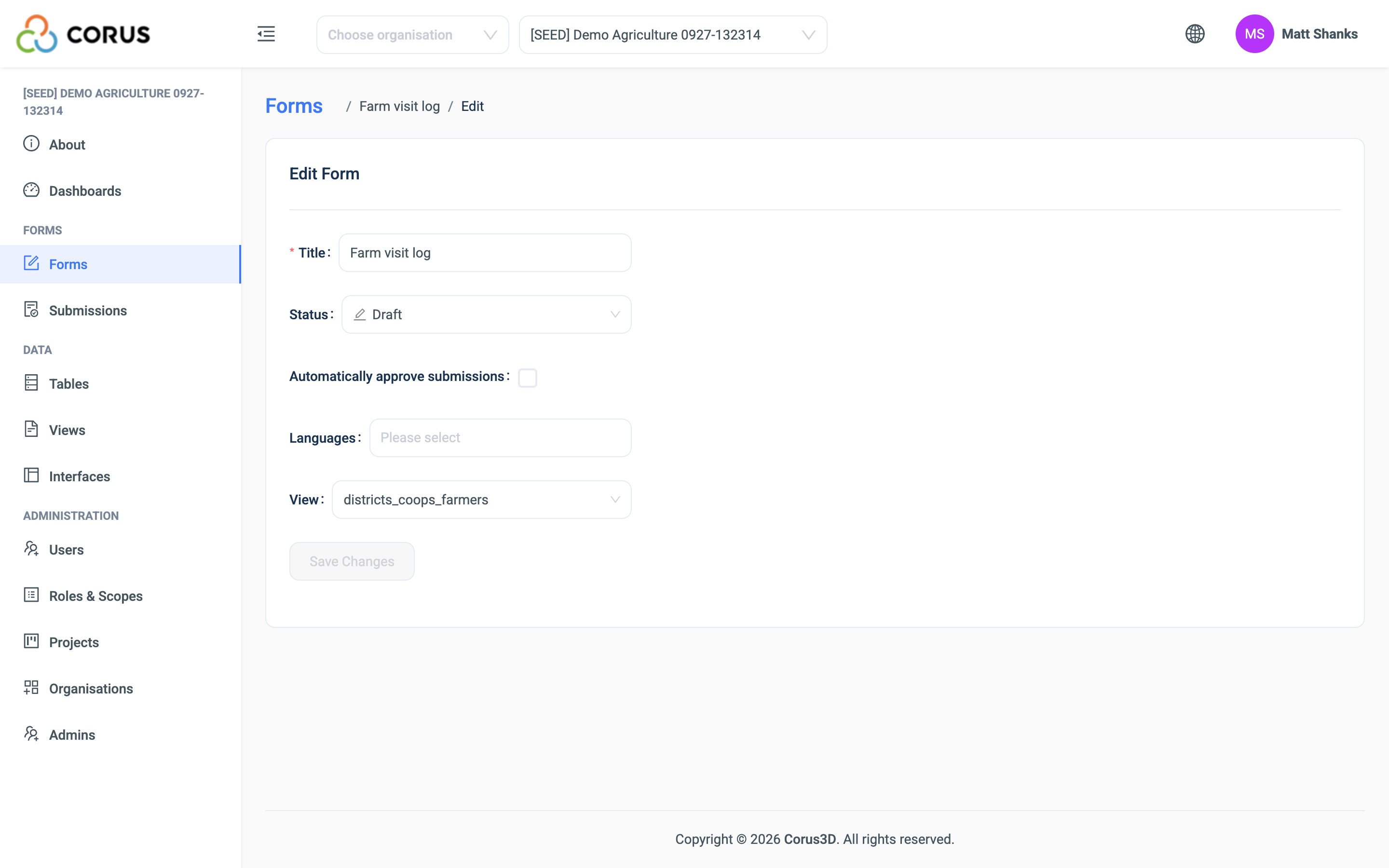
Configuring the questions
The form now has a View. Its data is consistent and valid for every question in the sequence.
Continue the example. The form registers new Farms. For each farm it records the Country, the State and the Town.
The Farm table looks like this.
| Field | Type |
|---|---|
| Country | Relation |
| State | Relation |
| Town | Relation |
| Farm Name | Text |
| Location | GeoLocation |
| Size | Integer |
Note
You can create the table first and then create a form from it. Or create the form first, and let it create the table.
The Register New Farm form has six questions, one for each field.
For each question that is part of the Inheritance Filter, open the question's settings and select the same View.
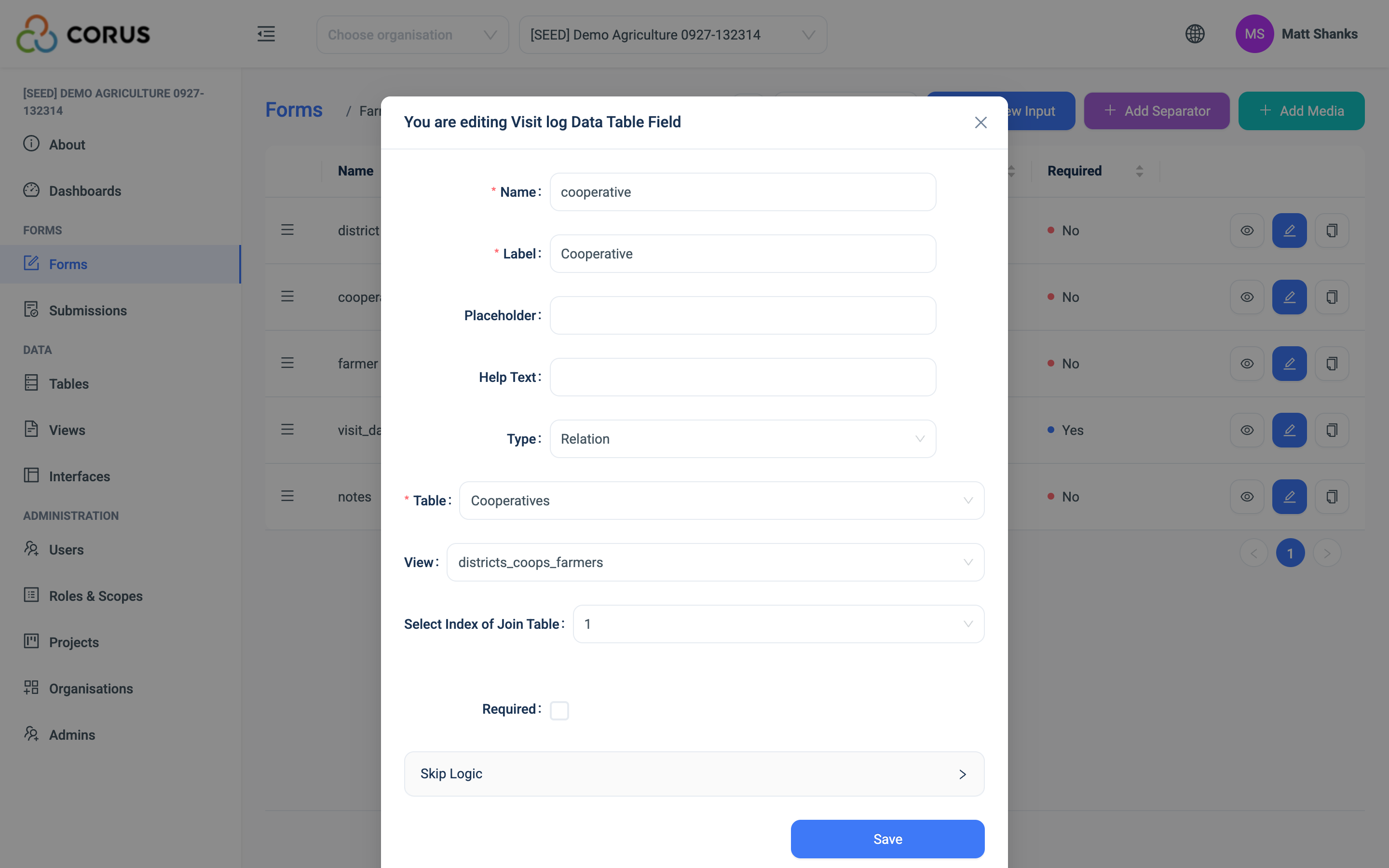
Note
Every question in the sequence, and the form itself, must use the same View.
That is all. On the web and in the app, the form now filters these questions.
On the form, each question in the sequence is disabled until the user answers the question before it.
Index of Join Table
When you select a View on a question, 3D also asks you to Select Index of Join Table.
This setting is for Views that use the same table more than once.
In the Country, State and Town example, each table appears once in the View. Each has the index 1.
Sometimes a View uses one table twice. For example, one Persona table stores Students, Teachers and Parents, with Toggle fields for the roles.
The View could join:
School, then Persona (Join where is_teacher = yes), then Class, then Persona (Join where is_student = yes)
The question settings are then:
| Q1 | Select a School |
| Type | Relation |
| Table | Schools |
| View | Schools Teachers Classes Students |
| Index | 1 |
| Q2 | Select a Teacher |
| Type | Relation |
| Table | Persona |
| View | Schools Teachers Classes Students |
| Index | 1 |
| Q3 | Pick a Class |
| Type | Relation |
| Table | Classes |
| View | Schools Teachers Classes Students |
| Index | 1 |
| Q4 | Select a Student |
| Type | Relation |
| Table | Persona |
| View | Schools Teachers Classes Students |
| Index | 2 |
Q2, Select a Teacher, uses the first Persona in the View, index 1. Q4, Select a Student, uses the second Persona in the View, index 2.
See Views for how to build a View like this.
Useful tips
- Put the questions in the same order as the tables in the View. Each question filters by the linked question before it.
- The questions do not have to be next to each other. "Q1: Country", "Q2: State", "Q3: Today's Weather", "Q4: Town" works the same.
- You do not need a question for every table in the View. "Q1: Country", "Q2: Town" also works. The Town list is longer, because no State filters it.