Auto Calculated
A read-only value that 3D works out from other fields of the same record. The user cannot edit it. 3D shows the result on the form as the user types, and stores it with the record.
In the Type list, choose Auto Calculated v2. This page describes that type. The older entry, Auto Calculated, is described at the end.
Use it for
- A total, such as
price * quantity. - A label built from other answers, such as a full name.
- A pass or fail result, or a check on other answers.
- A year, a month or a day taken from a date.
- A total over the rows of a Nested Form.
Example
| Purpose | Formula |
|---|---|
| Total cost | round(price * quantity, 2) |
| Full name | concat(first_name, ' ', last_name) |
| Pass or fail | score >= 50 ? 'Pass' : 'Fail' |
| Year of a visit | year(visit_date) |
| Total of a column across the rows of a Nested Form | sum(members.income) |
| A field of a linked record | participant.age |
Settings
A calculated field has a Name and a Label. It has no Placeholder, Help Text or Skip Logic, because the user does not answer it. It adds these.
| Setting | Description |
|---|---|
| No formatting | Shows the raw value in tables and on the record page. Off by default, so a number shows with thousand separators. |
| Formula | The calculation. Required. See Writing a formula. |
The Required checkbox has no effect on this type.
Writing a formula
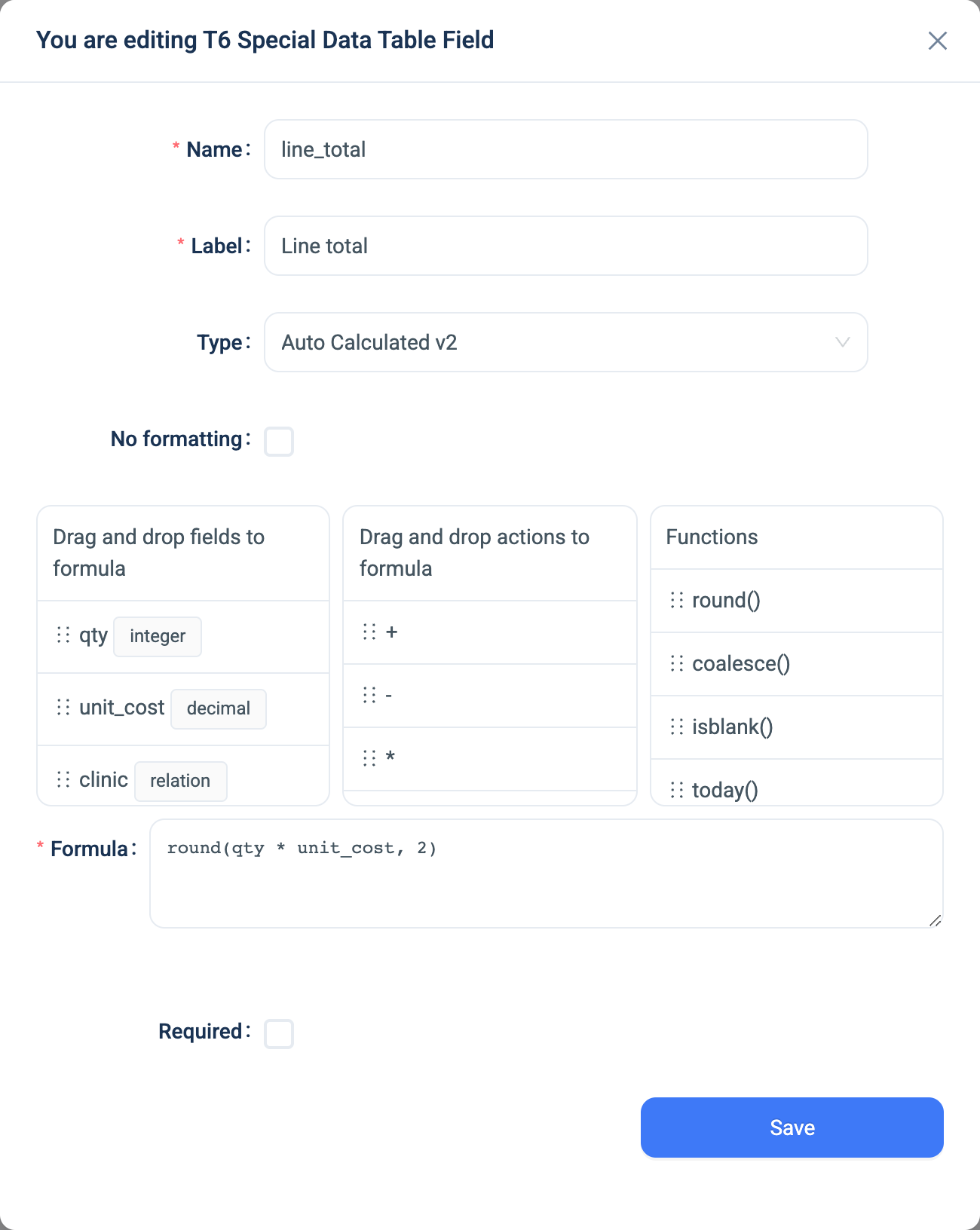
The field editor has three lists and a Formula box.
- Drag and drop fields to formula: the fields of the table, each with its type.
- Drag and drop actions to formula: the operators.
- Functions: the functions you can use.
Click or drag an item to add it to the formula, or type the formula. As you type, the editor shows the result Type (number, text, boolean or date), a Preview from the table's first record, and Reads, the fields the formula uses.
Refer to a field by its Name, not its label. Names are case-sensitive. Put backticks around a name that has a hyphen, for example total - `B-Debts`.
Operators
+-*/%for arithmetic on numbers.+adds numbers only. To join text, useconcat.==!=<<=>>=for comparison. The result is true or false.&&for and,||for or,!for not.condition ? a : bgivesawhen the condition is true, andbotherwise.( )for grouping.
| Functions | Examples |
|---|---|
| Maths | round(x, 2) |
| Text | concat(a, ' ', b), length(x), lower(x), upper(x), contains(x, 'yes'), substring(x, 0, 3), trim(x), replace(x, 'a', 'b'), padStart(x, 5, '0'), matches(x, '^[A-Z]') |
| Date | today(), date('2026-01-31'), year(d), month(d), day(d) |
| Logic | coalesce(a, b) gives the first value that is not blank. isblank(x) is true when x is blank. |
| Over a Nested Form | sum(rows.field), avg(rows.field), min(rows.field), max(rows.field), count(rows.field) |
Blanks. A blank is not zero. Arithmetic on a blank gives a blank, and so does a division by zero. concat reads a blank as empty text. A question hidden by skip logic reads as blank. sum and count over an empty Nested Form give 0. avg, min and max give blank.
Linked records. A Relation field on its own gives the id of the linked record. relation_name.field_name reads one field of that record. You can go one level only. A blank or deleted link reads as blank.
Nested Forms. Inside a Nested Form, a bare name reads the row's own field, and parent.field_name reads the main record. From the main form, nested_form_name.field_name is a column across every row, for the aggregate functions. A calculated field can also sit inside a Nested Form, where it runs for each row.
Dates. There is no date arithmetic. You can take the year, month or day of a date and compare dates, but you cannot subtract one date from another.
Validation
3D checks the formula when you save the field. A formula that fails does not save. The editor highlights the problem and shows a message such as "Unknown field 'x' at position 4".
A calculated field never blocks a submission. To check an answer against other answers, use an advanced validation rule on that question. It uses the same formula language.
Combinations that matter
- Renaming a field that a formula reads. 3D asks Rename and update and changes the formula for you.
- Deleting a field that a formula reads. 3D warns you and asks you to confirm.
- Skip Logic on another question can compare the calculated value, as for a number or a text.
- A Nested Form can hold a calculated field that runs for each row, and the main form can total a column of the rows.
- The original Auto Calculated type reads a blank as 0 and blocks the rename of a field it reads. Convert old fields, see below.
When 3D calculates the value
- On the form, as the user types. A total over a Nested Form updates when the user adds, saves or deletes a row.
- When a record is saved, imported or bulk edited.
- When you change the formula. 3D recalculates every record in the table.
- When a linked record that the formula reads changes. 3D updates the value within 10 minutes.
How it looks
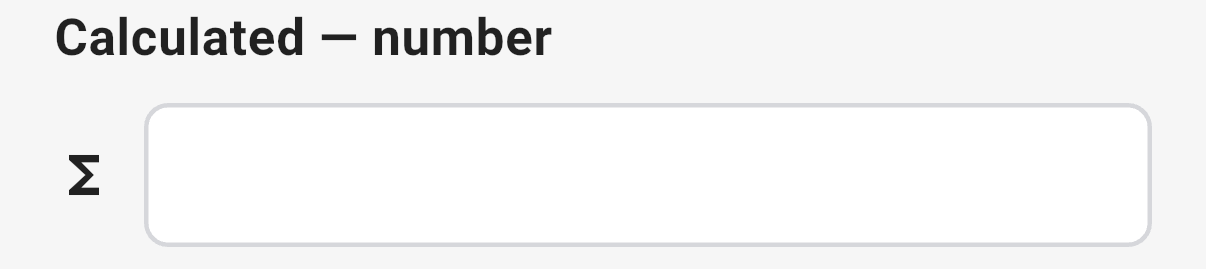
On the web the question does not appear on the form. The value shows in the data table and on the record page. In the 3D app the question appears as a read-only box marked with a sigma sign, and the value updates as the user answers the fields it reads.
Display. A whole number shows with no decimals. Other numbers show two decimals and thousand separators. Turn on No formatting to show the raw value. True and false show as Yes and No.
The data
| Where | What you get |
|---|---|
| The record | The result: a number, a text, true or false, or a date. Blank when the formula reads a blank. |
| An export | One column. Its type follows the result type. |
| A formula on another field | The value. A formula cannot read its own field, and 3D refuses a loop between fields. |
The server computes the value. A value sent from a form is ignored, so the app and the web always agree with the stored value once the record is saved.
The original Auto Calculated type
Older projects may have fields of the original Auto Calculated type, with the formula types Number, Text and Number, and Advanced Expression. It is still in the type list. Use Auto Calculated v2 for every new field.
The original type reads a blank as 0, and 3D does not check its formulas when you save. You cannot rename a field that one of its formulas reads.
To move a field to the new type, open it and choose Expression (new) in the formula type dropdown. 3D rewrites the formula once. The field keeps its name and its history. Check the preview after the conversion. In the old Text and Number type, + put spaces between the parts. In the new formula, concat joins them exactly as written.
Related types
- Integer and Decimal for the numbers a formula reads.
- Relation to read a field of a linked record.
- Nested Forms for totals over rows.
- Advanced validation for a rule that blocks a submission.