Projects
A project holds everything for one piece of work: its tables, forms, views, interfaces, dashboards, submissions, About page, roles and groups. Nothing is shared between projects. A user is given a role in a project, and sees only the projects where they have one.
Every project belongs to an Organisation. The Organisation is your company or programme. It owns its users and its projects. Only a system administrator manages Organisations, on the Organisations page under Administration. See System administrators.
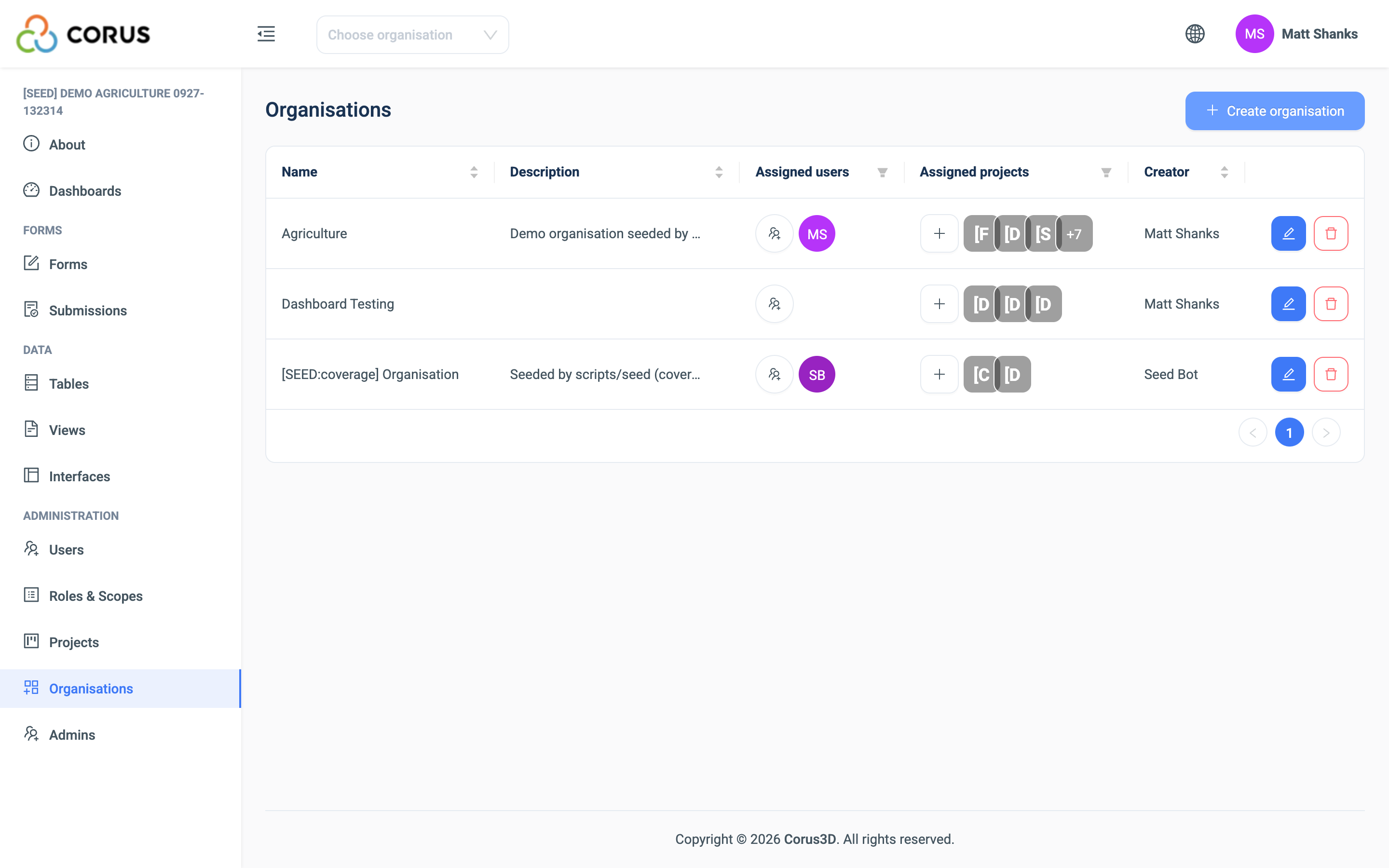
Switching Organisation and project
The top bar has two dropdowns: Choose organisation and Choose project. Both are searchable. Everything in the main navigation, from Forms to Users, belongs to the project you choose here.
A user sees only their own Organisations and projects. A system administrator sees all of them.
The Projects page
Open Projects under Administration in the main navigation. Only a system administrator sees this page.
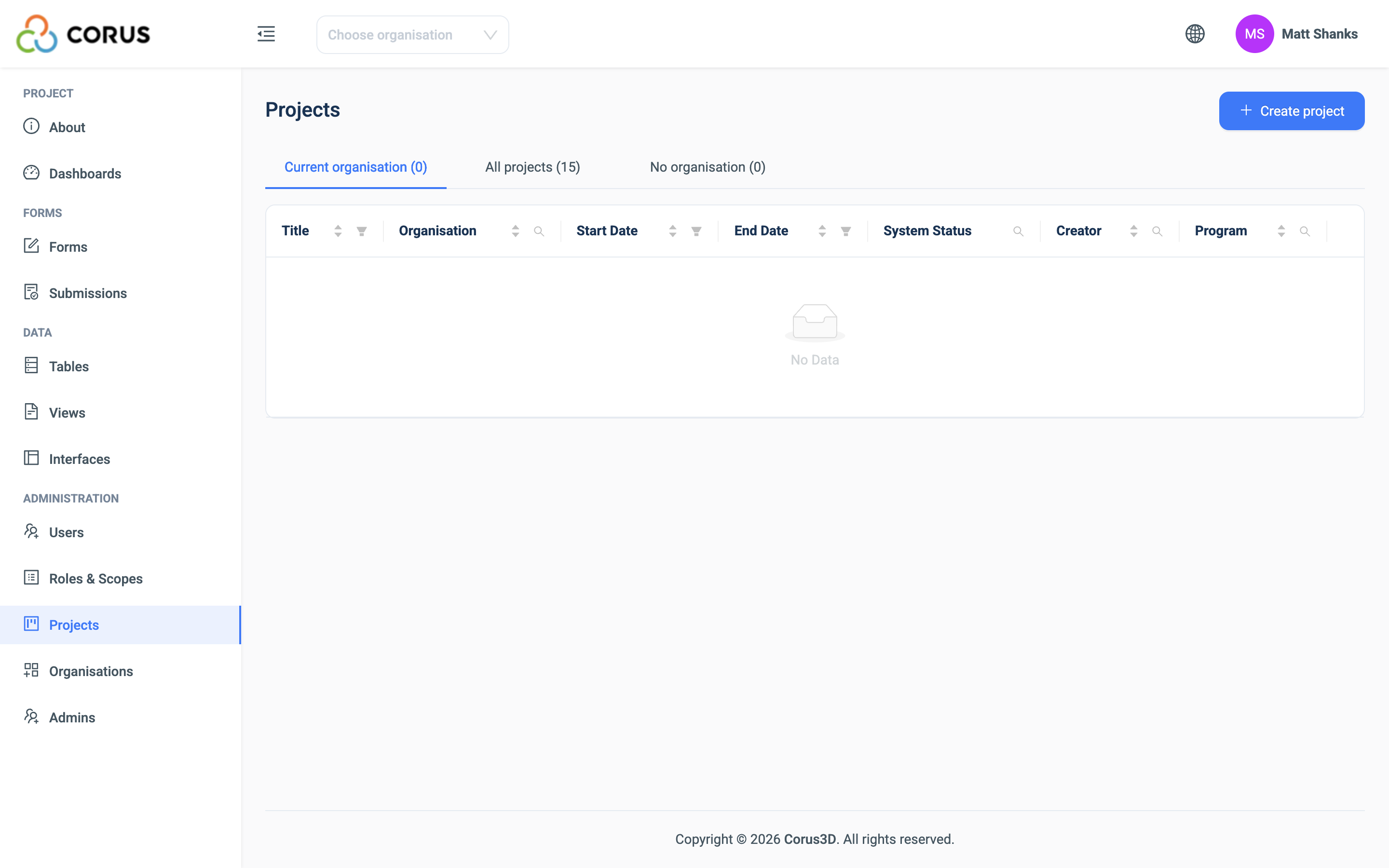
The list shows each project's title, Organisation, start and end dates, system status, creator and programme. Click a title to make it the current project. The tabs Current organisation, All projects and No organisation filter the list. A project with no Organisation is one whose Organisation was deleted.
Creating a project
- On the Projects page, click Create project.
- Complete the Project Details. Only the Title is required. See Project Settings for each setting.
- Click Create.
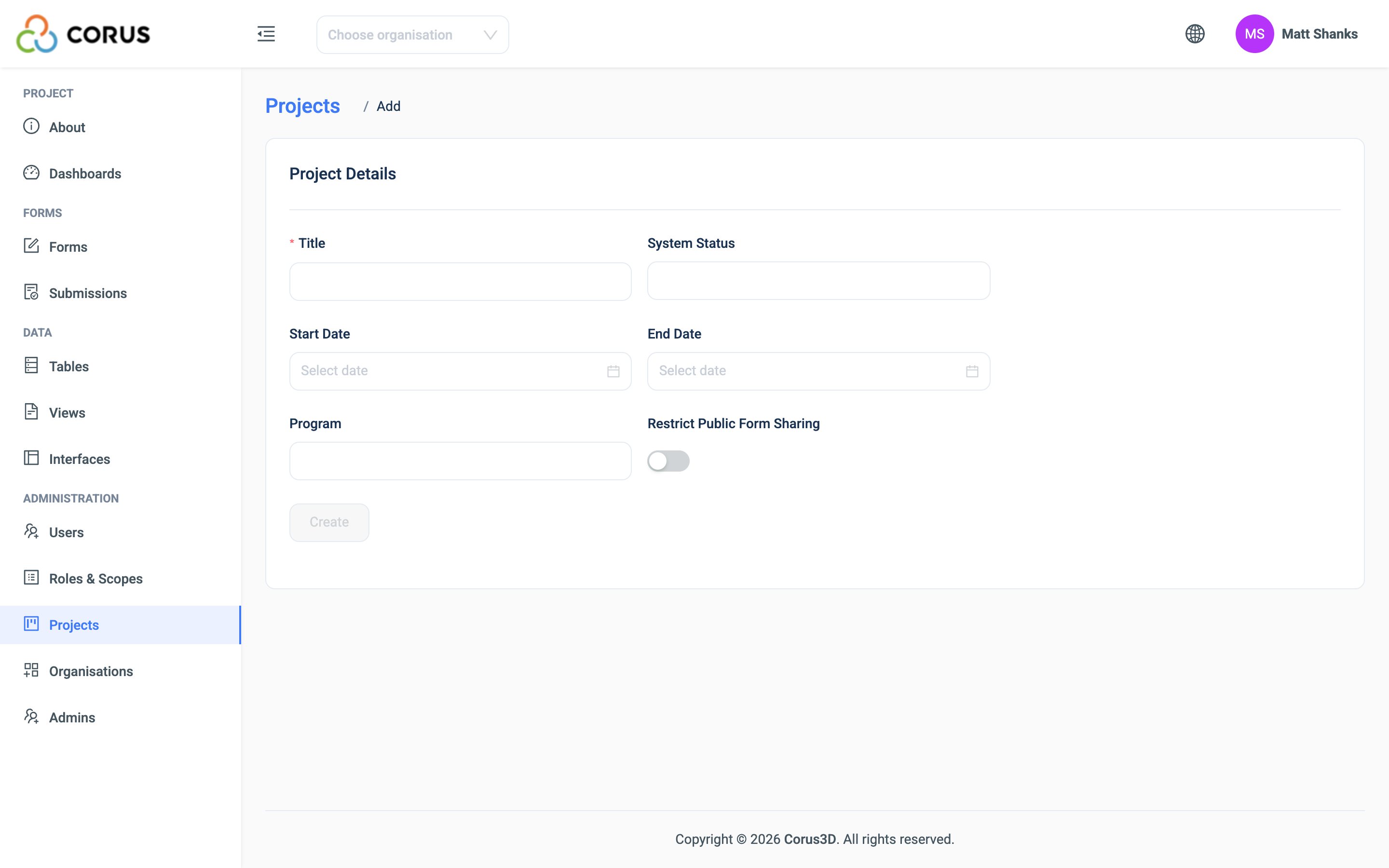
A new project comes with the built-in Project Administrator role, the standard role templates, and a default About page. It has no tables or forms. See Roles and Permissions.
Editing a project
Click the edit button on the project's row. The same form opens. Change the settings and click Save Changes.
Deleting a project
Click the red delete button on the project's row and confirm.
Warning
Deleting a project is permanent. It removes every table with its records and history, every form with its submissions, the views, dashboards and interfaces, the About page, and the project's roles and groups. There is no archive and no undo.
User accounts stay. Export the data first if you may need it.
Copying a project
3D can copy a whole project within the same Organisation. The copy has the same tables, forms, views, records, submissions and dashboards, with the title followed by "(Copy)". Scheduled dashboard emails and public links are not copied.
There is no button for this. Ask your system administrator, who runs the copy for you.
The About page
Every project has an About page, the first item in the main navigation. It is a notice board for the project. Use it for the project's purpose, contacts, data collection rules, or anything your team needs to know. The page is also shown in the 3D app.
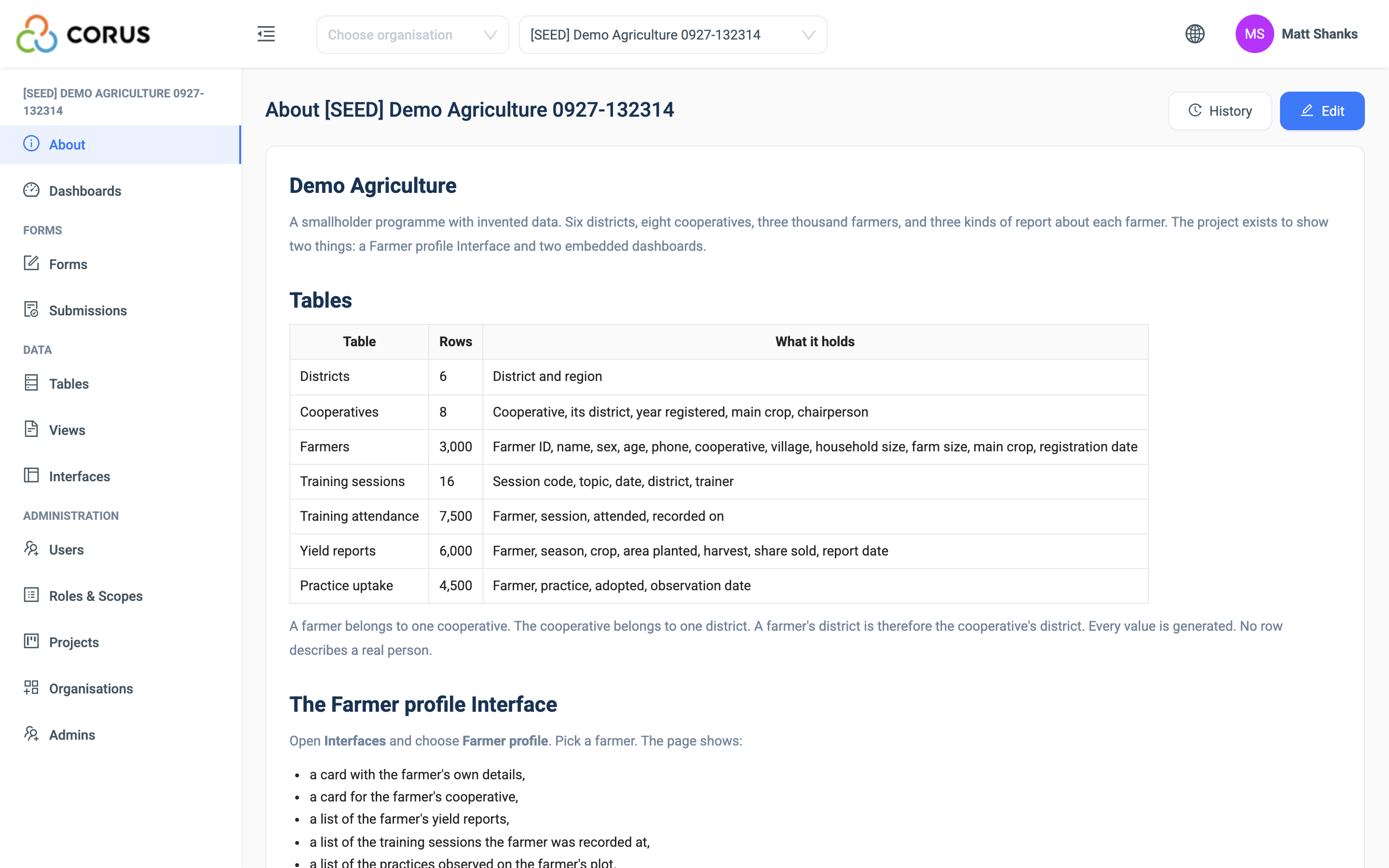
A new project shows a default page until someone saves one.
Editing the About page
Users with the Edit About permission, and system administrators, can edit the page.
- Click Edit in the top right corner.
- Write the page in the visual editor. You can add headings, lists, tables, links and images. The editor also has callout boxes for a note, a tip, a warning or a danger.
- Click Save.
Images can be up to 10 MB each. They are uploaded when you save.
Warning
Images on the About page are public. Anyone with the image's link can open it, without a login. Do not put personal or sensitive information in an image.
History
Click History to see every saved version, with the editor and the time. View shows a version. Restore makes an old version the current one. The version you replace stays in the history, so nothing is lost.
If two people edit the page at the same time, the second to save sees a warning that the page changed. Copy your changes, reload, and make them again.