Groups and Data Scoping
Data scoping limits which rows a user can see. A field officer for one district sees the schools, students and visits of that district, and nothing from the others. Their role still decides what they can do with those rows. See Roles and Permissions.
Scoping is built from two things.
- A dimension is a reference table that splits your data, such as Districts. A dimension is one of the tables in the project, chosen for this purpose.
- A group is a named set of users. For each dimension, the group holds the records its members may see, or All records.
A member of a group sees a row when the row links to one of the group's records. The link can be direct, or through a chain of Relation fields. A Visit links to a Student, the Student to a School, and the School to a District. If the District is in the group, the member sees the Visit.
A row whose link to the dimension is blank is hidden from a scoped user, because it belongs to no district. When a table links to two dimensions, such as District and Programme, a row must be in the group's scope on both.
Tables with no link to any dimension are visible to everyone.
Setting up scoping
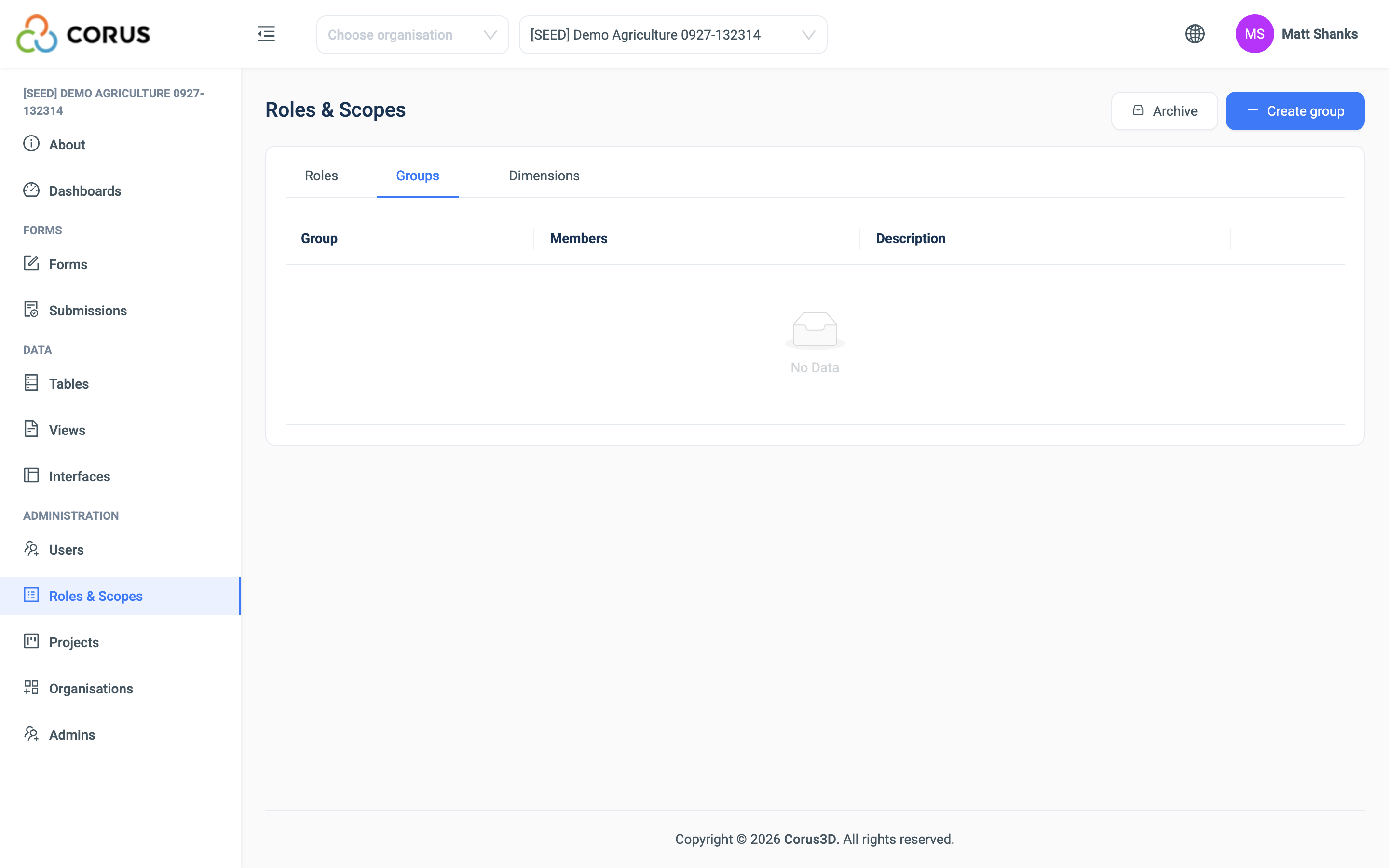
Open Roles & Scopes under Administration. The Dimensions and Groups tabs are next to Roles.
Creating a dimension
- On the Dimensions tab, click Create dimension.
- Enter a Name, such as "District".
- Choose the Source table, the reference table whose records the groups pick from. A table can be the source of one dimension only, and you cannot change it later.
- Enter a Description and click Create.
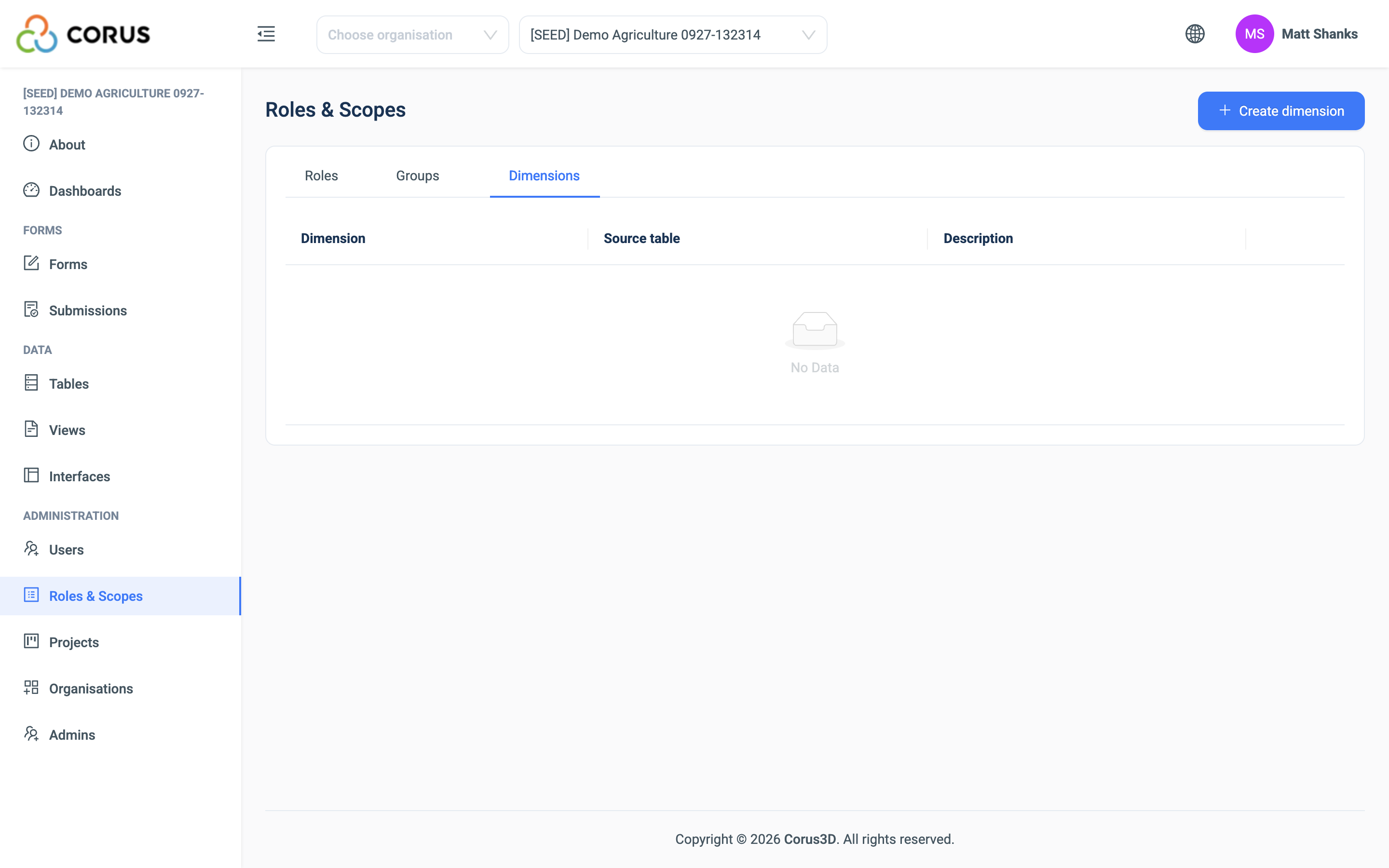
Every group that exists gets All records on the new dimension, so nothing changes for anyone until you narrow a group.
Creating a group
- On the Groups tab, click Create group.
- Enter a Name, such as "Kilima Hills team", and a Description.
- Under Scope, for each dimension, pick the records the group may see, or tick All records.
- Click Create.
Warning
A dimension with nothing picked is closed. Members of the group see nothing on the tables that dimension reaches. Pick records or tick All records on every dimension.
Adding users to a group
Click + in the group's Members column. Choose the users under Add users and click Save. You can also use the Groups column on the Users page.
A user can be in several groups. They see the rows of all their groups together.
Users in no group
A user in no group sees every row. Scoping only limits users that you put in a group.
The exception is a role with Must have a scope turned on. Its members see nothing on scoped tables until they are put in a group. Use it for field roles, so a new user cannot see the whole project by mistake. See Creating a role.
What a scoped user sees
Scoping applies everywhere a user reads data: the tables and records, single records, the dropdowns and lookups on forms, the counts, exports, Views and Interfaces. A scoped user cannot edit, delete or export a row they cannot see.
Scoped users also:
- do not see record history,
- always see their own submissions, and other submissions only when the linked records are in scope.
Scoping does not apply to dashboards. A user who can open a dashboard sees all of the project's data in it. Keep this in mind when you give the View Dashboards permission to a scoped role.
Note
When a new record is linked to a dimension record, it can take up to ten minutes to appear for scoped users.
Changing and deleting
- Edit a group to change its name, description or scope. The change applies to every member at once.
- Delete a group and it goes to the Archive. A restored group keeps its scope but has no members.
- Delete a dimension and its values are removed from every group. There is no archive for a dimension.
Worked example
A project has four tables: Districts, Schools with a Relation to District, Students with a Relation to School, and Visits with a Relation to Student.
- On the Dimensions tab, create the dimension District with the source table Districts.
- On the Groups tab, create the group Kilima Hills team. Under Scope, pick the district Kilima Hills.
- Add Amina, a field officer with the Senior Data Collector role, to the group.
Amina now sees:
- in Districts, only Kilima Hills,
- in Schools, only the schools of Kilima Hills,
- in Students and Visits, only those under those schools. A Visit with no Student is hidden, because it links to no district,
- in a form's School dropdown, only those schools,
- the same rows in exports, Views and Interfaces,
- no record history.
If Amina joins a second group for another district, she sees both districts. If she is removed from every group, she sees everything, unless her role has Must have a scope, in which case she sees nothing.