Languages and Translations
A form can be shown in more than one language. English is always the base language. You add other languages to the form and enter a translation for each label. A user then sees the form in their language, on the web and in the 3D app.
Adding languages to a form
Open the form's settings with the edit button on the Forms page. Under Languages, choose one or more languages and save. The list of available languages is set for the whole platform by a system administrator.
Translating the form
Open the Form Structure page with the purple wrench button. In the dropdown above the question list, choose Translations. A second dropdown appears with English and the form's languages. Choose the language to translate into.
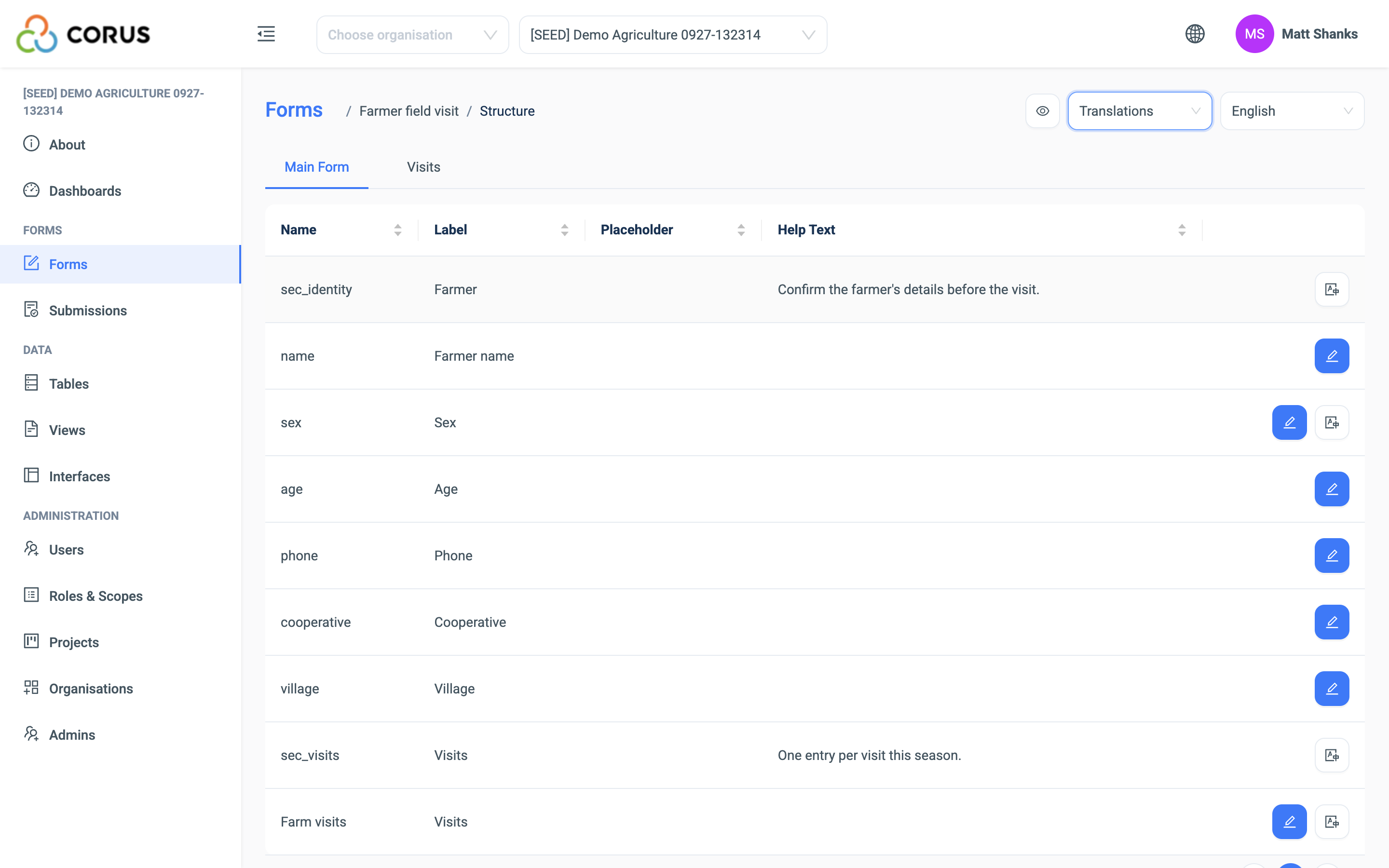
The table lists every question with its Label, Placeholder and Help Text. Click Edit on a row, enter the translations, and click Save.
Some rows have an extra button for the parts that are not in the table.
| Row | Extra button | What it translates |
|---|---|---|
| Form title | The translate icon next to the Title in the form settings | The title of the form |
| Select One, Multi-Select | Translate the labels for options | The label of each option |
| Nested Form | Translate the fields within a nested form | The label, placeholder and help text of each nested question |
| Cascading Select | Translate the level labels | The label of each level |
| Separator | Translate the header and the paragraph | The heading and the text |
| Media | Translate the caption | The caption of a content image |
A label with no translation is shown in English. Each of the label, the placeholder and the help text falls back on its own.
How the language is chosen
On the web, a logged-in user chooses the language of the whole interface in the language menu at the top of the screen. Forms follow it.
On a public form, a language selector at the top right lists the form's languages. It changes that form only.
In the 3D app, the user chooses the app language in Settings, under App Settings and App Language. Forms follow it. See 3D App.
What is not translated
Translations cover the words on the form. They do not cover the data.
- The values that users enter, and the display text of a linked record, stay as entered.
- The options of a Cascading Select come from records, so they stay as entered.
- Emails from 3D, such as invitations and scheduled dashboards, are in English.
An export can use the translated option labels. See Exporting data.