Nested Forms
A Nested Form links several records to one submission. The records can be new or they can exist already.
A Nested Form works in one of two modes.
Multi-Insert mode adds several new records to a different table from the form's own table.
Example
The main form records a Student Registration event, with the date and the location.
The Nested Form adds several new Student records. For each student who came to the event, the user enters the name, phone number and email.
Multi-Select mode picks several existing records from a different table.
Example
The main form records a Teacher Training Session, with the date, the location and the topics.
The Nested Form picks several existing Teachers, so their attendance is part of the Training Session record.
A new Nested Form starts in Multi-Insert mode. One checkbox changes it to Multi-Select mode.
Tip
A form can have more than one Nested Form. Before you add several, check that the data model records the relationships that you need for reporting.
Adding a Nested Form
On the Form Structure page, open the dropdown above the question list and select Nested Forms. The purple wrench button on the Forms page opens the Form Structure page.
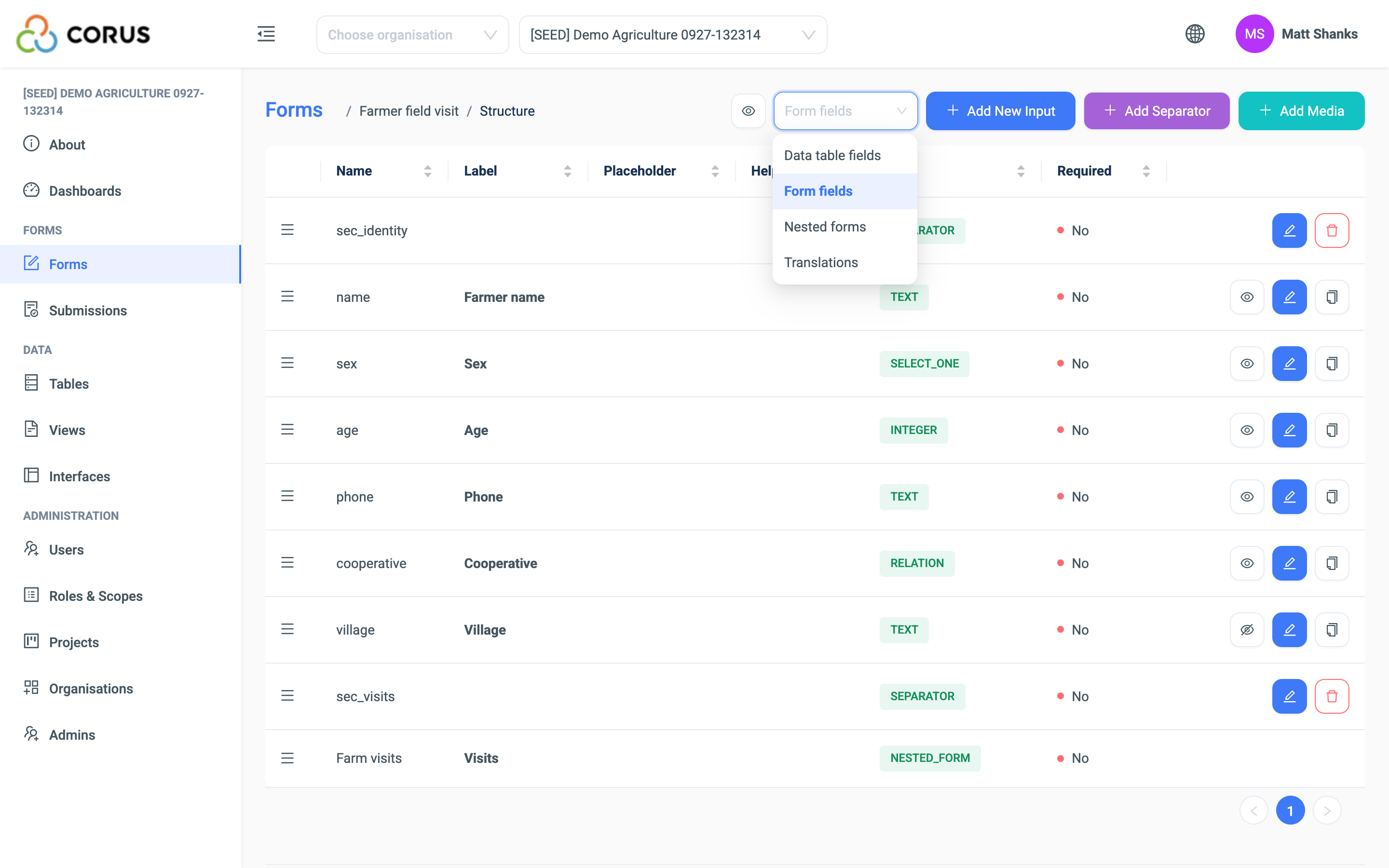
The page lists the Nested Forms of this form. If there are none yet, the list is empty.
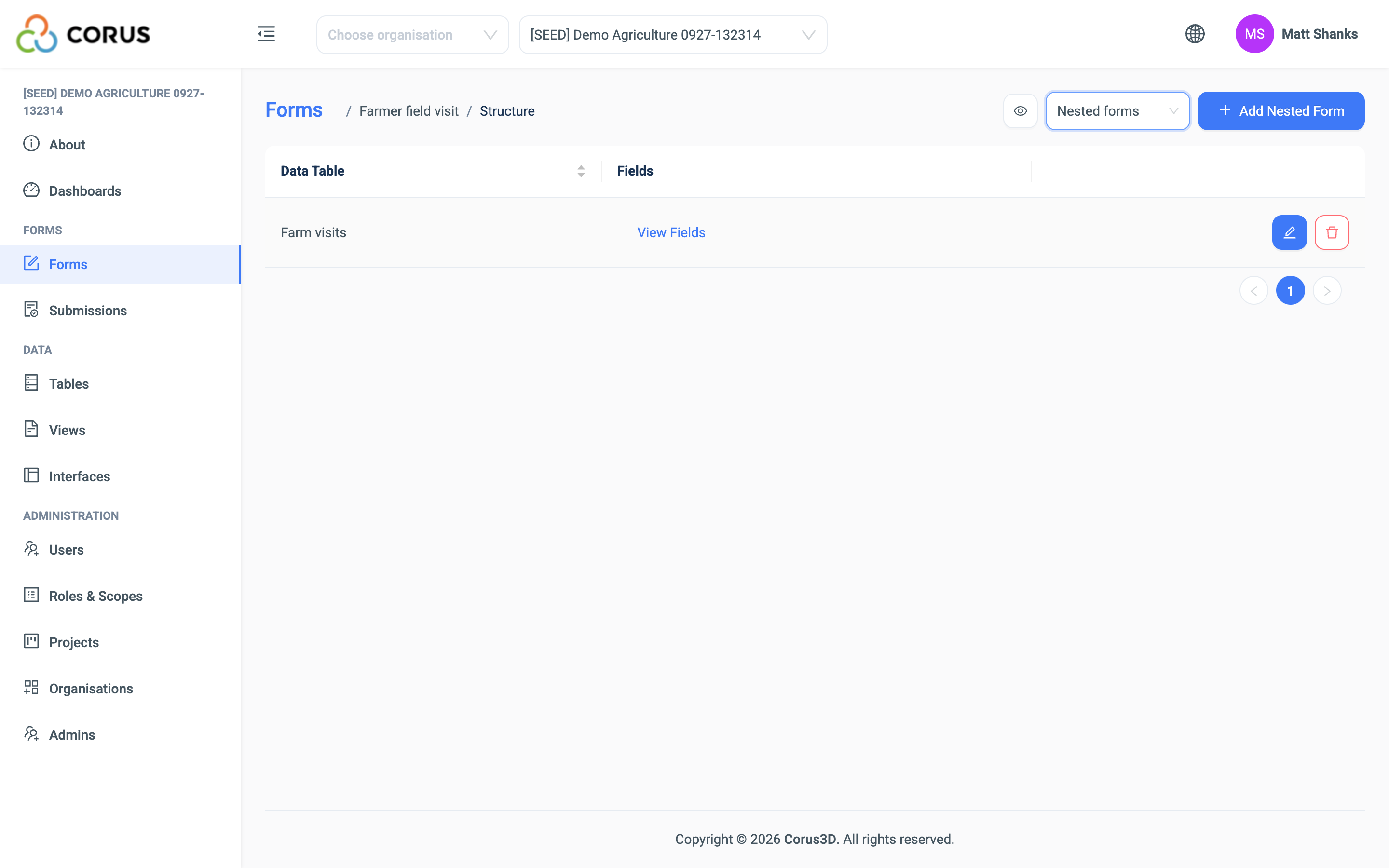
Click Add Nested Form in the top right corner. A dialogue opens with the settings.
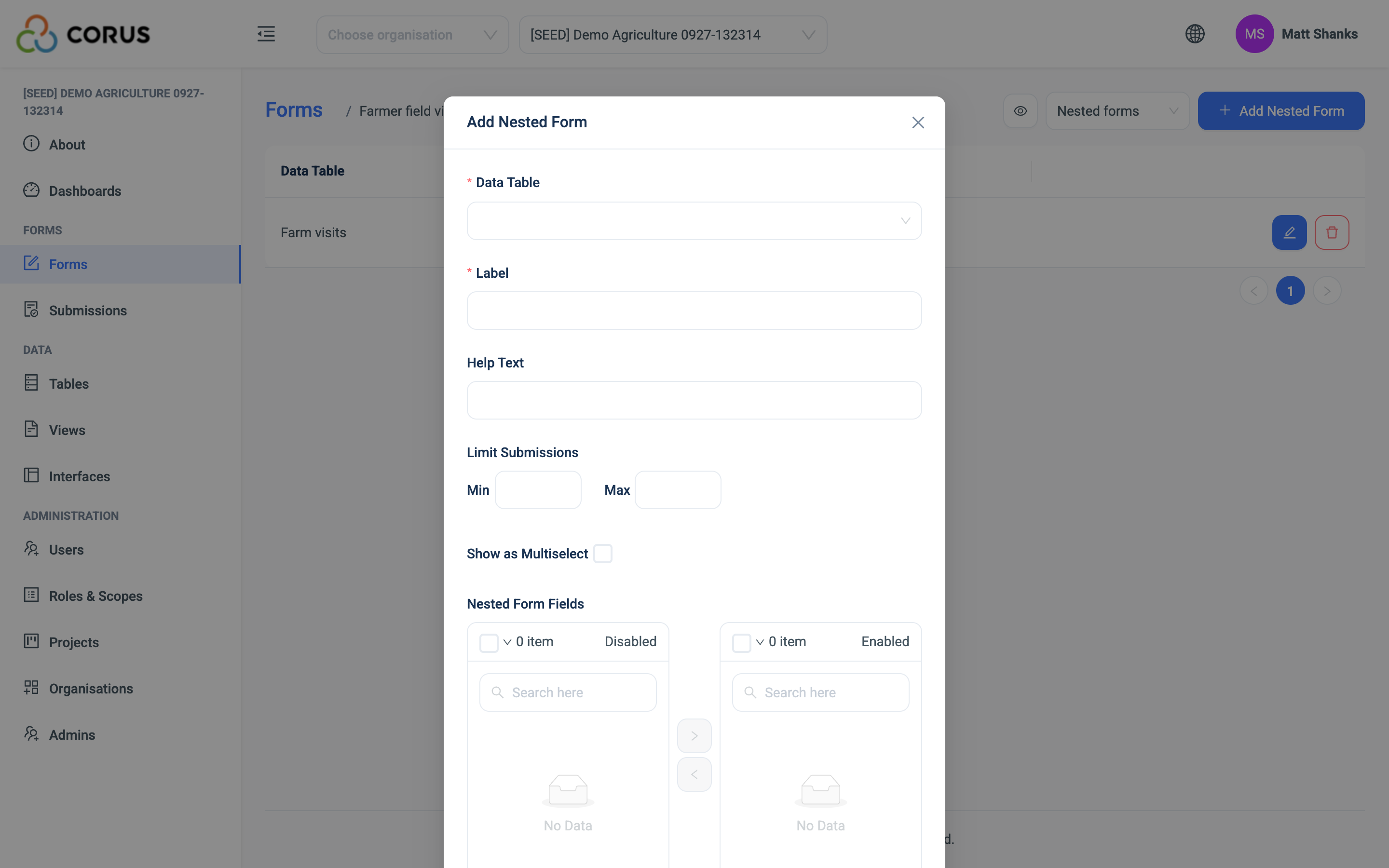
| Setting | Description |
|---|---|
| Data Table | The table that receives the new records, or that holds the records to pick from. You cannot change it after you save. |
| Label | The question text that the user sees. |
| Help Text | Optional guidance under the question. |
| Limit Submissions | Turn on to set a Min and a Max number of records. Each limit is 1 or more. In Multi-Insert mode, this limits the new records. In Multi-Select mode, this limits the picked records. |
| Show as Multiselect | Off: Multi-Insert mode. On: Multi-Select mode. |
| Multi Select Field | Multi-Select mode only. The Relation field in the chosen table that points to the records to pick from. For example, select Student to let users pick from the Students table. |
| Nested Form Fields | Multi-Insert mode only. The fields of the chosen table that appear as questions. See Multi-Insert mode. |
| Pre-filtered Field | Multi-Insert mode only. A Relation field in the chosen table that 3D fills from an earlier answer on the main form. The user does not see it. |
| View and Select Index of Join Table | Use these when the Nested Form is part of an Inheritance Filter. |
| Skip Logic | Show the Nested Form only when a condition on the main form is true. |
Multi-Insert mode
When Show as Multiselect is off, the Nested Form is in Multi-Insert mode.
The Nested Form Fields picker at the bottom of the dialogue has two lists. The right list, Enabled, holds the fields that appear as questions. At the start, every field is enabled. Move a field to the left list, Disabled, to leave it out. ID and Matrix fields cannot be in a Nested Form.
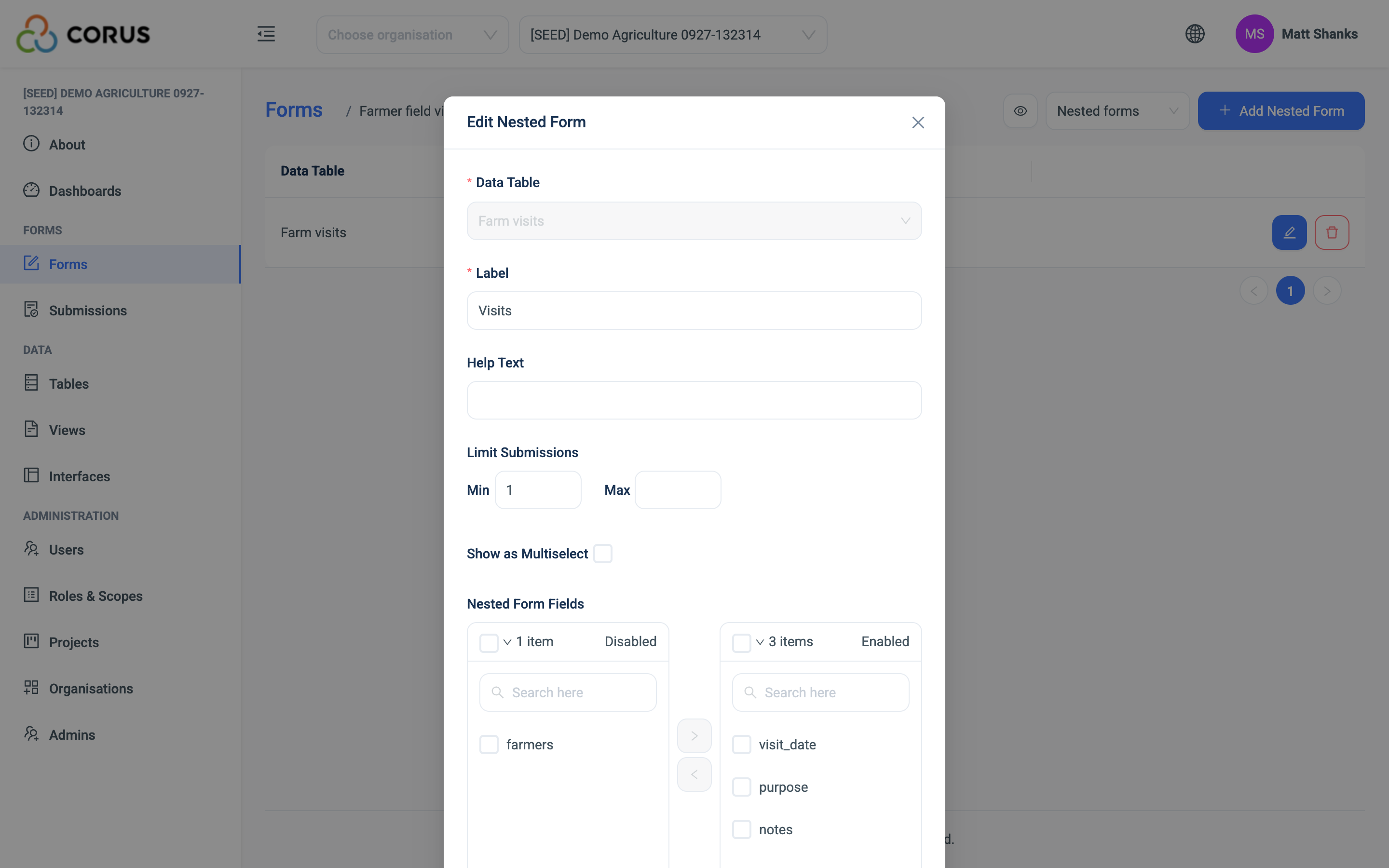
In this example, the Nested Form on the Farmer field visit form collects rows of a Farm visits table. Visit date, Purpose and Notes stay on the right. The user must complete these three questions for each visit.
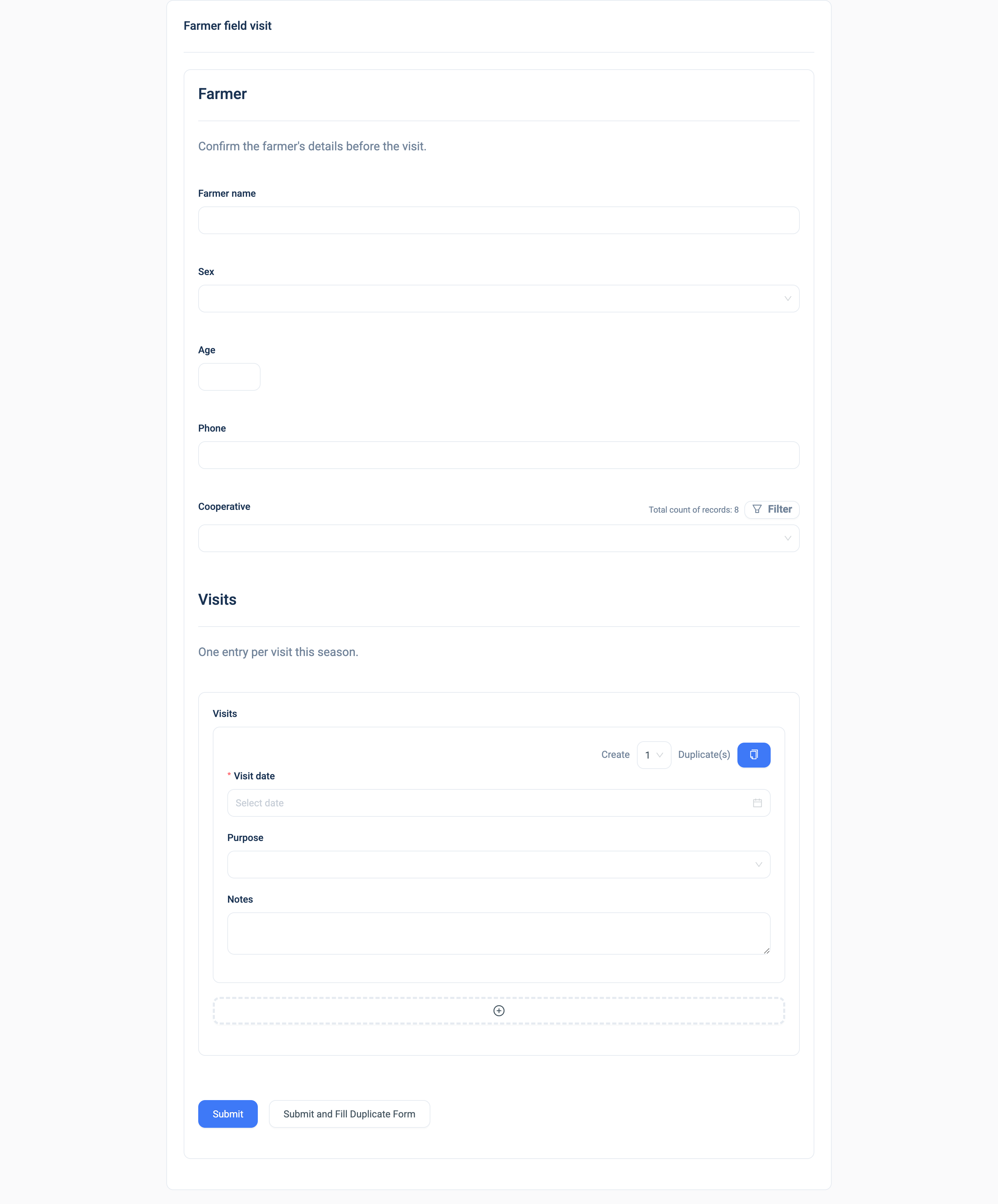
On the form, the user clicks the dashed + button to add another set of the same questions.
The red trash button removes a set.
The blue copy button makes a copy of a set with the answers already given. This is useful when several records share most of their answers. For example, to record 15 visits with the same purpose, complete one set and copy it 14 times.
Note
Each record made by the Nested Form has a Relation field that links it to the parent record. The field is named after the parent table. In this example the Farm visits table gets a field labelled Farmers. Use it to join the rows to their parent in Views and dashboards. 3D adds the field when the first submission is approved, so it appears in the table's Structure after that. To choose the field yourself, add a Relation to the parent table on the child table before the first submission, and 3D uses it.
Multi-Select mode
When Show as Multiselect is on, the Nested Form is in Multi-Select mode. The user picks one or more existing records from another table. Each pick becomes a record that links the main form's record to the picked record.
The usual use is to record attendance or participation at an event. There are many other uses.
For Multi-Select mode you need a table that records the pairs. Each record in that table links one submission of the main form to one picked record.
Here is a complete example. It records a training event and the farmers who attended.
Start with the table for the event, Training events. It records a description, a location and a date.
| Description | Location | Date |
|---|---|---|
| Soil health, Kilima | Kilima Hills | 12/01/2026 |
| Post-harvest handling | Mto Valley | 12/06/2026 |
| Farm business | Ziwa Shore | 12/12/2026 |
Tip
This example uses a Relation type for the Location, so the user picks a district from a list. If you are new to Relations, use a Text type for now.
The participants are already in the Farmers table.
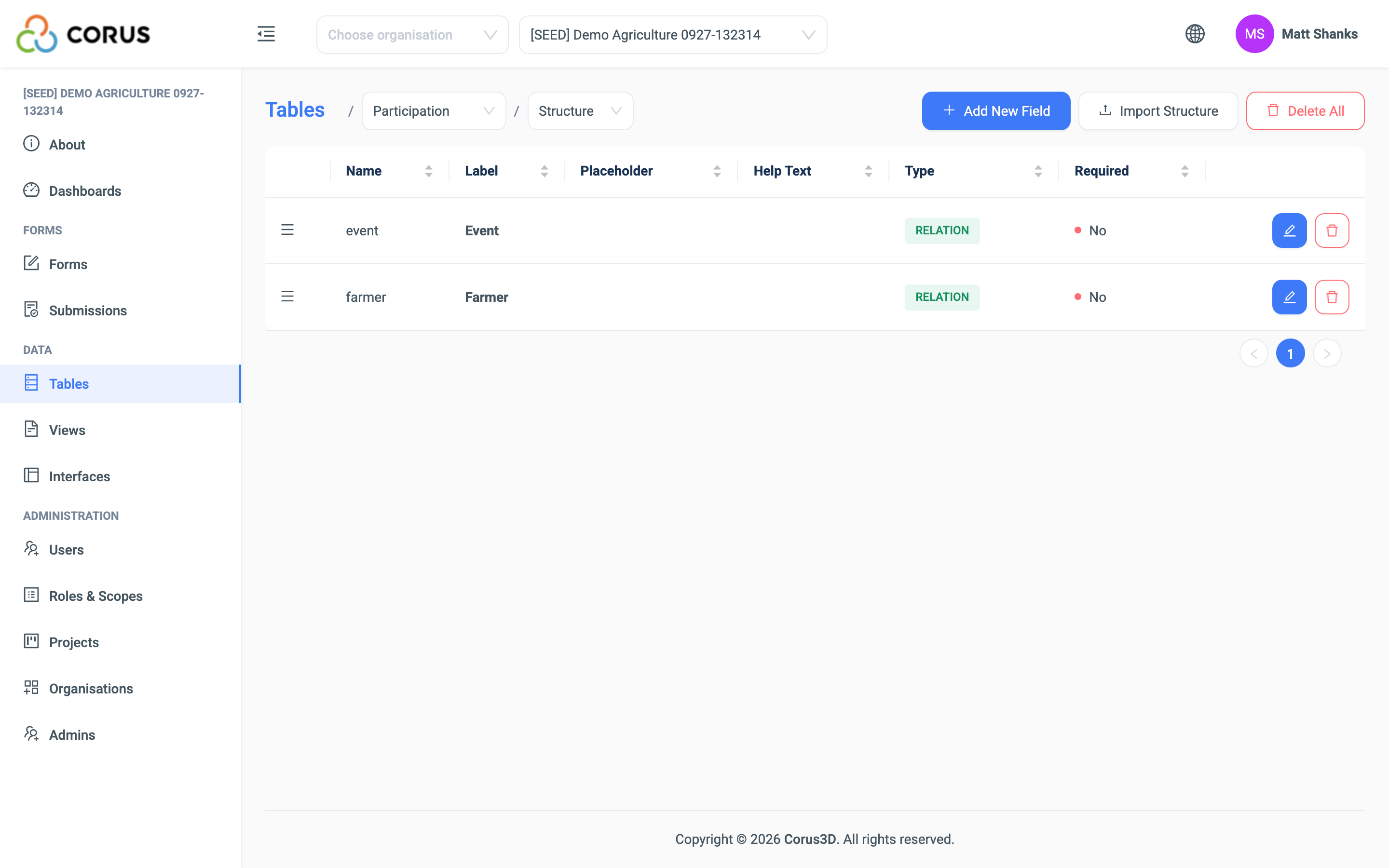
Create a Participation table. It holds one record for each pair of event and farmer. It needs two fields.
| Field name | Type | Configuration |
|---|---|---|
| Event | Relation | Table: Training events |
| Farmer | Relation | Table: Farmers |
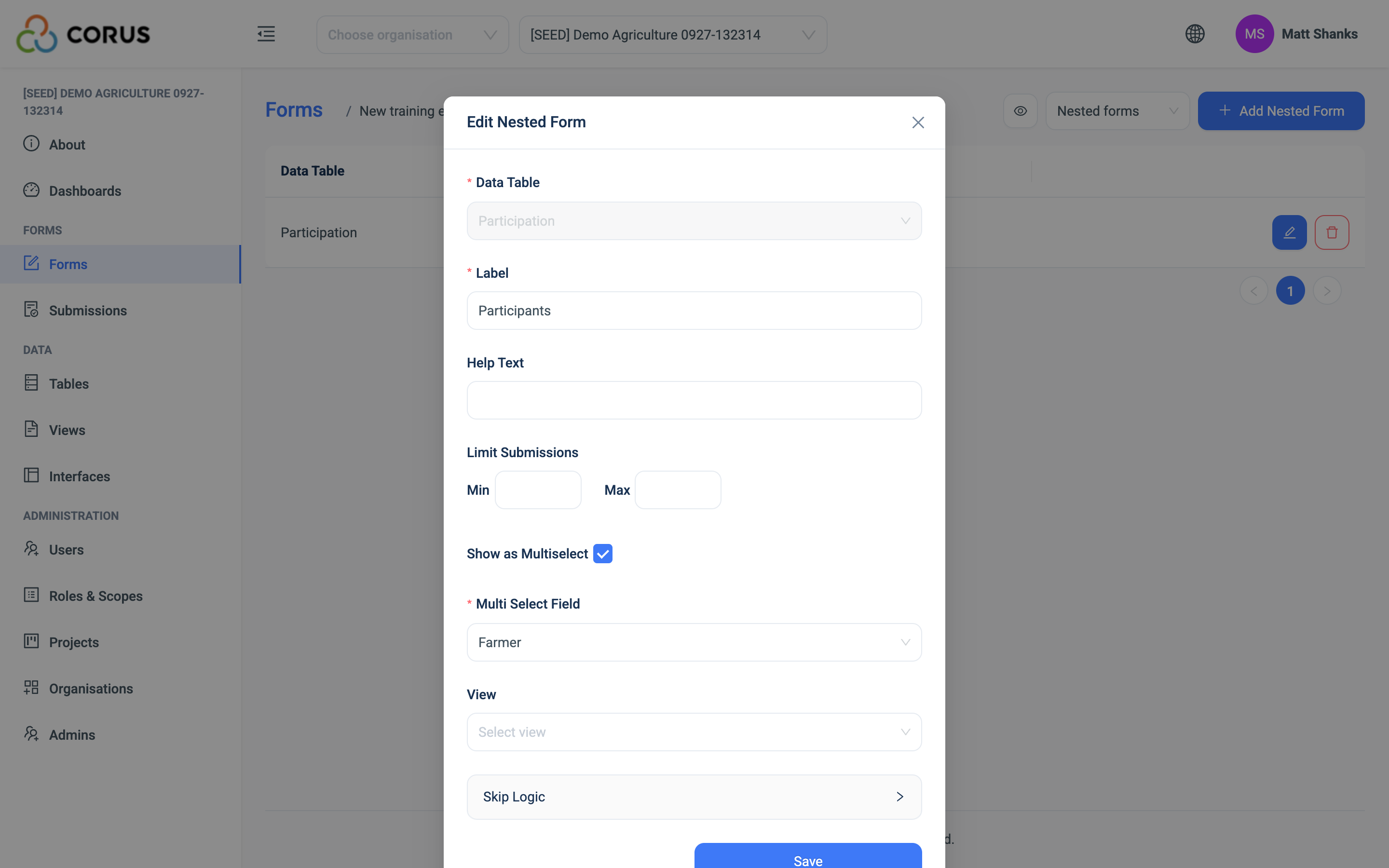
On the New training event form, add a Nested Form. Turn on Show as Multiselect and choose the Participation table.
One more setting is needed. In Multi Select Field, choose the Relation field that points to the records to pick from. We want Farmers, so select Farmer.
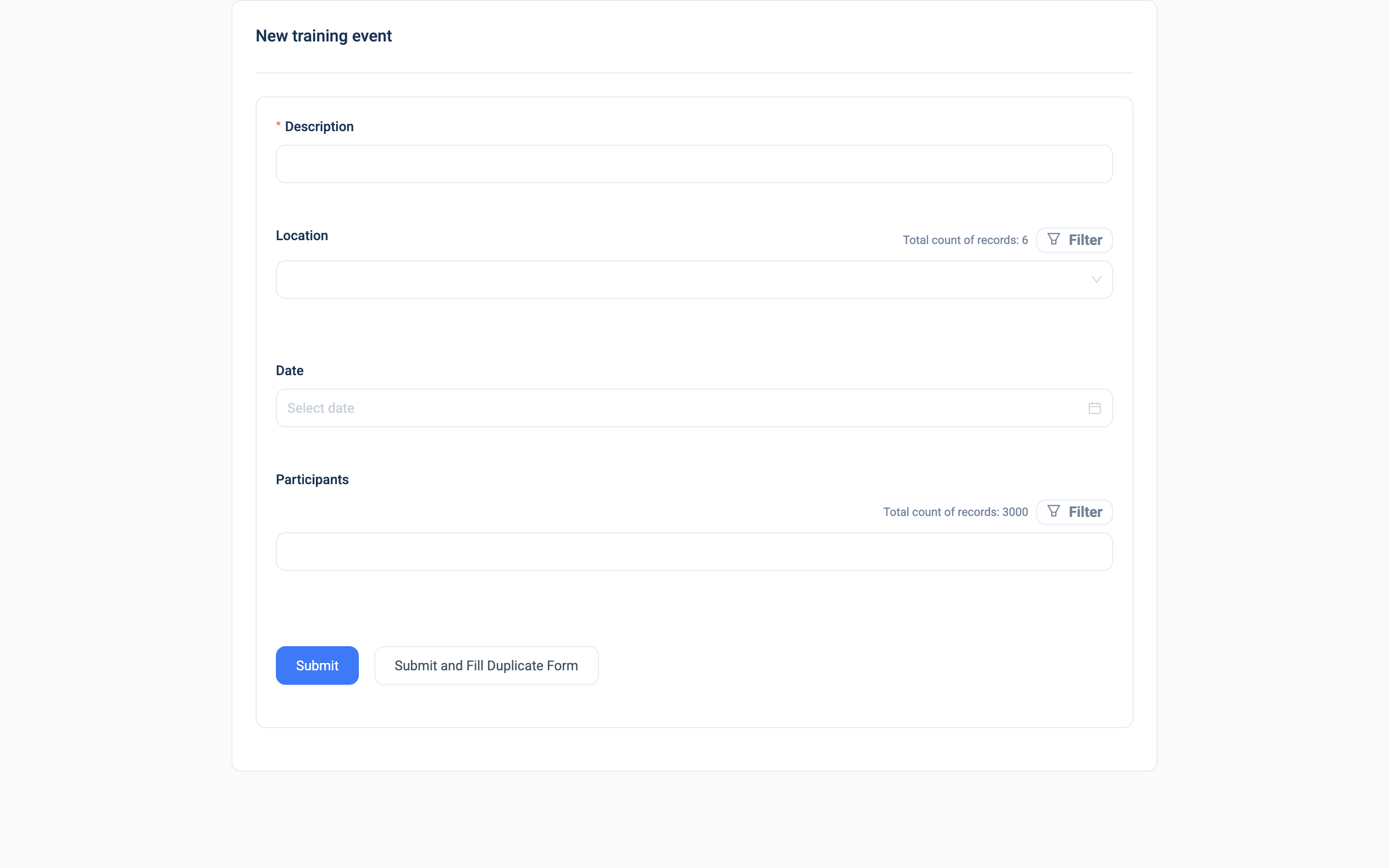
Now open the form. You can register a new training event with a date and a location, and then pick any number of Farmers as participants.
As users record events, the Participation table fills like this.
| Event | Farmer |
|---|---|
| Soil health, Kilima | Aaron Atkins |
| Soil health, Kilima | Grace Wanjiru |
| Soil health, Kilima | Peter Otieno |
| Post-harvest handling | Grace Wanjiru |
| Post-harvest handling | Peter Otieno |
| Farm business | Grace Wanjiru |
You now have a record of who attended each event. All three farmers attended the soil health event. Grace and Peter attended post-harvest handling. Only Grace attended farm business.
Tip
When you build tables yourself, rather than let a form create them, you choose the field names and the display fields before any form uses the table. See Creating a table.