Barcode
The value of a barcode or a QR code. In the 3D app the user scans it with the camera. On the web the user types it.
Use it for
- A product code, an asset tag or a sample label.
- A code printed on a card, so the app can read it instead of the user typing it.
Tip
To pick an existing record by scanning its code, use a Relation with Enable QR scan instead. A Barcode question stores the code as text. It does not link to a record.
Settings
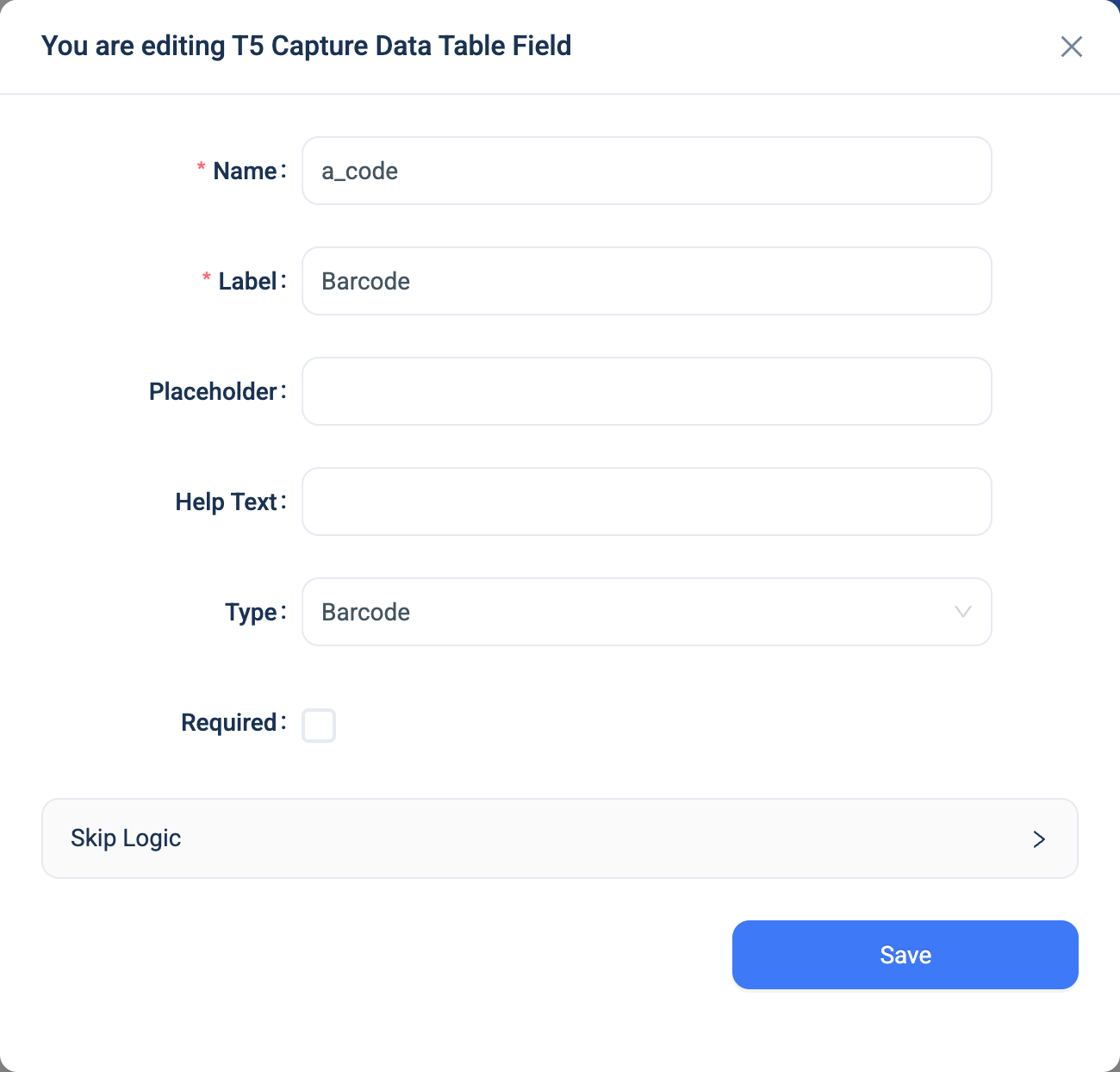
Every question has a Name, a Label, a Placeholder, Help Text, Required and Skip Logic. See Adding a question. Barcode adds nothing.
Validation
Required, checked on the form only.
Combinations that matter
- Skip Logic on another question can test the scanned text for equals or not equals.
- A calculated field reads the text.
- A form completed on the web gets the code as typed. Check the value in the data table when the code must match a printed label exactly.
How it looks
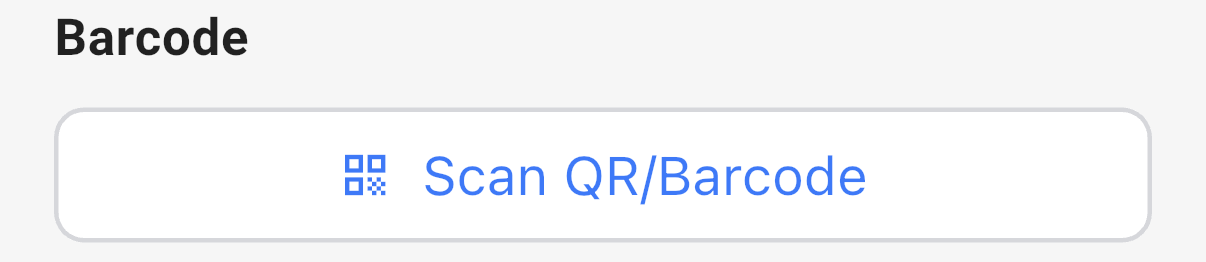
On the web the question is a plain text box. In the 3D app it is a Scan QR/Barcode button that opens the camera. After a scan, the app shows the text and a Rescan QR/Barcode button.

The question's settings, on the web:
The data
| Where | What you get |
|---|---|
| The record | The text of the code. A scan in the 3D app also keeps a picture of the code. |
| The data table | The text. |
| A formula or Skip Logic | The text. |