Record History
3D keeps a copy of every record before each change. You can see who changed what and when, and put an old version back.
What is recorded
| Event | What 3D keeps |
|---|---|
| A record is edited, by hand, by Bulk Edit or by an import that updates it | The whole record as it was before, with the editor and the time. |
| A record is deleted with a bulk action | The record as it was, when the action deletes 100 records or fewer. A larger delete keeps the earlier versions but adds no entry. |
| A batch is Reset on the Submissions page | No entry. The earlier versions stay. |
| A calculated field is recalculated after a formula change | No entry. |
| A record is restored | The record as it was at the time of the restore. |
A record added by hand or by a submission has no history until someone edits it.
Note
Users whose access is limited by data scoping do not see record history. See Groups and Data Scoping.
Viewing a table's history
Open the table's records page. In the dropdown next to the table's name at the top, choose History.
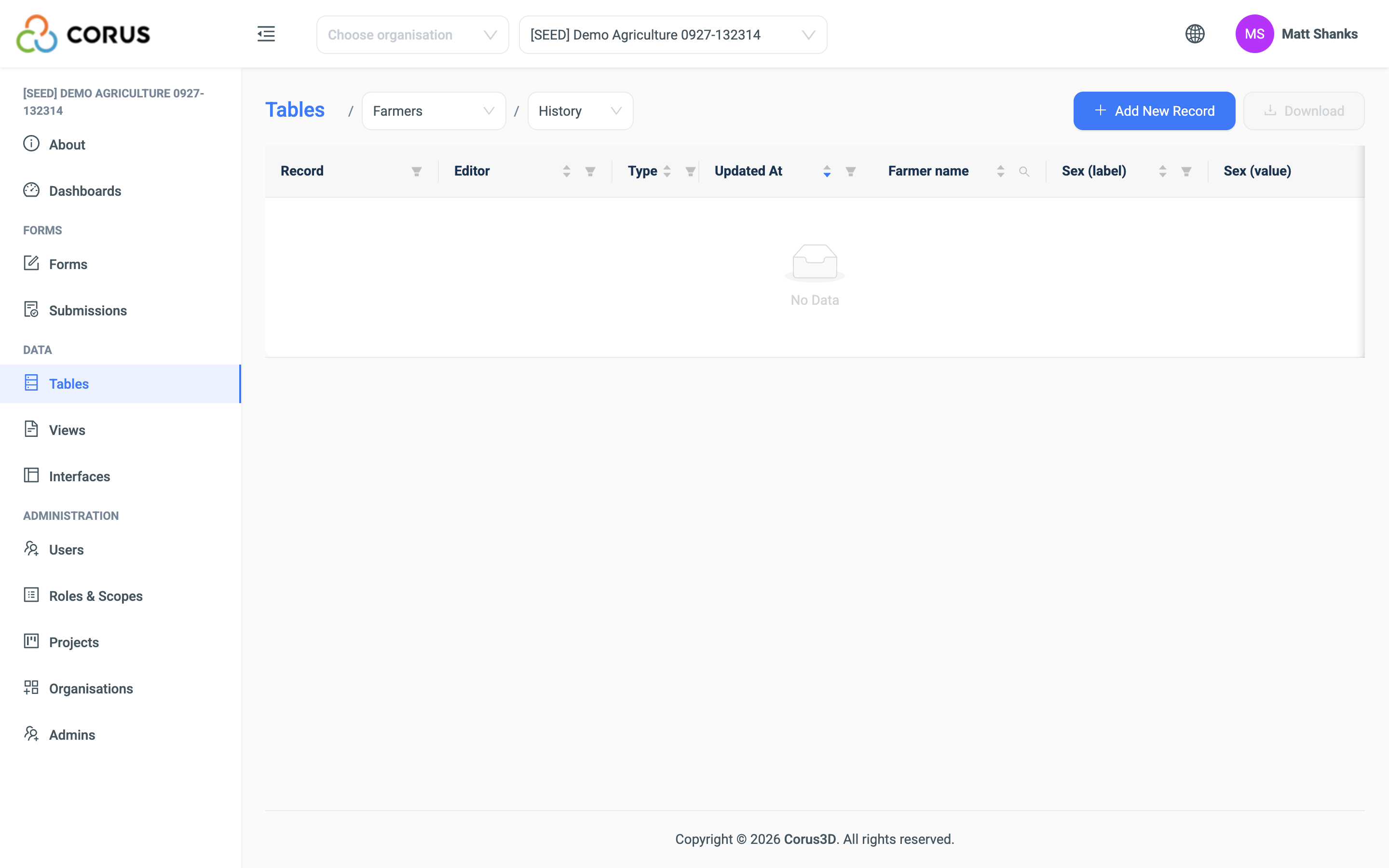
The page lists every saved version, newest first, with the record, the editor, the type of change and the time. The remaining columns hold the values of that version. Filter and sort the columns in the same way as the records grid.
Click Download to export the history as CSV or Excel.
Viewing one record's history
On the records page, click the history button at the left of the record's row. The list shows only that record's versions.
Restoring a version
Find the version you want in the history list and click Restore. 3D writes those values back into the record. The current values go into the history as a new version, so a restore can itself be undone.
Warning
You cannot restore a deleted record. The history shows what it held, and you can add it again by hand or by import.