Records
A record is one row in a data table. Most records arrive as approved form submissions. You can also add, edit and delete them here, and import them from a file.
Open the Tables page from the main navigation and click a table's title. The records page opens.
Viewing records
The page shows the records as a grid, one column per field, 100 rows per page. A Select One field has two columns, one for the label and one for the stored value. A Relation field shows the related record's display value.
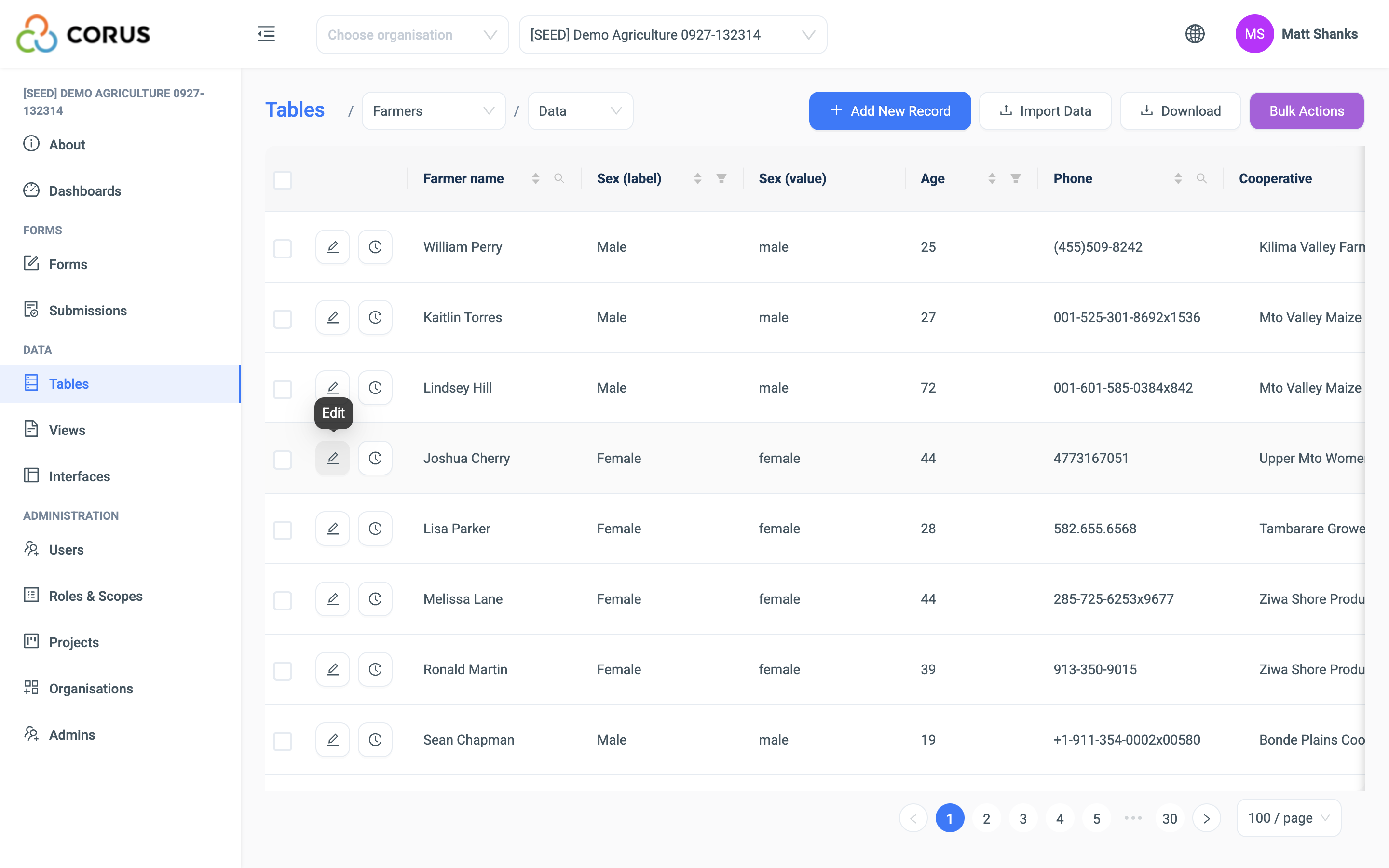
After the fields come the system columns: Creator, Source (how the record arrived: a submission, added by hand, or an import), Created At and Updated At.
Sorting and filtering
Click a column header to sort by that column. Click again to reverse the order.
Click the filter icon in a column header to filter by that column. The controls depend on the field type.
| Field type | Filter |
|---|---|
| Text, Long Text, Relation | Contains the text. Case does not matter. |
| Integer, Decimal, Percent, Range | A value with an operator, or a From and To range. |
| Date, DateTime | A date with an operator, or a From and To range. |
| Select One, Multi-Select | One or more of the options. |
| Toggle | On, off or both. |
| Any type | Blank or Non-blank. |
Filters combine. Each filter narrows the rows further. The filters also apply to an export and to a bulk action, so you can act on exactly the rows you see.
Searching
The search icon in a text column's header searches that column.
Adding a record
Click Add New Record in the top right corner. The table's form opens as a dialogue, with one question per field. Complete it and click Submit.
A record added here does not go through the submissions review. It is in the table at once.
Editing a record
Click the blue edit button at the left of the record's row. The Edit Record dialogue opens with the current values. Change them and click Save Edits.
3D keeps the old values. See Record History.
Deleting a record
Tick the checkbox at the left of the row, open Bulk Actions and click Delete. Confirm in the dialogue.
Warning
Deleting a record is permanent. The record's history stays, so you can see what it held, but you cannot restore it.
Bulk actions
Tick the checkboxes of several rows, or filter the grid to the rows you want. Then open Bulk Actions in the top right corner.
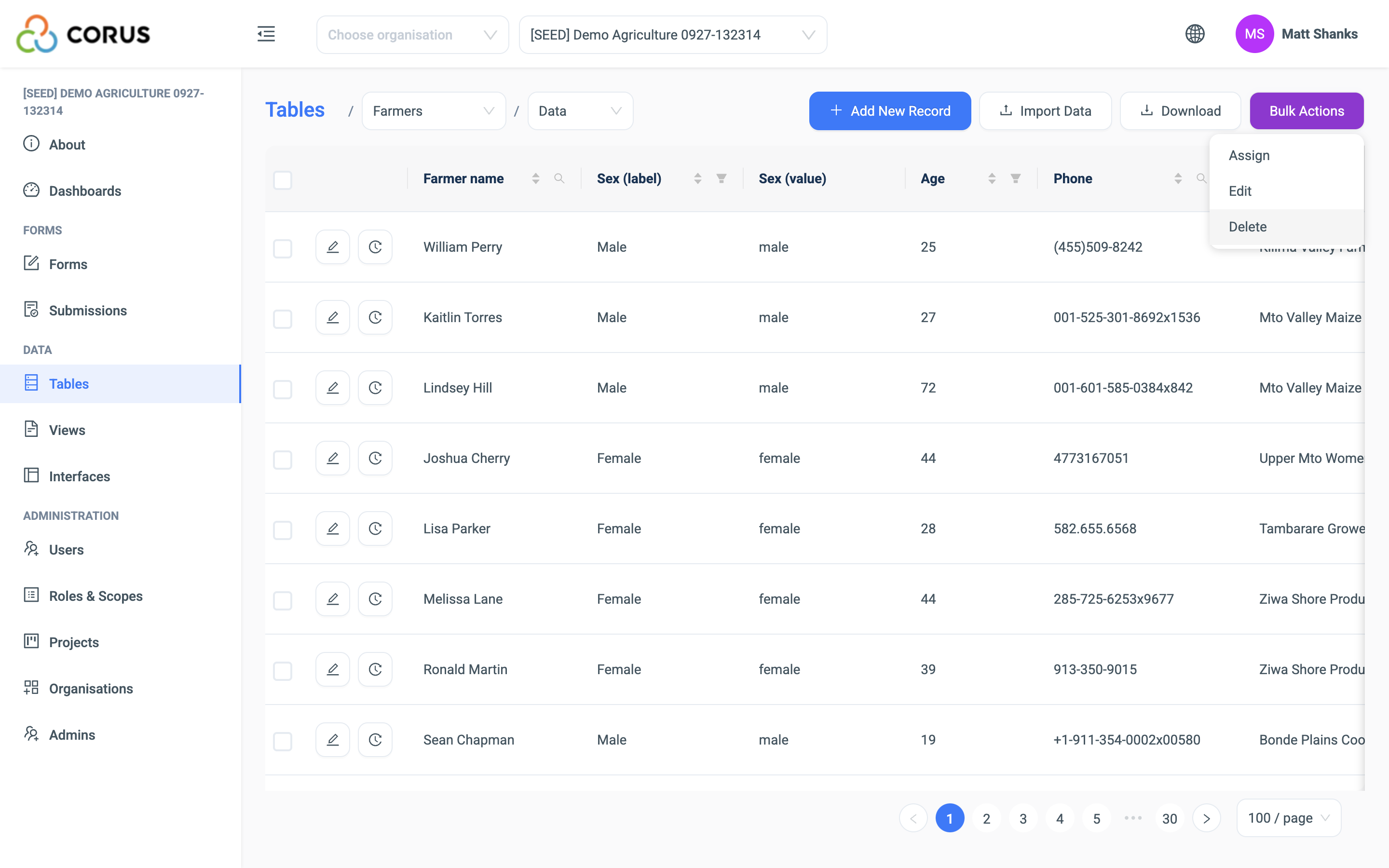
| Action | What it does |
|---|---|
| Edit | Sets the same value in one or more fields of every selected record. Choose the fields, enter the values and save. |
| Delete | Deletes the selected records, after a confirmation. |
| Assign groups | On a table that is a scoping dimension, adds the selected records to a group. See Groups and Data Scoping. |
With no rows ticked, a bulk action applies to every row that matches the current filter. With no filter, it applies to the whole table. Only a system administrator can act on a whole table this way.
Exporting data
Click Download in the top right corner and choose CSV or Excel. Download needs the View Data permission. The file holds the rows that match the current filters, in the current sort order. There is no limit on the number of rows.
The columns follow the grid, with a few differences.
- A Select field gives two columns, the label and the value. The label follows the language you have chosen in the language menu at the top of the screen. An option with no translation is exported in English. See Languages and Translations.
- A Relation field gives the display value, plus a second column with the related record's id. Use the id to match records across exports.
- A GeoLocation field gives one column with longitude and latitude.
- A Cascading Select gives one column per level.
- The last columns are the creator, the creation date and the record's system id. Source and Updated At are not exported.
In an Excel export, each cell has the right type. Numbers are numbers, dates are dates, a Percent field has a percentage format, and text that starts with a zero keeps it.
Tip
An export is the safest way to make a large change to a table. Export, edit the file, and import it again with the record id as the match field. See Importing Data.