Submissions
A submission is one completed form, as it arrived at the 3D server. It waits for review, or becomes a record at once, depending on the form's settings.
Submission or record?
A submission is the answers a user sent. A record is a row in a data table. A submission becomes a record when it is approved.
Each form has the setting Automatically approve submissions. See Creating a form.
- On: every submission is approved on arrival and becomes a record at once. Use this for forms where nobody needs to check the answers.
- Off: every submission waits as Pending until a user with the Manage Submissions permission approves or rejects it.
The Submissions page
Open Submissions from the main navigation. The page lists every submission in the project, newest first.
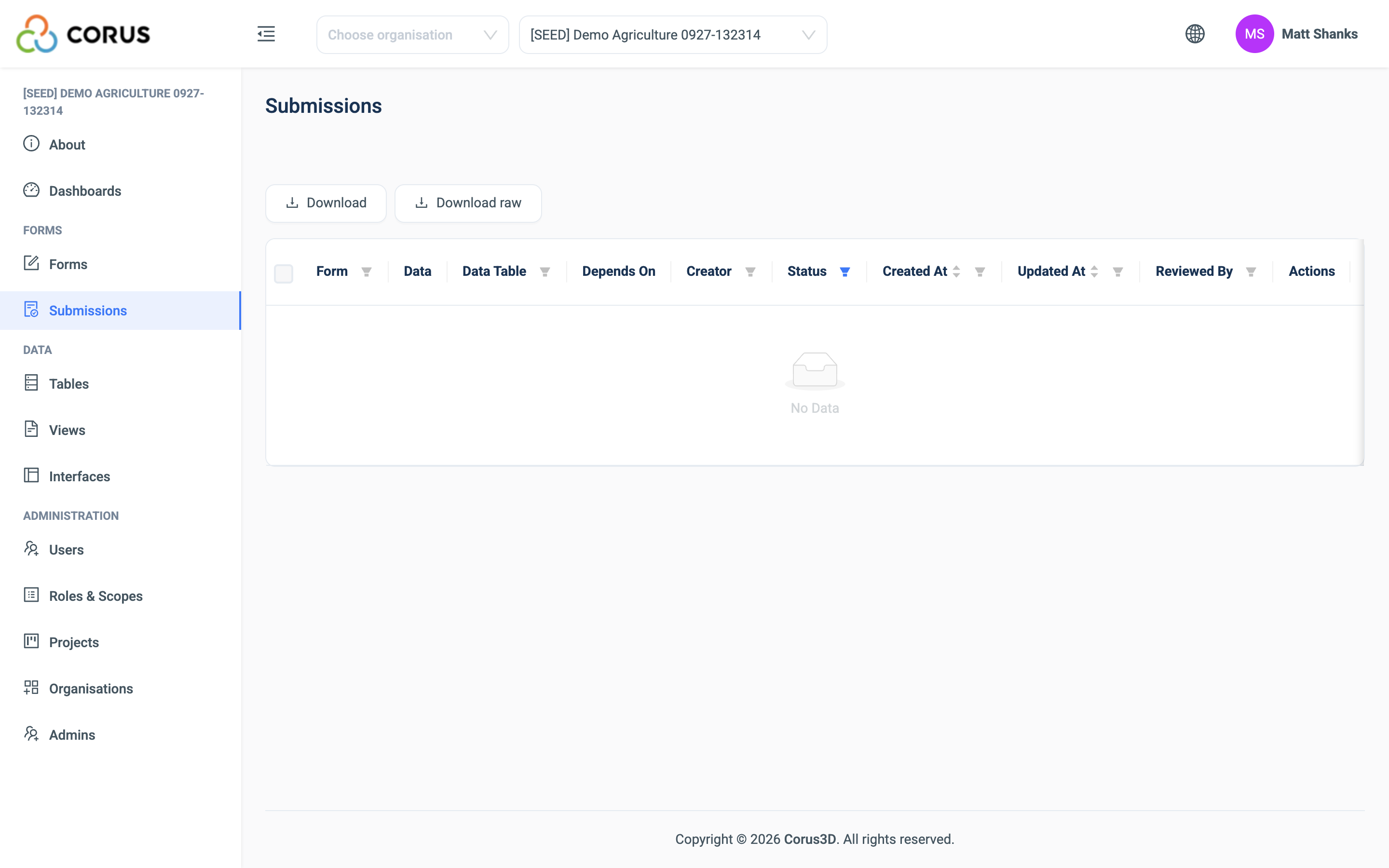
| Column | Meaning |
|---|---|
| Form, Data Table | The form that was completed and the table it writes to. |
| Creator | The user who sent it. An anonymous submission from a public form has no creator. |
| Created At | When it arrived. |
| Status | Pending, Approved or Rejected. A Pending submission can also show Blocked. See below. |
| Reviewed By | The user who approved or rejected it. |
| Depends On | The other submissions this one links to, when it arrived as part of a set. |
| App Version | The version of the 3D app that sent it. |
Show columns lets you hide or show the optional columns. Filter and sort the columns in the same way as a records grid.
Reviewing a submission
Each row has these actions.
| Action | What it does |
|---|---|
| View | Shows every answer, including photos, files and locations. |
| Edit | Opens the answers for correction. Only a Pending submission can be edited. |
| Approve | Accepts the submission. 3D creates the record, and the status becomes Approved. |
| Reject | Refuses the submission. No record is created, and the status becomes Rejected. The answers stay, so you can see what was refused. |
| Delete | Removes the submission itself. |
An approved submission cannot be rejected. To change an approved record, edit it in its table. See Records. A rejected submission can still be approved later, for example after an edit.
Download exports the list as CSV or Excel. Download raw exports the answers as they arrived, before any formatting.
Blocked submissions
A submission can link to a record that does not exist yet. This happens when a device sends a set of related submissions, such as a new school, then a new class in it, then the students in the class. The class links to the school's submission, not to a record.
Until the school is approved, the class submission is Blocked. Its approve action is disabled, with the note "Approve its dependencies first". Approve the school, and the class becomes Pending. Approve the class, and its students become Pending.
If you reject a submission that others depend on, 3D asks Reject dependents too? and lists them. Rejecting the parent alone would leave the others blocked for ever.
This also applies to forms with automatic approval. A submission whose parent does not exist yet is held as Pending, and is approved as soon as the parent is.
Sets from the app
When the 3D app sends several submissions together, 3D groups them as an offline batch. The list shows the batch with a header, the number of submissions in it, and how many are approved, rejected and waiting. Expand to review the set shows its members in dependency order.
The batch header has three actions.
| Action | What it does |
|---|---|
| Approve set | Approves every waiting submission in the batch, parents first. If one is blocked or fails, 3D stops there and tells you how many it processed. |
| Reject set | Rejects every waiting submission in the batch, after a confirmation. |
| Reset | Returns every decided submission in the batch to Pending and deletes the records the approvals created. Use it when a batch was approved in error. 3D warns you when records in other tables already link to those records, because a reset breaks those links. |
Note
A batch groups the submissions that one device sent within the same ten minutes. It does not mean the submissions are related to each other. The Depends On column shows the real links.
Submissions on the device
In the 3D app, a user can see their sent submissions under Settings, with the server's decision: waiting for acceptance, accepted or rejected. See 3D App.