Interfaces
An Interface is a page built around one record. You pick a farmer, a school or a beneficiary, and the page shows that record's details together with everything linked to it. It is the third way to read your data, next to the table grid and the dashboards.
An Interface has a base table. Its sections are:
- a card with the chosen record's own fields,
- a card for each record it links to through a Relation field, such as the farmer's cooperative,
- a list for each table whose records link back to it, such as the farmer's visits.
Interfaces are also available in the 3D app, where field staff use them to look up a record before they complete a form. See 3D App.
The Interfaces page
Open Interfaces from the main navigation. The list shows each Interface with its name, base table, status, number of sections and creator. Click the name, or the View button, to open it.
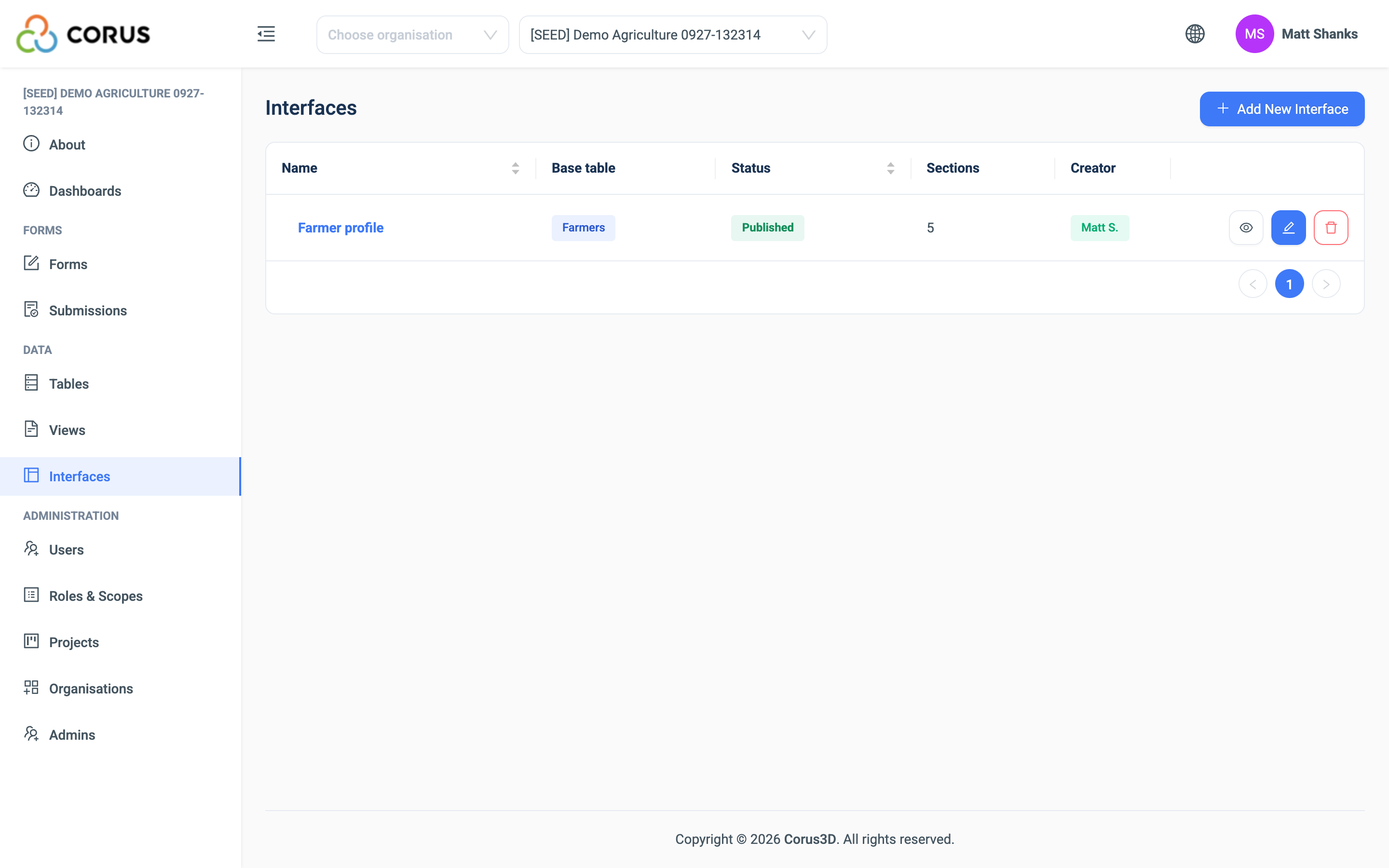
| Status | Meaning |
|---|---|
| Draft | Never published, or unpublished. Only users with Manage Interfaces see it. |
| Published | Everyone with View Interfaces can open it. |
| Unpublished changes | Published, but edited since. Users see the published version until the changes are published. |
Users with the Manage Interfaces permission also see Add New Interface, and the Edit and Delete buttons on each row. See Roles and Permissions.
Building an Interface
- Click Add New Interface.
- Enter a Name and choose the Base table. Click Next.
- On the Layout step, click Add Component for each section. See below.
- Drag the sections into the order you want. Click a section to rename it or change its Fields shown.
- Click Publish.
The builder saves as you work. There is no Save button.
Warning
If you change the base table later, every section is removed and you set them up again.
Adding a component
The Add a component dialogue has three steps.
- Choose Card for the details of one record, or List for rows of related records.
- Pick the source. For a Card, that is the base table itself or one of its Relation fields. For a List, it is a table with a Relation or Matrix field that points at the base table. A source already in use is marked.
- Tick the fields to show. The first four are ticked for you. Click Add.
An Interface reaches one step from the base table in each direction. A table two links away is not offered. Cascading Select fields cannot be a source.
Configure and Preview
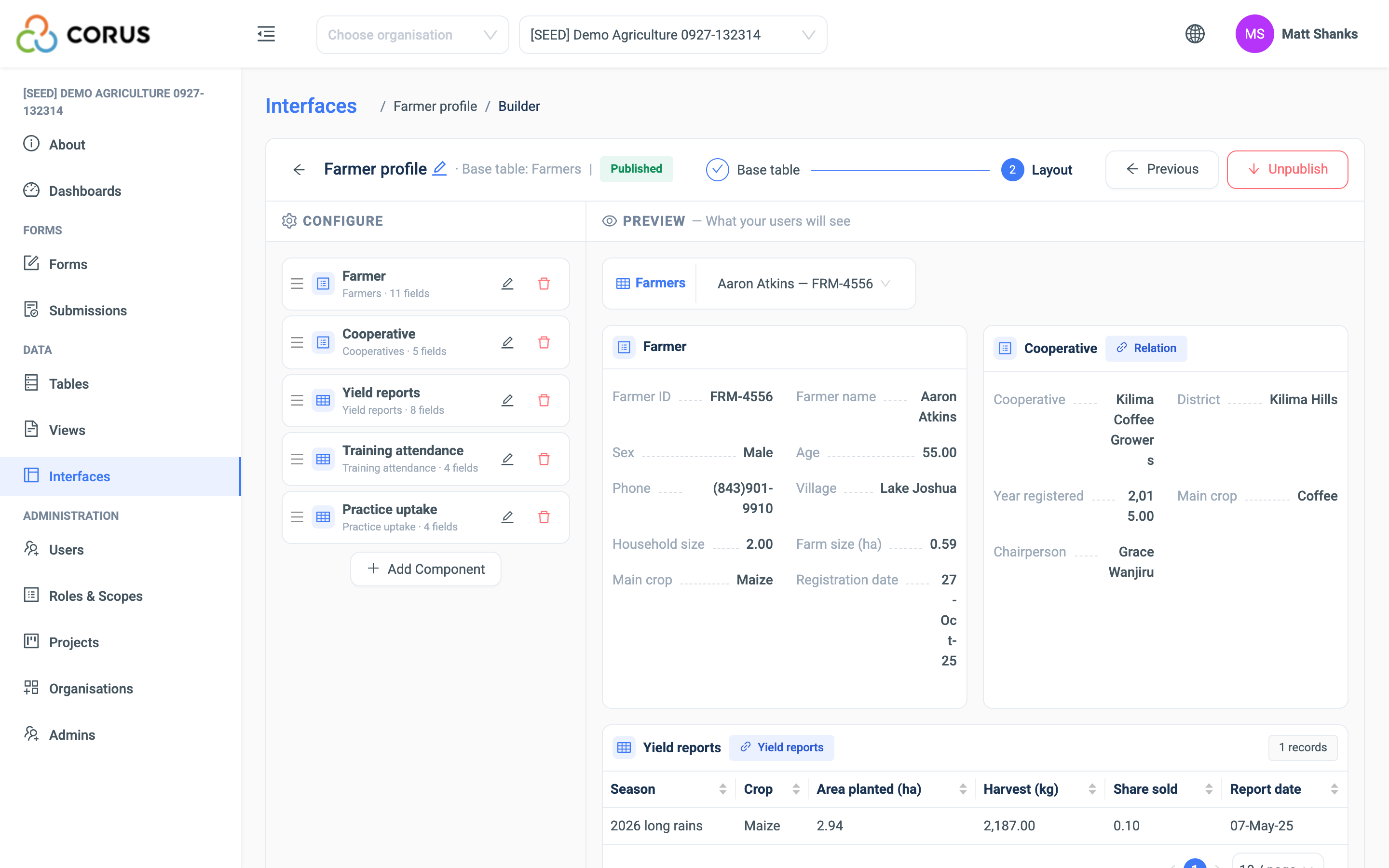
The Layout step has two panels. Configure, on the left, is the outline of sections. Preview, on the right, shows the page with a real record, as your users will see it. Pick the sample record with the search box. The record you have selected when you publish becomes the default record for viewers.
Publishing
| Button | What it does |
|---|---|
| Publish | Makes the current layout the one that users see. Needs at least one section. |
| Unpublish | Hides the Interface from users. The layout is kept, so you can publish it again in one click. |
| Discard | Throws away the edits since the last publish and returns to the published layout. |
Users always see the last published layout. Edit as much as you like, and publish when the page is ready.
Using an Interface
Open the Interface from the list. Choose a record in the search box at the top. Entries show the record's display value and its ID field, when the table has one. The list loads more records as you scroll.
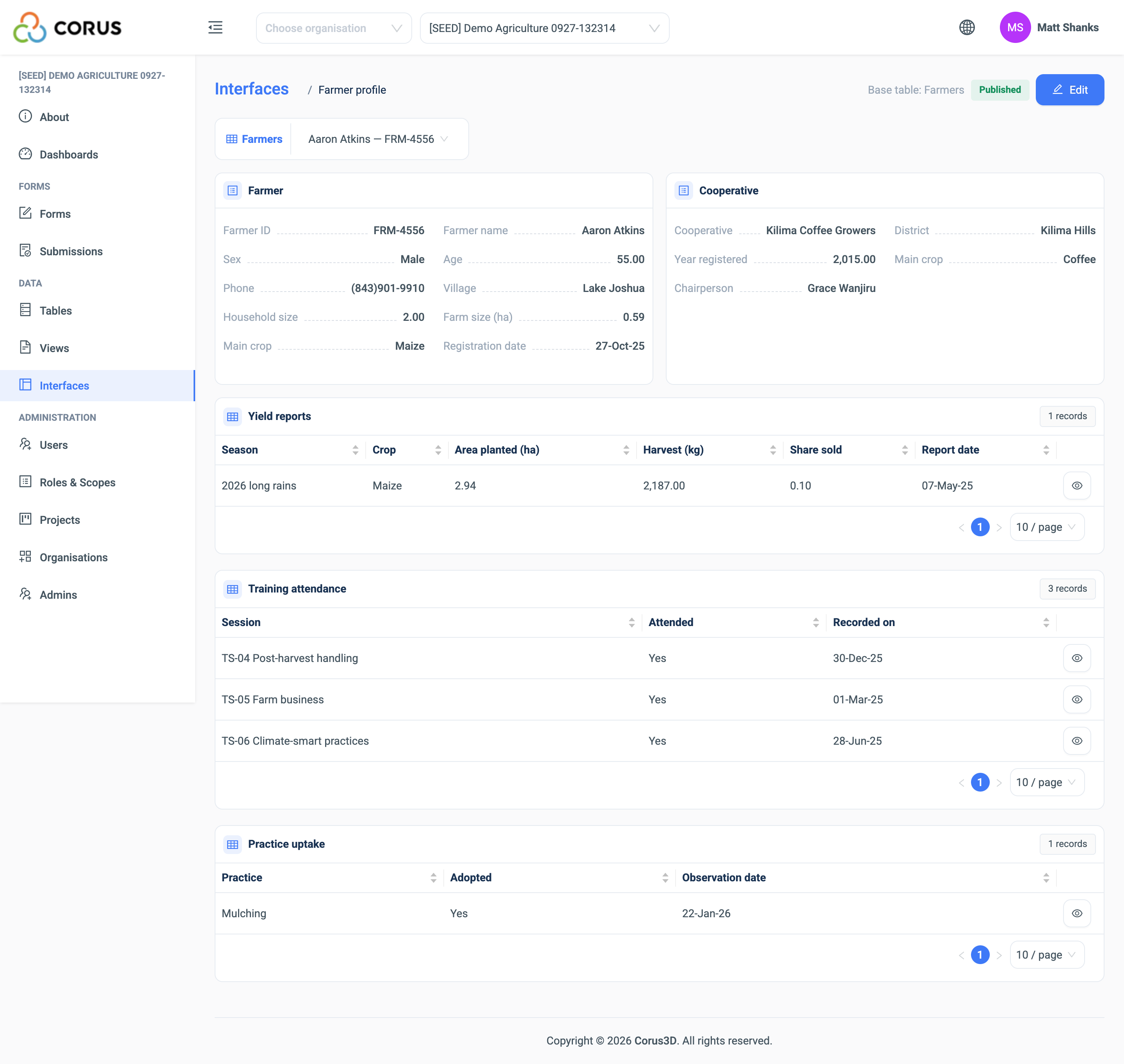
The page shows the sections. Cards sit two to a row. Lists show the number of records, sort by any column, and page through the rows.
- The View button on a list row opens the full record in a new tab. It appears only for users who also have a data permission.
- An eye button on a card title opens another Interface that is built on that card's table, with the record already selected.
The page remembers the last record you looked at, and opens it next time.
What viewers can see
An Interface shows only the fields ticked in the builder, and nothing else from those records. A user needs no data permission to use an Interface. This makes an Interface a safe way to give a field team a view of the records they work with, without opening the tables.
An Interface can narrow what a user sees. It never widens it. Data scoping still applies, so a scoped user sees only the records in their scope. See Groups and Data Scoping.
Note
The display value of a linked record, such as a cooperative's name on a farmer's card, can be up to ten minutes out of date after someone edits the related record.