Matrix Field
A table inside the form. The user fills in several rows of related data without leaving the form. Each row becomes a record in a linked table.
The linked table gets a Relation field back to the parent record, named after the parent table, the first time a record with rows is saved. Use it to join the rows to their parent in Views and dashboards.
Use it for
- A fixed checklist with the same questions for each item, such as the condition of each area of a school.
- A short list of items with a few columns each, such as the crops harvested and their tonnes.
For rows with many questions, or rows the user completes one at a time, use a Nested Form.
Example
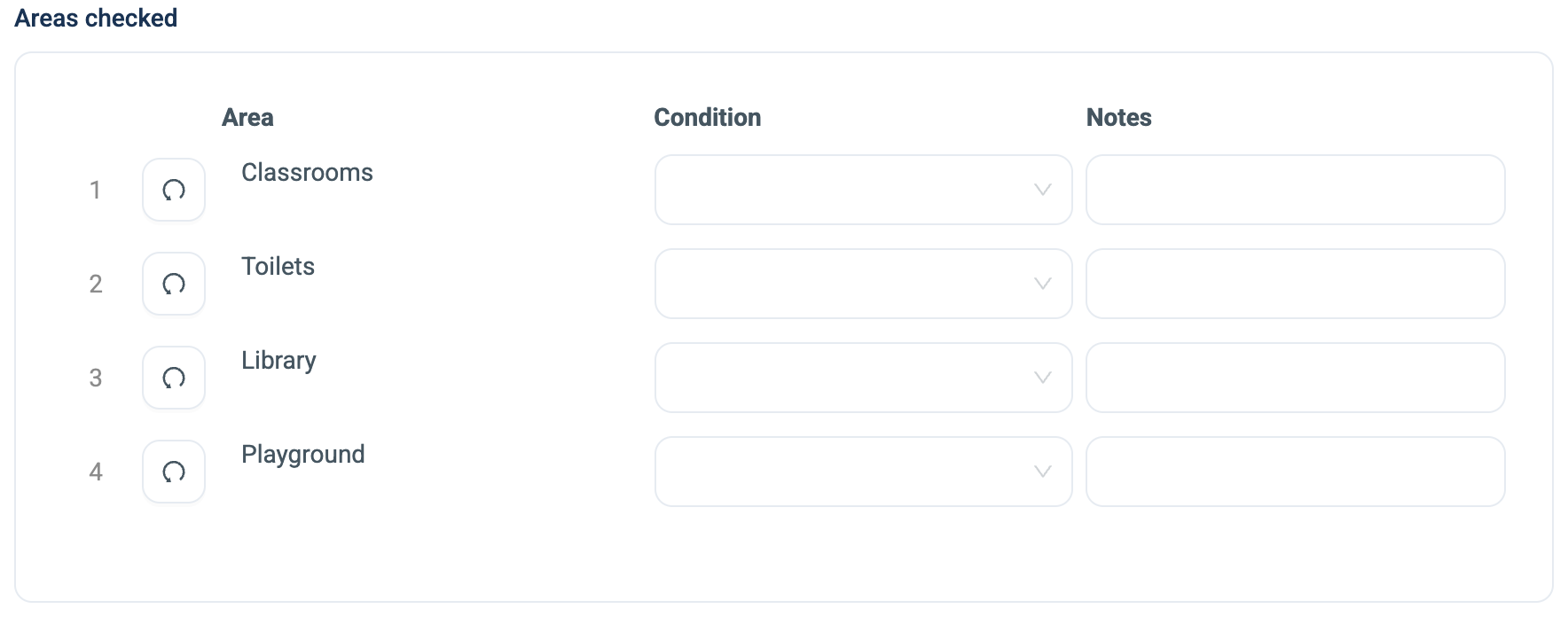
A School Inspection form has a Matrix Areas checked, with a row for each of Classrooms, Toilets, Library and Playground, and the columns Condition and Notes. The inspector fills in the two columns for each row. Each row becomes a record in the Facility Rows table, linked to the inspection.
Settings
Every question has a Name, a Label, a Placeholder, Help Text and Skip Logic. See Adding a question. Matrix Field adds these.
| Setting | Description |
|---|---|
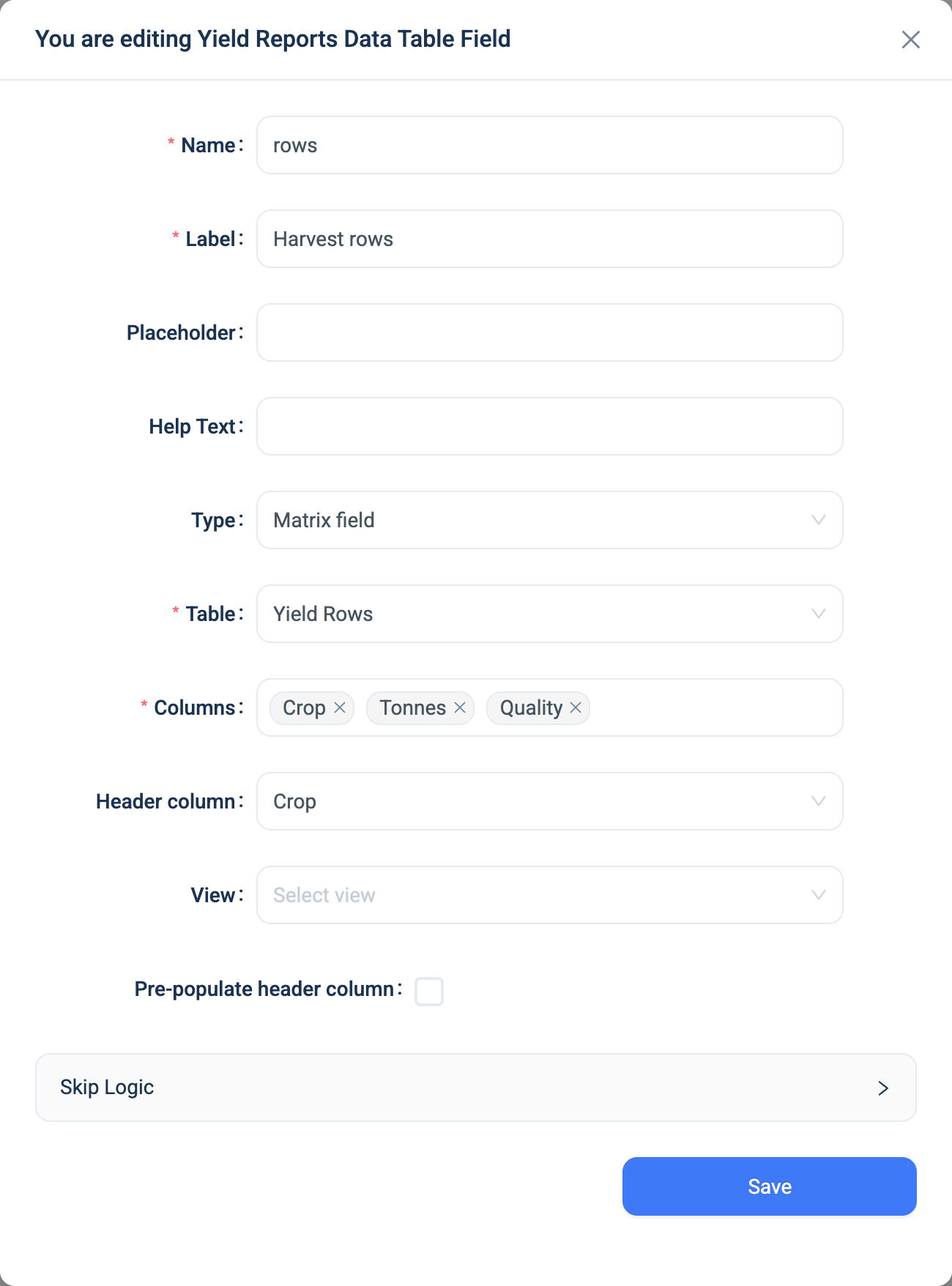
| Table | The table that holds the rows. Required. Create it first, with a field for each column. |
| Columns | The fields of that table to show as columns. Required. Geolocation, GEO Area, ID, Auto Calculated and Matrix fields cannot be columns. |
| Header column | The column that labels the row. Optional. It is shown first. |
| View | For a Relation header column: narrows the records the header offers. Appears when you edit the question from the form. |
| Select Index of Join Table | Appears when the View joins the header's table more than once. |
| Pre-populate header column | For a Relation header column: creates one locked row per record, up to 100, so the user fills in the other columns only. |
There is no Required checkbox and no Validation panel.
Validation
None. The form accepts a Matrix with no rows. A row that holds only the header value is dropped when the record is saved.
Combinations that matter
- Pre-populated rows need a Relation header. With a Select One header the rows are set when the form is built, one per option. Rows the user adds need a header column with an open list, such as a Relation with no pre-population.
- A View on the header limits which records become rows, or which the user can pick.
- Number columns get a Total row on the web, for display only.
- A calculated field on the parent cannot read the rows. Put a calculated field in the linked table to compute per row, or use a Nested Form with
sum()on the parent. - Every save replaces the rows. The row records are deleted and created again, so their ids change. Do not link other records to a matrix row.
- Deleting the parent does not delete the rows.
How it looks
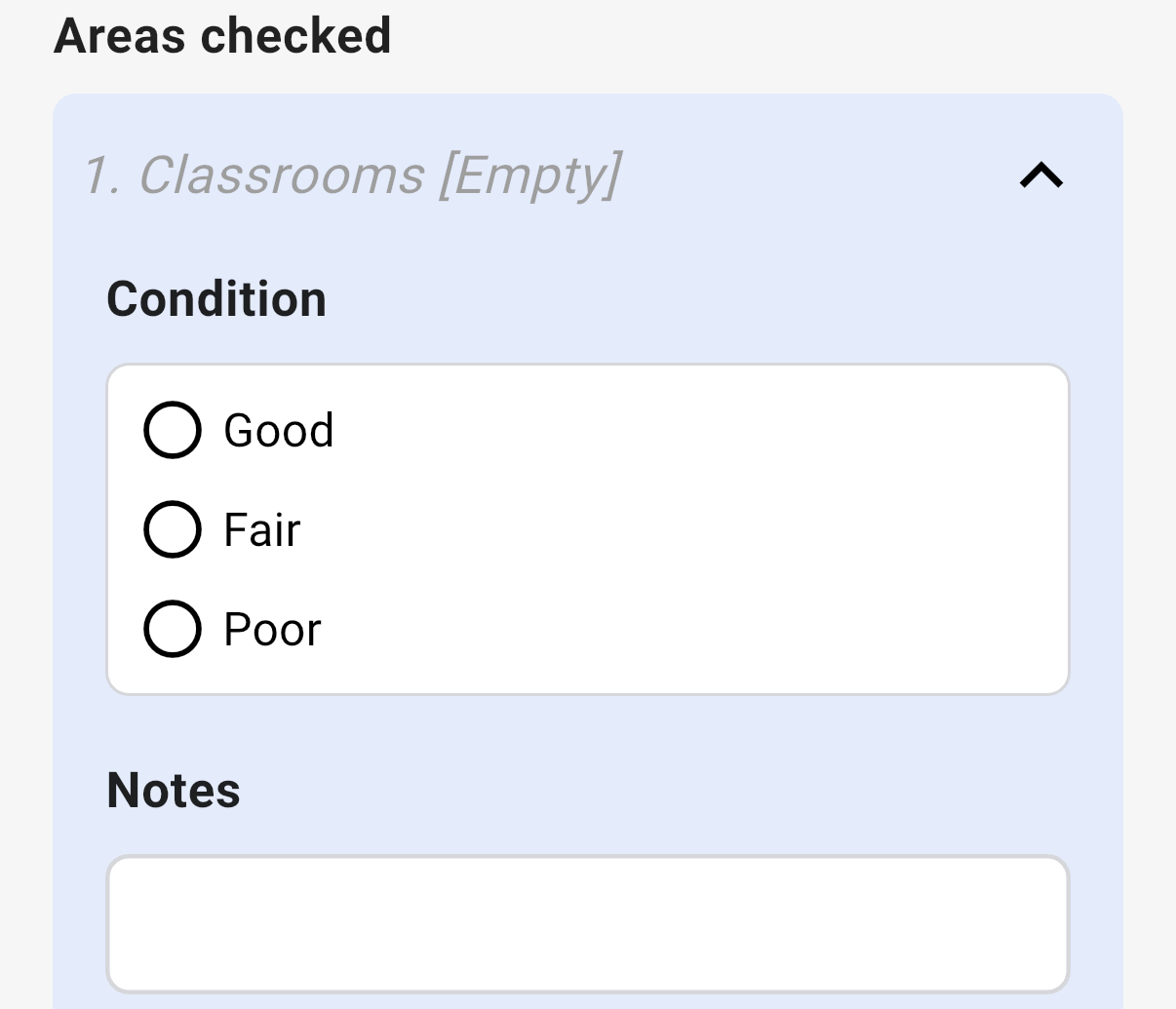
On the web the question is a grid: a row number, a reset or menu button, the header column, then the other columns. A dashed + adds a row when the rows are not pre-populated. The row menu offers Reset row, Create copies and Delete row. With more than three columns, each row stacks as a card on a narrow screen. In the 3D app each row is a collapsed bar with its number and header value. Tap it to open the other columns. Add row adds a row when the rows are not pre-populated.
Pre-populated rows, one per area:
Rows the user adds:
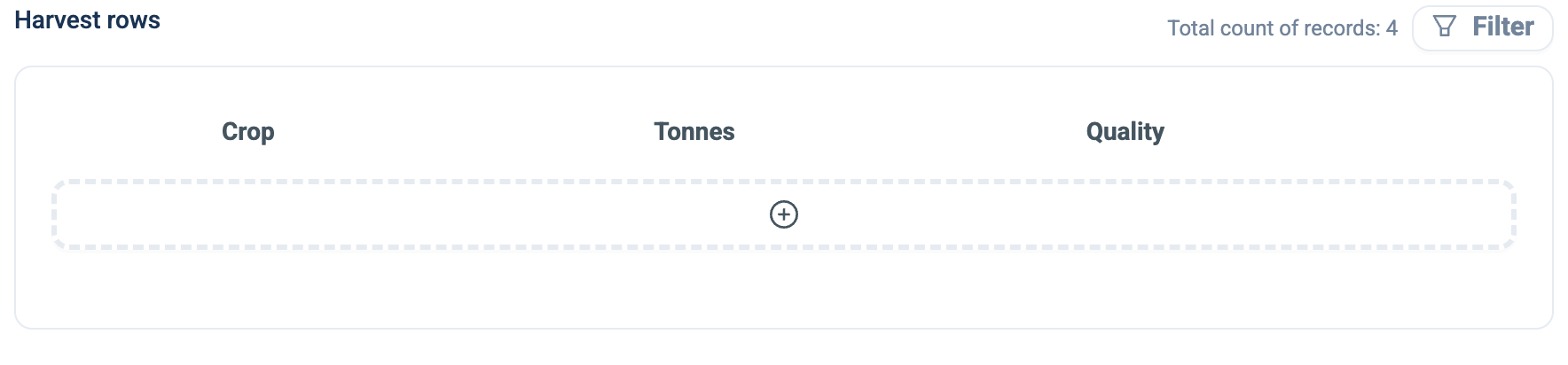
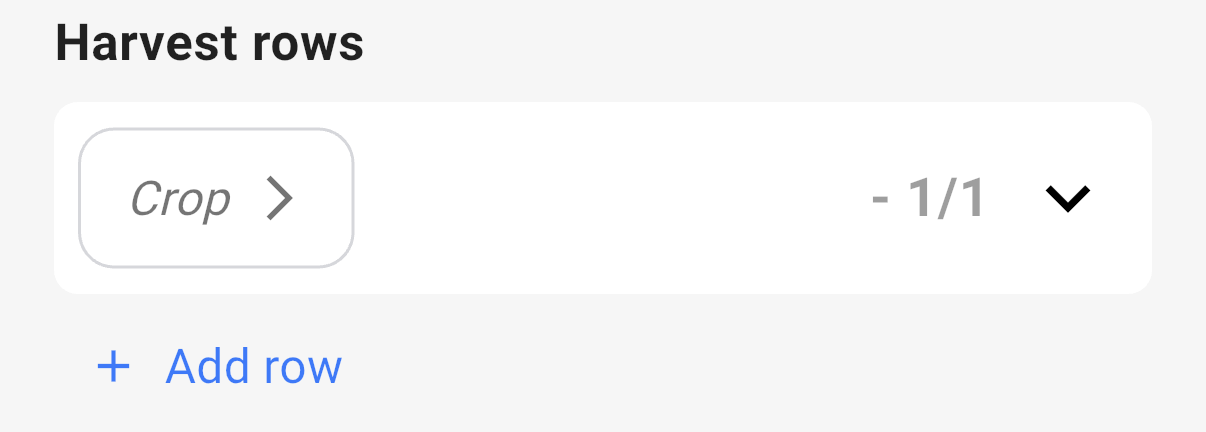
The question's settings, on the web, with a Relation header column:
The data
| Where | What you get |
|---|---|
| The parent record | A reference to each row record. |
| The linked table | One record per row, with a Relation back to the parent, named after the parent table. |
| A View | Join the linked table to the parent to see the rows with the parent's fields. |
| An export of the parent table | One text column that is not readable. Export the linked table instead. |
| The analytics warehouse | The linked table as a table of its own, with the parent's id in the back-relation column. |
Related types
- Nested Form for rows with many questions, or a picker for several existing records.
- Relation for the header column.
- Select One for a fixed list of rows.